35
Operating your monitor
Icon Menu and submenus Description
DP
Push
to select DP input when you are using the DP connector.
Auto Select Auto to scan for available input signals.
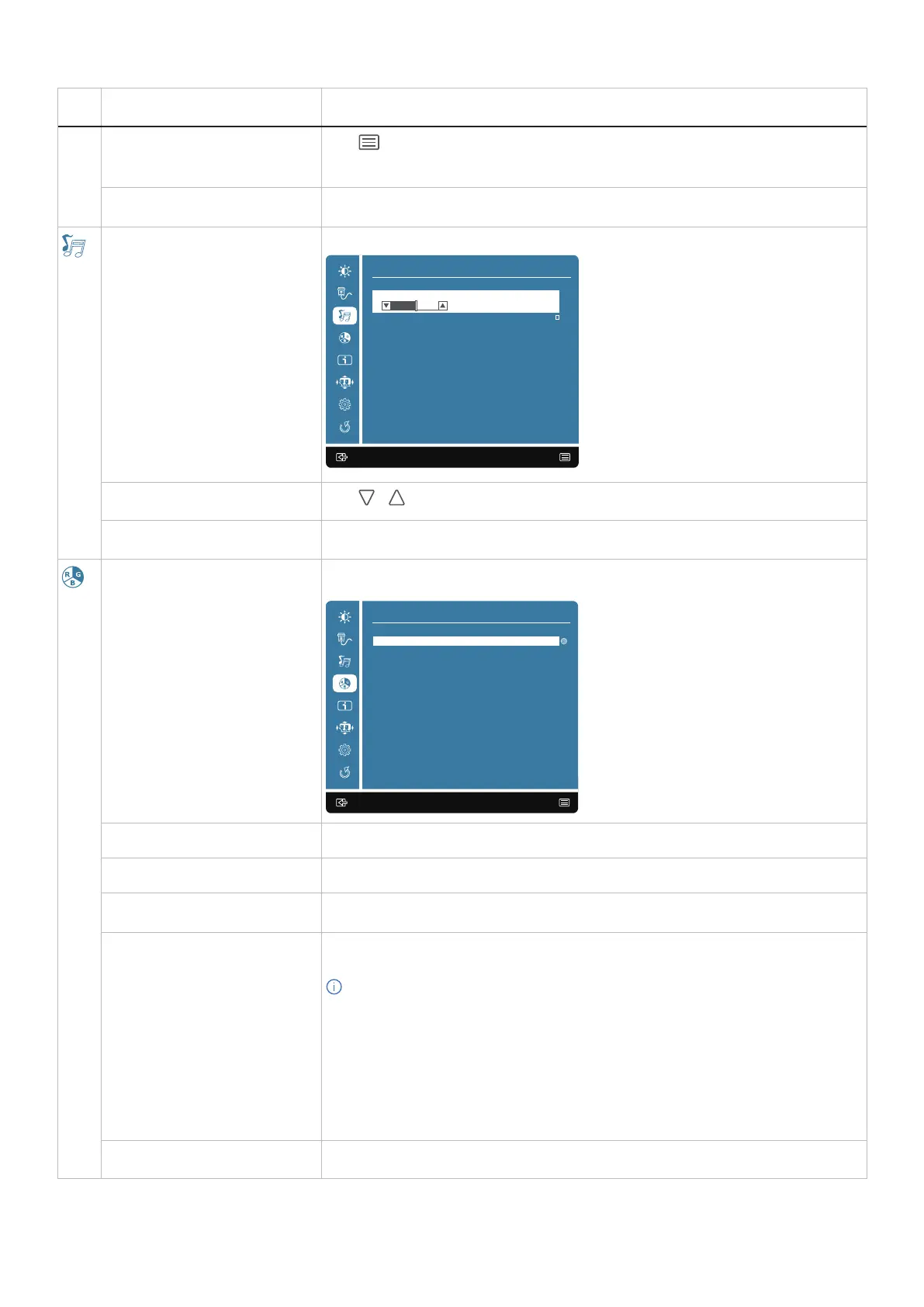
Audio Adjust Use the Audio Adjust menu to adjust the audio settings.
:Exit Enter:
A udio Adjust
Mute
50
V olume
Volume
Push / to adjust the earphone output scale.
Mute To set or reset the mute function.
Color Adjust When you select Color Adjust, you can choose Cool, Normal, Warm, ComfortView,
User Color and Preset Mode from the list.
:Exit Enter:
C olor Adjust
W arm
ComfortView
User Color
P reset Mode
Normal
C ool
Cool Adds blue to screen image for cooler white.
Normal Adds red to screen image for warmer white and richer red.
Warm Adds green to screen image for a darker color.
ComfortView Optimize eye comfort with a TÜV-certified flicker-free screen. Decreases the level of blue
light that is emitted from the screen to make viewing more comfortable for your eyes.
NOTE: To reduce the risk of eye strain and neck/arm/back/shoulders pain from using
the monitor for long periods of time, we suggest that you:
• Set the screen about 20 in.~28 in. (50 cm~70 cm) from your eyes.
• Blink frequently to moisten or lubricate your eyes.
• Take regular 20-minute breaks every two hours.
• Look away from your monitor and gaze at a distant object at 20 feet away for at least
20 seconds during the breaks.
• Perform stretches to relieve tension in the neck/arm/back/shoulders during the breaks.
User Color Individual adjustments for red (R), green (G), blue (B). Each step will increase/decrease
value by 1.


 To Next Page