68 │ Troubleshooting
NOTE: This dialog box appears even during normal operation and
when the video cable is disconnected or damaged.
4. Turn off your monitor and reconnect the video cable; Turn on your computer
and the monitor.
If your monitor remains dark after you reconnect the cables, check your video
controller and computer, as your monitor is functioning properly.
NOTE: The message may be slightly different according to the
connected input signal.
NOTE: While in self-test mode, the power LED remains white.
5. This box also appears during normal system operation, if the video cable
becomes disconnected or damaged.
6. Turn Off your monitor and reconnect the video cable; then turn On both your
computer and the monitor.
If your monitor screen remains blank after you use the previous procedure, check
your video controller and computer, because your monitor is functioning properly.
Built-in diagnostics
Your monitor has a built-in diagnostic tool. It helps you determine if the screen
abnormality that you are experiencing is an inherent problem with your monitor or
with your computer and video card.
To run the built-in diagnostics:
1. Ensure that the screen is clean (no dust particles on the surface of the
screen).
2.
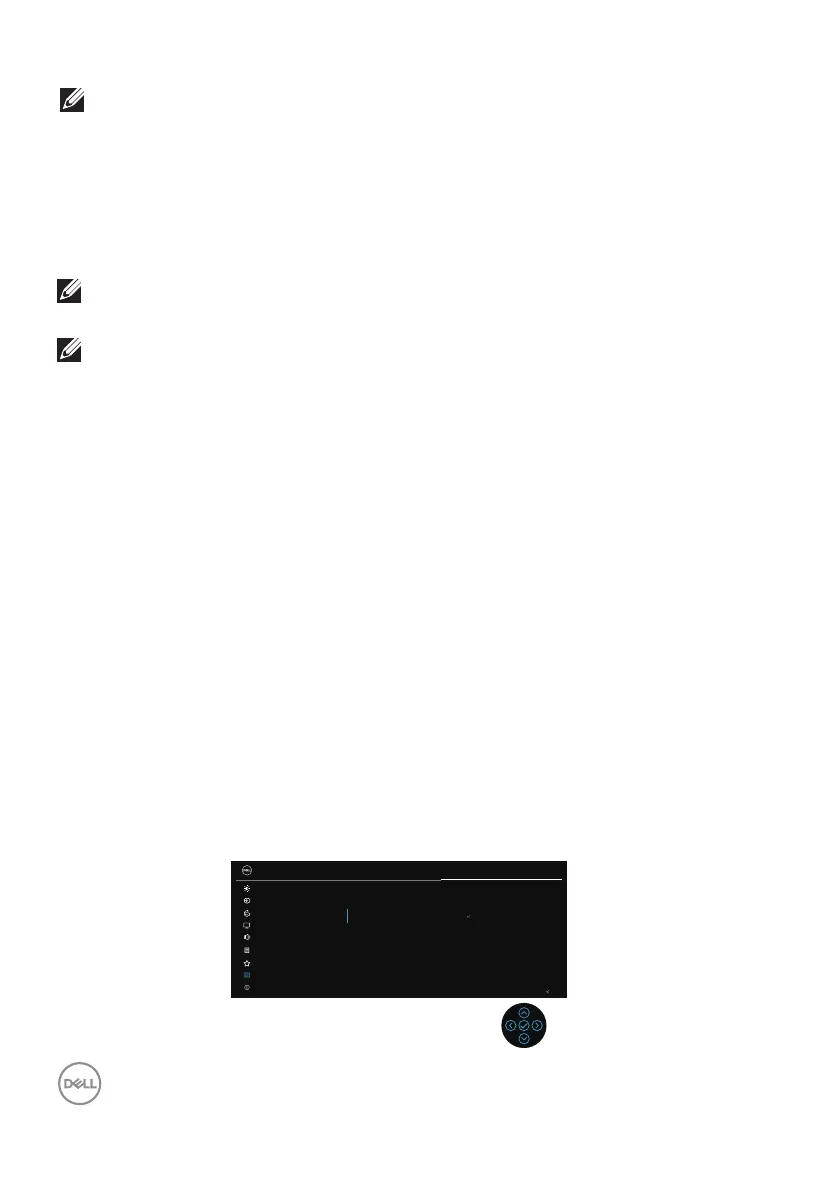
Press the Joystick button to launch the OSD Main Menu.
3.
Move the joystick button to select Others > Self-Diagnostic to initiate the
self-diagnostic process.
27 Monitor
Exit
DDC/CI
LCD Conditioning
Self-Diagnostic
Reset Others
Factory Reset
Brightness/Contrast
Input Source
Color
Display
Audio
Menu
Personalize
Others
More Information
Select



 To Next Page