64 │ Operating the monitor
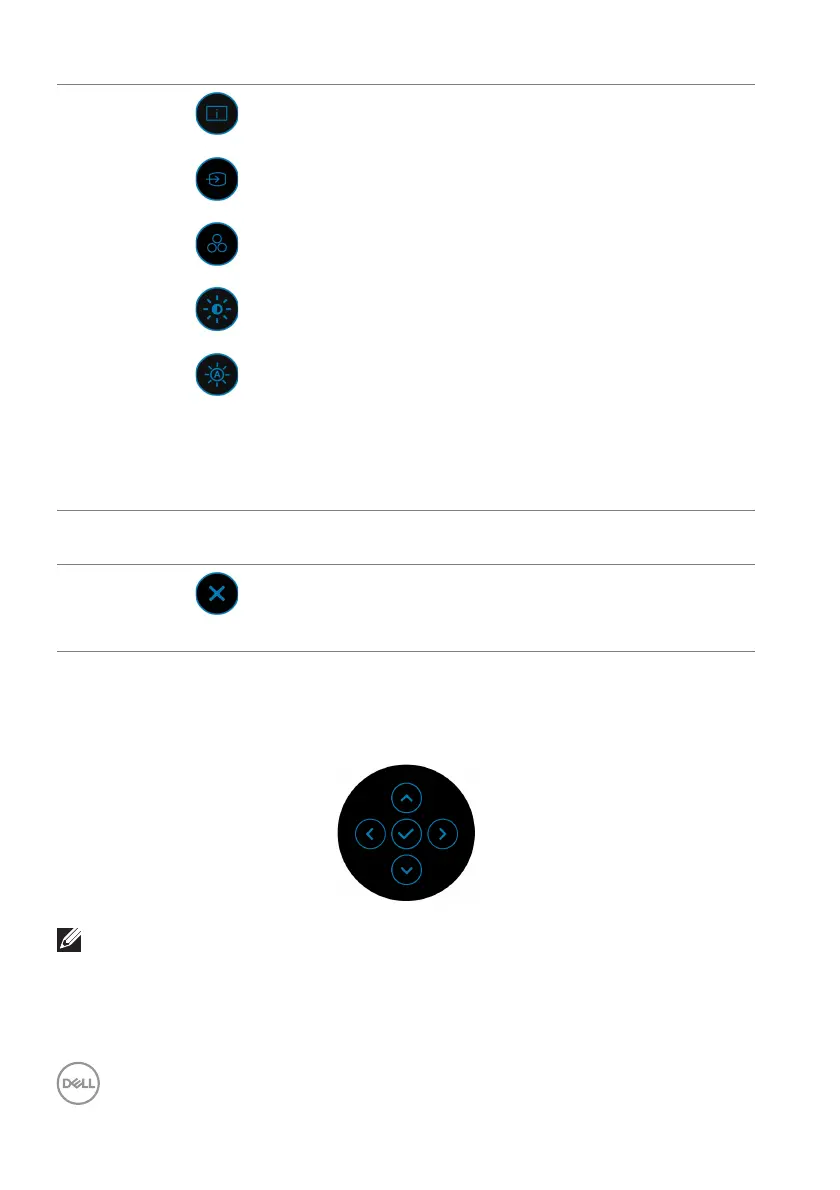
Using the navigation keys
When the OSD main menu is active, move the joystick to configure the settings,
following the navigation keys displayed below the OSD.
NOTE: To exit the current menu item and return to the previous menu,
move the joystick to the left until you exit.
2
Shortcut
functions
When you move the joystick to the left or right to
t
oggle through the shortcut functions, the selected
item will be highlighted and shifted to the center
position. Press the joystick to enter its submenu.
• Disp
lay Info: Displays the monitor's current status.
• Input Sour
ce: To choose an input source from the
list of video signals that may be connected to your
monitor.
• Pr
eset Modes: To choose a preferred color mode
from the list of preset modes.
• Brig
htness/Contrast: To access the adjustment
sliders of brightness and contrast.
• Aut
o Brightness: To enable or disable the auto
brightness function.
NOTE: You can set your preferred shortcut keys.
For
more information, see Personalize.
NOTE: A
fter you change the settings, follow the navigation keys to confirm the
changes before proceeding to another function or exiting.
3
Exit
To exit the Menu Launcher.




 To Next Page