EasyManua.ls Logo

Denon AVC-3000 - Video ENHANCE

Denon AVC-3000
66 pages
Print Icon
To Next Page IconTo Next Page
To Previous Page IconTo Previous Page
Loading...
rE
EEE
rrr
A/C
-32000/2000G
HE
A
{
a
|
i
i
Description
of
AVC-3000/3000G
code
keys
@
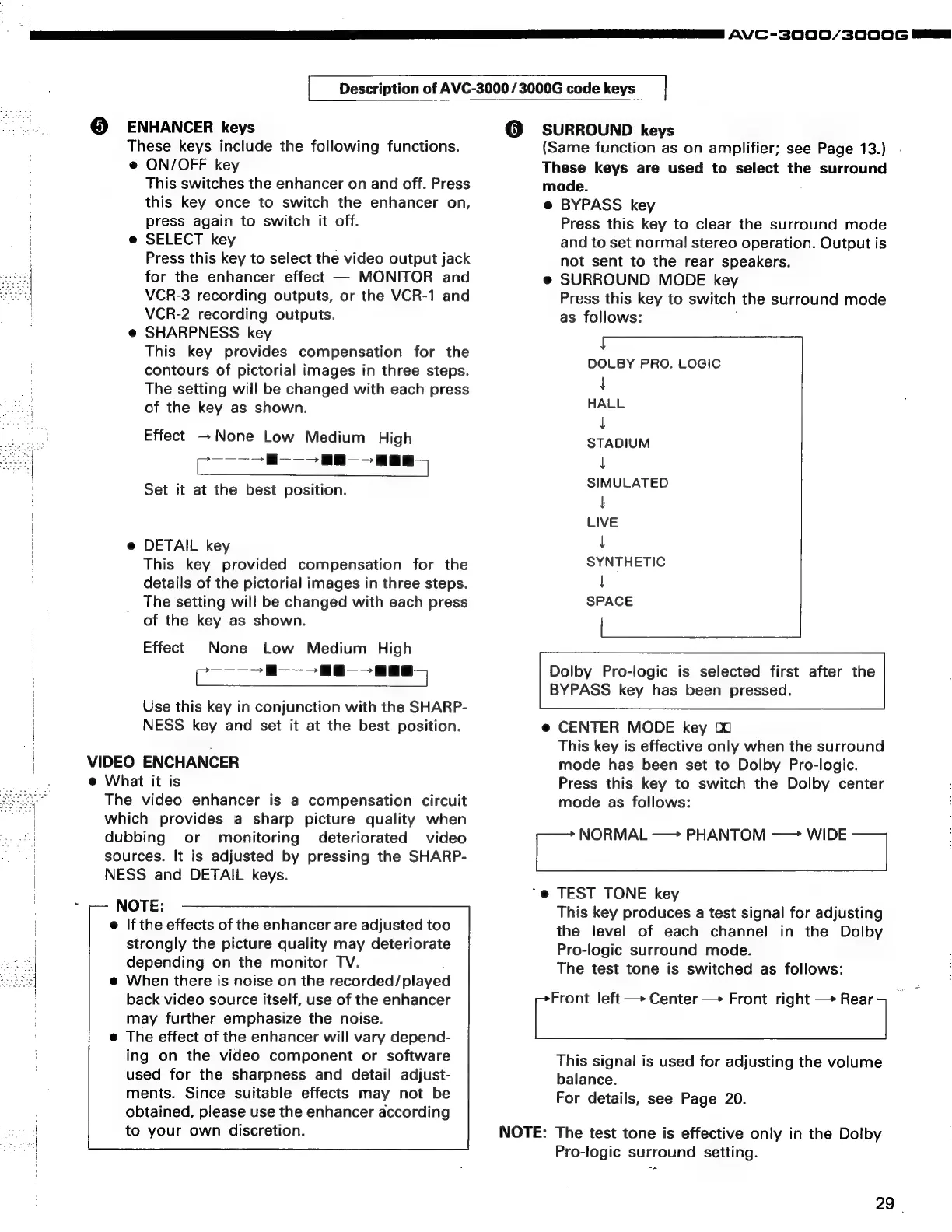
ENHANCER
keys
These
keys
include
the
following
functions.
@
ON/OFF
key
This
switches
the
enhancer
on
and
off.
Press
this
key
once
to
switch
the
enhancer
on,
press
again
to
switch
it
off.
e
SELECT
key
Press
this
key
to
select
the
video
output
jack
for
the
enhancer
effect
MONITOR
and
VCR-3
recording
outputs,
or
the
VCR-1
and
VCR-2
recording
outputs.
e
SHARPNESS
key
This
key
provides
compensation
for
the
contours
of
pictorial
images
in
three
steps.
The
setting
will
be
changed
with
each
press
of
the
key
as
shown.
Effect
-None
Low
Medium
High
>
>-—
—-H
-Han
Set
it
at
the
best
position.
DETAIL
key
This
key
provided
compensation
for
the
details
of
the
pictorial
images
in
three
steps.
The
setting
will
be
changed
with
each
press
of
the
key
as
shown.
Effect
None
Low
Medium
High
Coll
cE
eer
Use
this
key
in
conjunction
with
the
SHARP-
NESS
key
and
set
it
at
the
best
position.
VIDEO
ENCHANCER
e
What
it
is
The
video
enhancer
is
a
compensation
circuit
which
provides
a
sharp
picture
quality
when
dubbing
or
monitoring
deteriorated
video
sources.
It
is
adjusted
by
pressing
the
SHARP-
NESS
and
DETAIL
keys.
NOTE:
e
If
the
effects
of
the
enhancer
are
adjusted
too
strongly
the
picture
quality
may
deteriorate
depending
on
the
monitor
TV.
When
there
is
noise
on
the
recorded/played
back
video
source
itself,
use
of
the
enhancer
may
further
emphasize
the
noise.
The
effect
of
the
enhancer
will
vary
depend-
ing
on
the
video
component
or
software
used
for
the
sharpness
and
detail
adjust-
ments.
Since
suitable
effects
may
not
be
obtained,
please
use
the
enhancer
according
to
your
own
discretion.
@
SURROUND
keys
(Same
function
as
on
amplifier;
see
Page
13.)
These
keys
are
used
to
select
the
surround
mode.
e
BYPASS
key
Press
this
key
to
clear
the
surround
mode
and
to
set
normal
stereo
operation.
Output
is
not
sent
to
the
rear
speakers.
e
SURROUND
MODE
key
Press
this
key
to
switch
the
surround
mode
as
follows:
t
DOLBY
PRO.
LOGIC
|
HALL
|
STADIUM
|
SIMULATED
t
LIVE
|
SYNTHETIC
|
SPACE
pe
een
Dolby
Pro-logic
is
selected
first
after
the
BYPASS
key
has
been
pressed.
e@
CENTER
MODE
key
00
This
key
is
effective
only
when
the
surround
mode
has
been
set
to
Dolby
Pro-logic.
Press
this
key
to
switch
the
Dolby
center
mode
as
follows:
=
NORMAL
—>
PHANTOM
——>
WIDE
|
~@
TEST
TONE
key
This
key
produces
a
test
signal
for
adjusting
the
level
of
each
channel
in
the
Dolby
Pro-logic
surround
mode.
The
test
tone
is
switched
as
follows:
i
left
—+
Center
Front
right
oo
-
This
signal
is
used
for
adjusting
the
volume
balance.
For
details,
see
Page
20.
NOTE:
The
test
tone
is
effective
only
in
the
Dolby
Pro-logic
surround
setting.
29
|