• Edit : Highlight a single sample and then tap the edit icon to add or modify sample
information. Changes will overwrite the information stored in the database and will be applied
in all lists referencing the sample.
• Delete: Tapping this icon will delete the highlighted samples from all results lists.
Results View
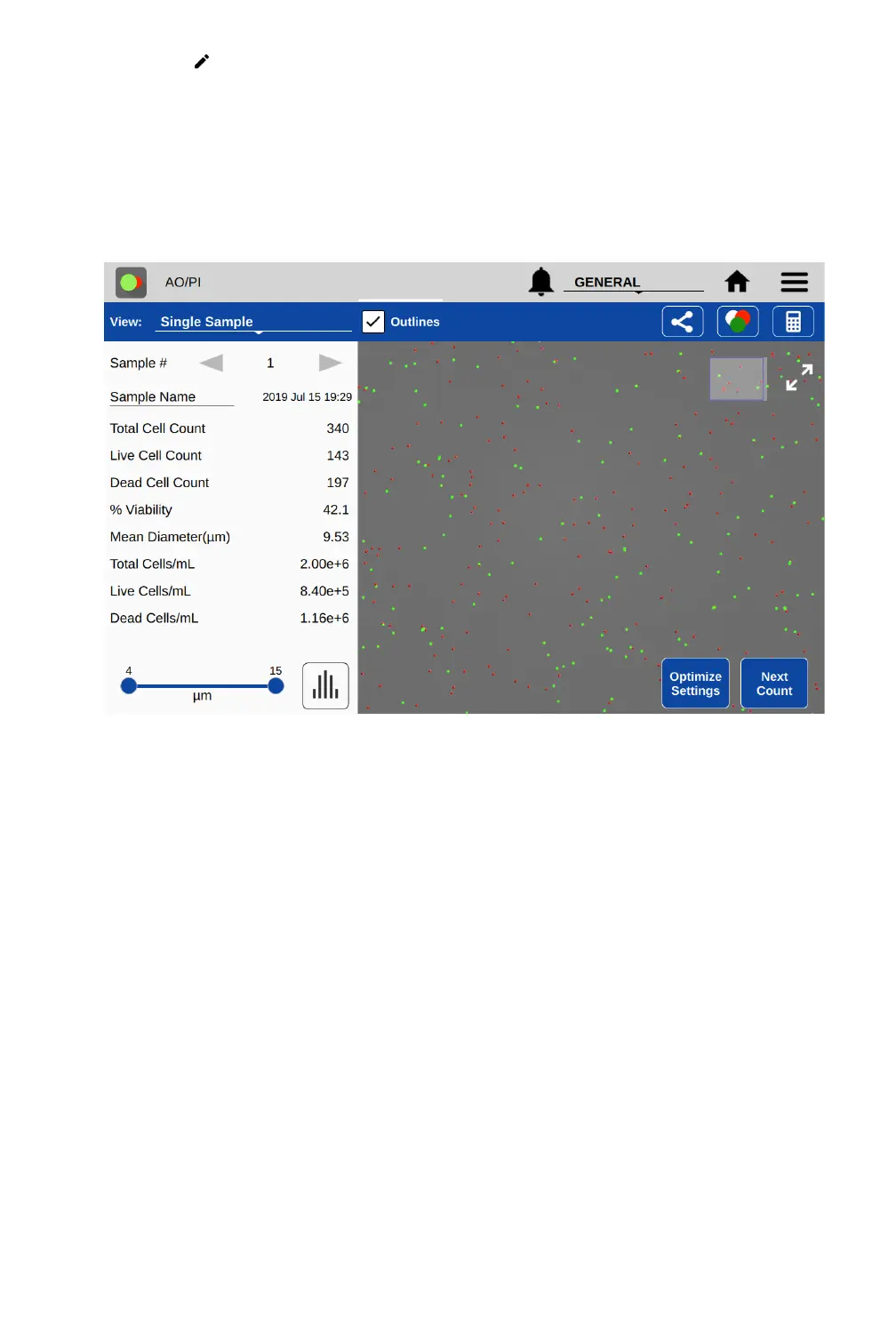
• Single Sample
o Sample Number: The arrows on either side of the sample number are used to switch
between samples measured in the current session.
o Sample Name: This is an editable field. Changes will overwrite the information stored in
the database and will be applied to all lists referencing the sample.
o Results Panel: A table of results will be displayed in the Results panel. If dilution
parameters were provided at the time the count was initiated, then dilution guidance will
also be presented in the panel.
• Results List
o The list shows all samples counted in the current measurement session.
o When the Show Dilution Guidance box is checked, the dilution guidance is displayed with
each result in the list for which dilution information was entered.
• Image List
o The list displays all samples counted in the current measurement session.
o Cell Count: The sample cell count is presented in the table. This value automatically
updates whenever the results are recalculated due to a change in cell size limits or other
counting parameters.
• Graph
o Includes a summary of results to allow the user to select different charts to add.


 To Next Page