Shenzhen Dericam Technology Co., Ltd. User Manual V1.0.7
Email: support@dericam.com Website: www.dericam.com
25
- Capture snapshot by manual, and the snapshot will be saved into local storage of your
mobile device.
- Live feed recording by manual and the snapshot will be saved into local storage of your
mobile device.
- Speaker/Audio out. Tap this icon to allow audio output (listen to the invoice from the
terminal of the camera); tap again to exit speaker.
- Talk/Audio In; hold on this icon and then talk to allow audio input from your mobile device.
The people on the camera side can hear your voice.
- Full Screen; Enter in or exit for the full screen mode.
- Preset icon; Set the preset point for call.
- Zoom icon; It is for digital and optical Zoom, up to 4x.
- Video Parameter Settings, you can adjust the image‟s brightness, contrast, saturation; and
you can also switch the vision mode among “Auto”, “Day” and “Night” by controlling the IR
(Infrared light) of your camera.
- Back icon, tap it to back to the previous page.
- Camera Setups, tap this icon to go to Camera Setups.
4.4 Camera Setups via App
4.4.1 Edit Password
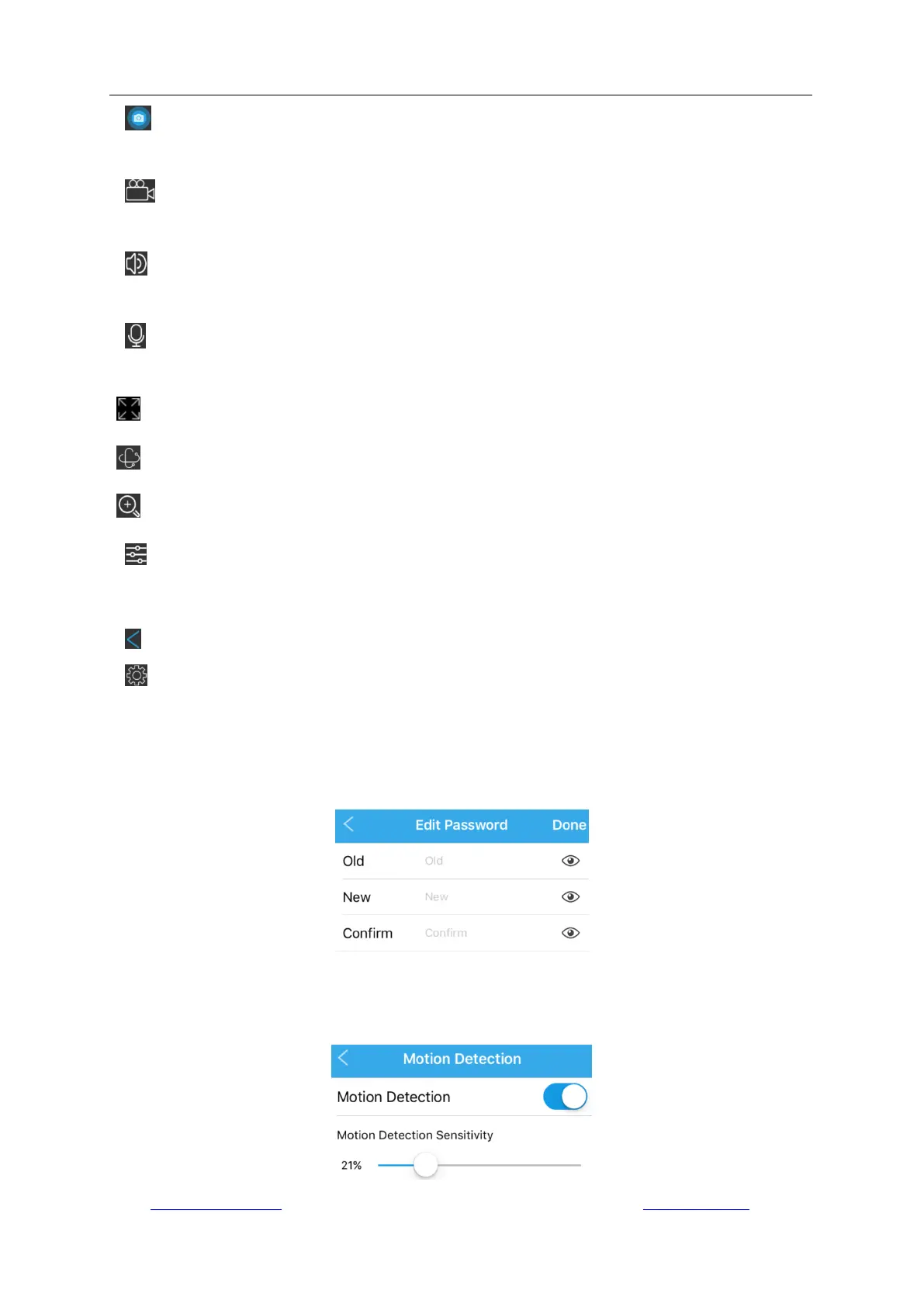
Go to “Camera Setup” -> “Edit Password” to change the password of the camera.
4.4.2 Motion Detection
Go to “Camera Setup” -> “Motion Detection” to enable/disable motion alarm, and set up the
sensitivity for motion detection. There is a slide for you to adjust the detection sensitivities.



 To Next Page