Shenzhen Dericam Technology Co., Ltd. User Manual V1.0.7
Email: support@dericam.com Website: www.dericam.com
17
4 App for Mobile Device
To access your camera on a mobile device, please search and download the “Dericam” App
from Apple Store or Google Play, and then install it. For any Android devices, the App is also
available to be downloaded from www.dericam.com.
Note:
1. The interface screenshots in this manual were taken from the App for iOS device. They may
differ slightly from the interfaces for Android or different versions.
2. Currently the camera supports 2.4GHz band only. So if you have a dual band router, please
disable 5GHz band and only enable 2.4G for Wi-Fi connection.
3. The username and password are case sensitive.
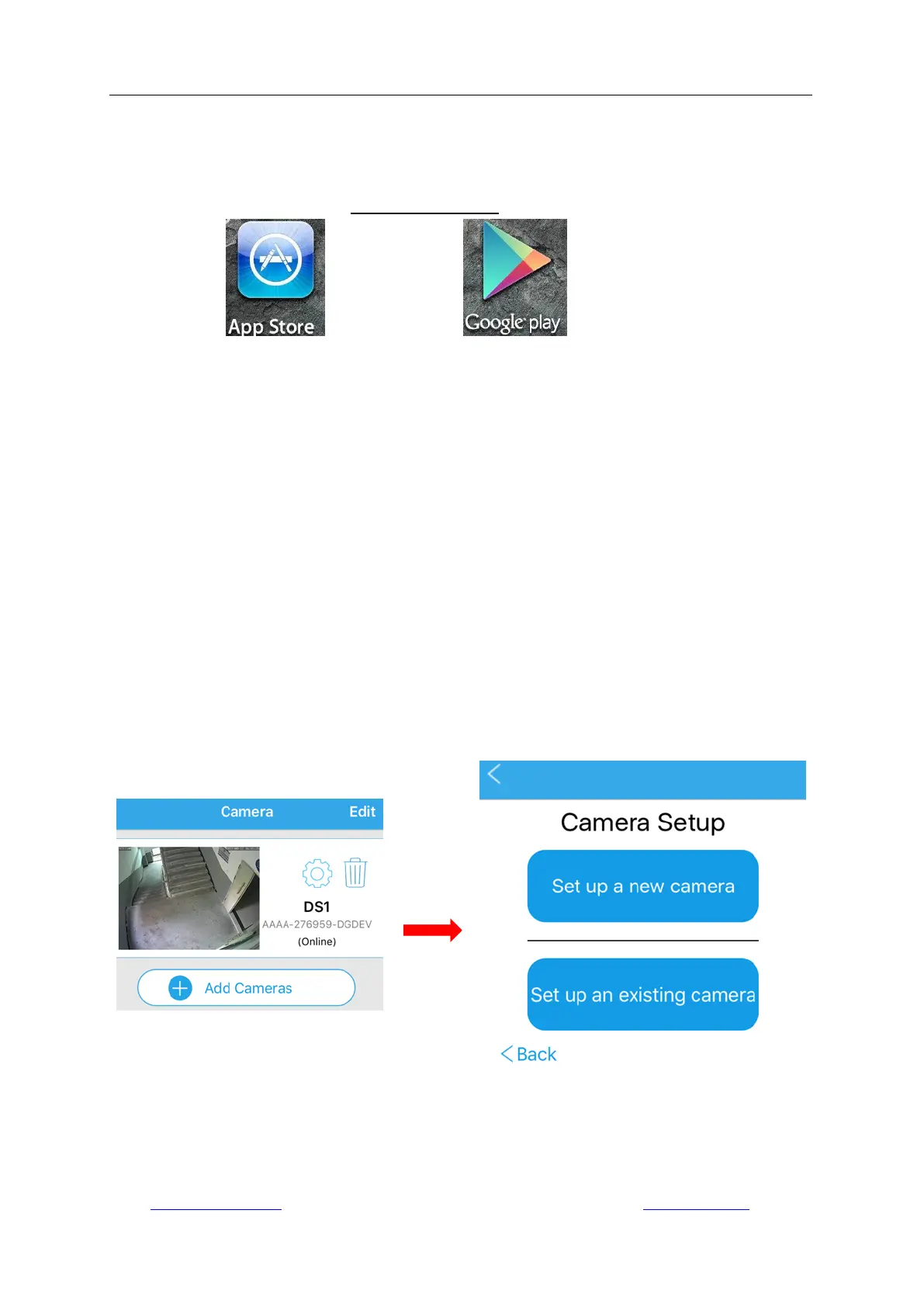
4.1 Add Camera
After installing the hardware and completing self-inspection, run the Dericam App on the mobile
device. Tap “Add Camera”.
-If it is the first time to set up the camera, choose “Setup a new camera”.
-If the camera has been installed on any phone, tablet or computer before, choose “Setup an
existing camera”.
Make sure the camera should be powered up and connected to the router with Ethernet cable,
and your smartphone or tablet should be connected on the same local area network (LAN) via
Wi-Fi.
4.1.1 Set up a new camera.
Go to “Set up a new camera”. There are two methods for adding a new camera: scanning for your
camera on the LAN and entering the camera‟s UID code by manual connection. We do



 To Next Page