Shenzhen Dericam Technology Co., Ltd. User Manual V1.0.7
Email: support@dericam.com Website: www.dericam.com
50
2) Maintenance
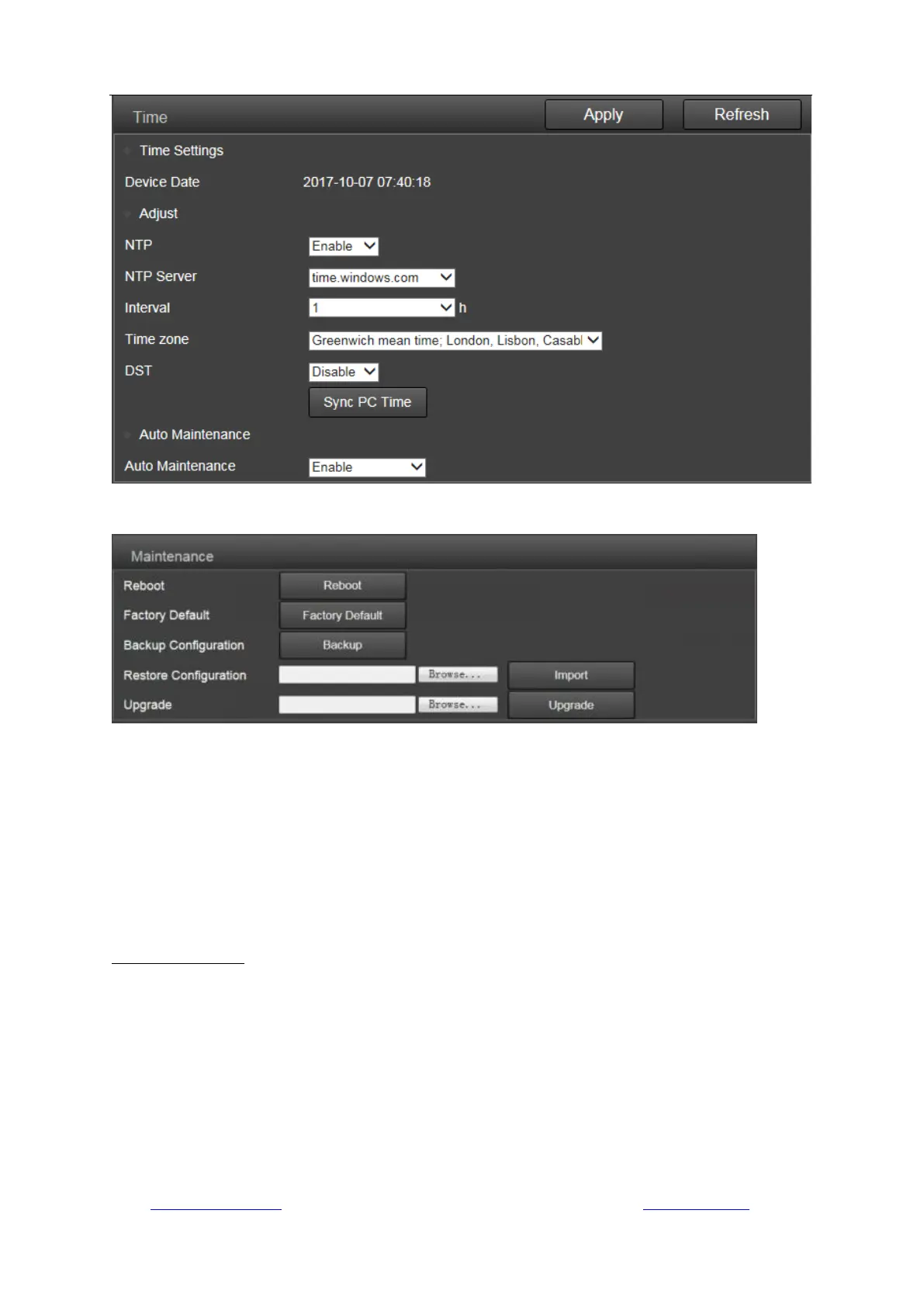
Reboot: reboot the camera.
Factory Default: reset the Camera Setups to the factory default settings. And reset, you should
connect the camera and router with Ethernet cable and redo initial setup again.
Backup Configuration: backup the current settings of the camera, it will generate a file name
“config_backup.bin” for you to save.
Restore Configuration: Import and restore the configuration file you backed up before. Please
browse and select the file you want to import, then click the “Import” button.
Upgrade: Upgrade the firmware. Please browse and select the file you want to upgrade, then
click the “Upgrade” button. Please go to FAQs from the software CD or our website
www.dericam.com to get more detail and important instruction documentation about it.
3) Device Information
Here you can query and check the main information and status of the camera, including the name,
time, IP, firmware version, DDNS and UPnP status, and the SD card.
By clicking the “Format” button, you can format the SD card of your camera. By clicking the “Open”
button you can open and browse the contents of the SD card.



 To Next Page