2.3.1. Pairing Your Sensor through the App
Let’s get your SwingTracker Paired!
For users who purchased the SwingTracker on or after December 1st, 2020.
To pair to your sensor, make sure that it is on and in range! The light on the top of the sensor should be
blinking a rapid green.
1. Open the app and open up the main menu (3 stacked lines in the upper left)
2. Select PAIR SENSOR
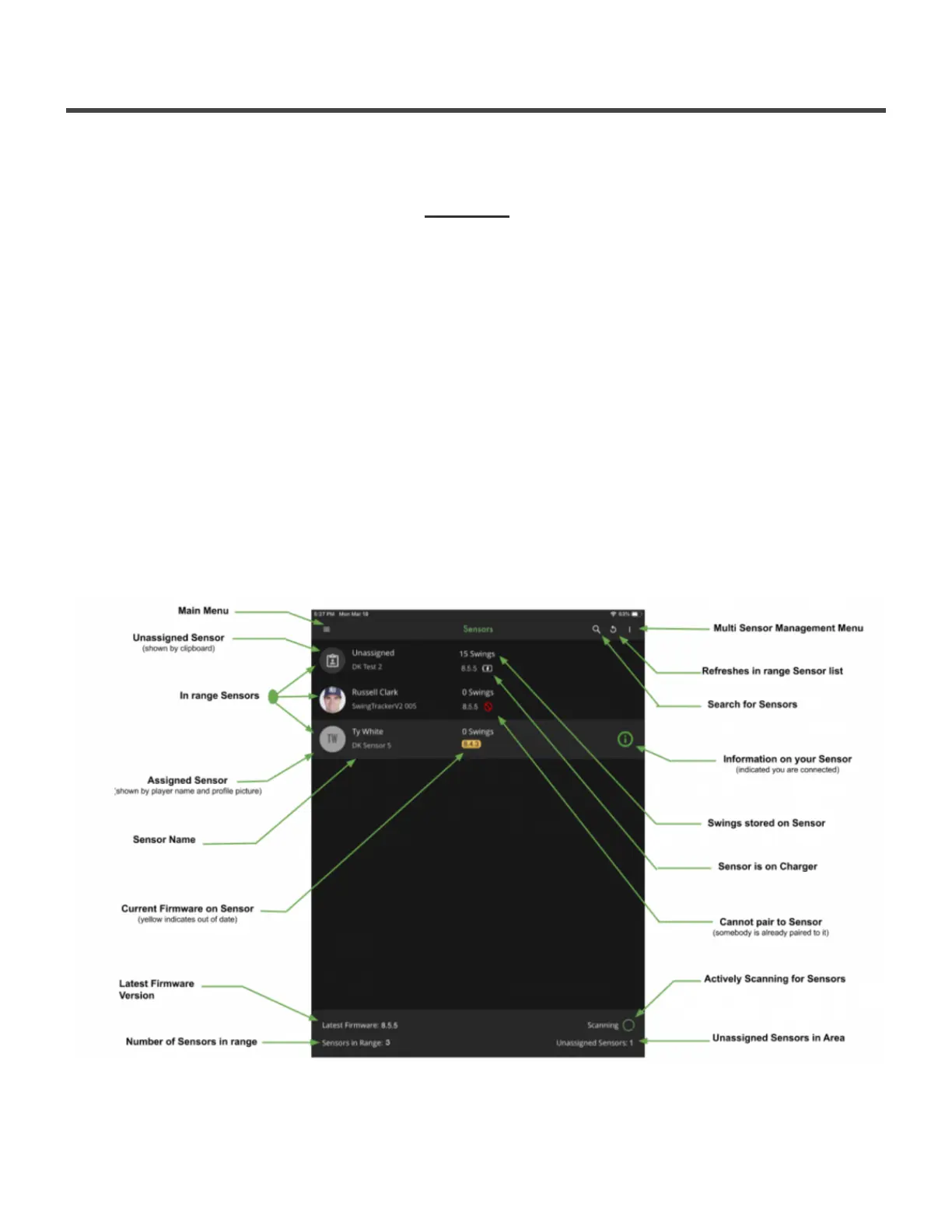
3. At the top of the next page you’ll see Sensors. This page lists all of the Sensors that are turned on
and in range. Click on your SwingTracker to pair to it.
When the sensor is paired, you’ll see a green line underneath your SwingTracker with a green ‘i’ to the right
of it. To disconnect from your SwingTracker, simply click the SwingTracker option again. The green line and
‘i’ will disappear.
Once your sensor is paired, you can go ahead and start a session!
“I don’t see my SwingTracker listed here”
We can certainly help you out with this! Please reach out to our Support Team at
support@diamondkinetics.com.
Diamond Kinetics SwingTracker - 1
Page 12 of 107


 To Next Page