2.5. Charging
Remove the sensor from the sensor pod.
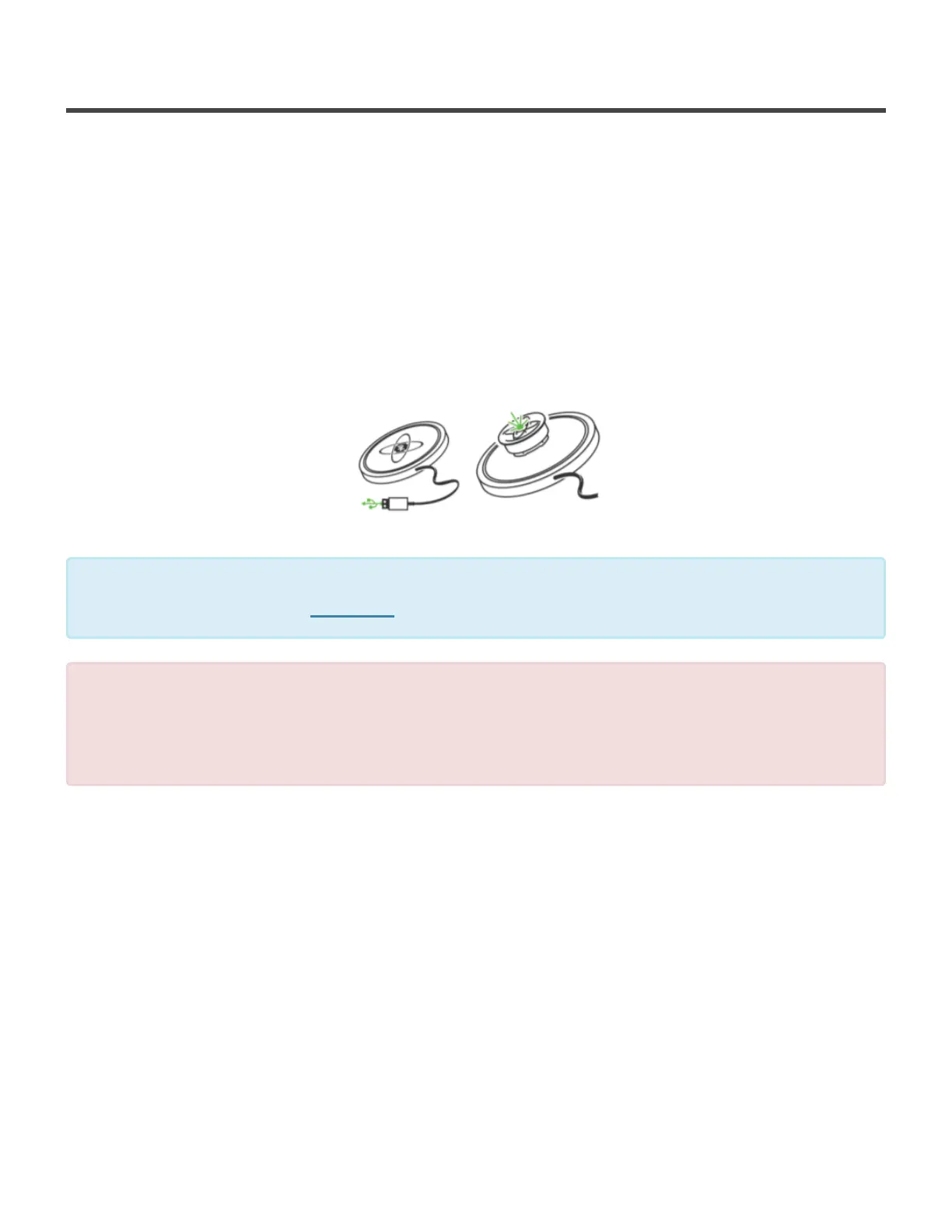
Plug the charging station into a powered USB port. The charging pad should have the ‘DK’ logo face up.
Place the SwingTracker in the center of the charging station. The sensor light will change from a blinking
red to a solid green light when fully charged.
When charging your sensor, you are not able to transfer swings to your device that you have taken while in
Disconnected Mode. To transfer swings from a Disconnected Mode session, remove your sensor from the
charger and use the SwingTracker app to begin to transfer swing data.
Make sure the sensor is removed from the pod when charging. For information on
removing the sensor, click here
*
Never force a charge cable into the USB port of your SwingTracker charging station. If the
charge contact does not easily fit, confirm that they are properly aligned before attempting
to insert again. ONLY use the USB charging cable provided to charge your SwingTracker
sensor. Diamond Kinetics is not responsible for the operation of third-party accessories.
!
Diamond Kinetics SwingTracker - 1
Page 18 of 107


 To Next Page