6.2. Insights
Now that you’ve generated your Swing Fingerprint and have
learned how to customize the view, let’s take a look at what it
means for your overall swing!
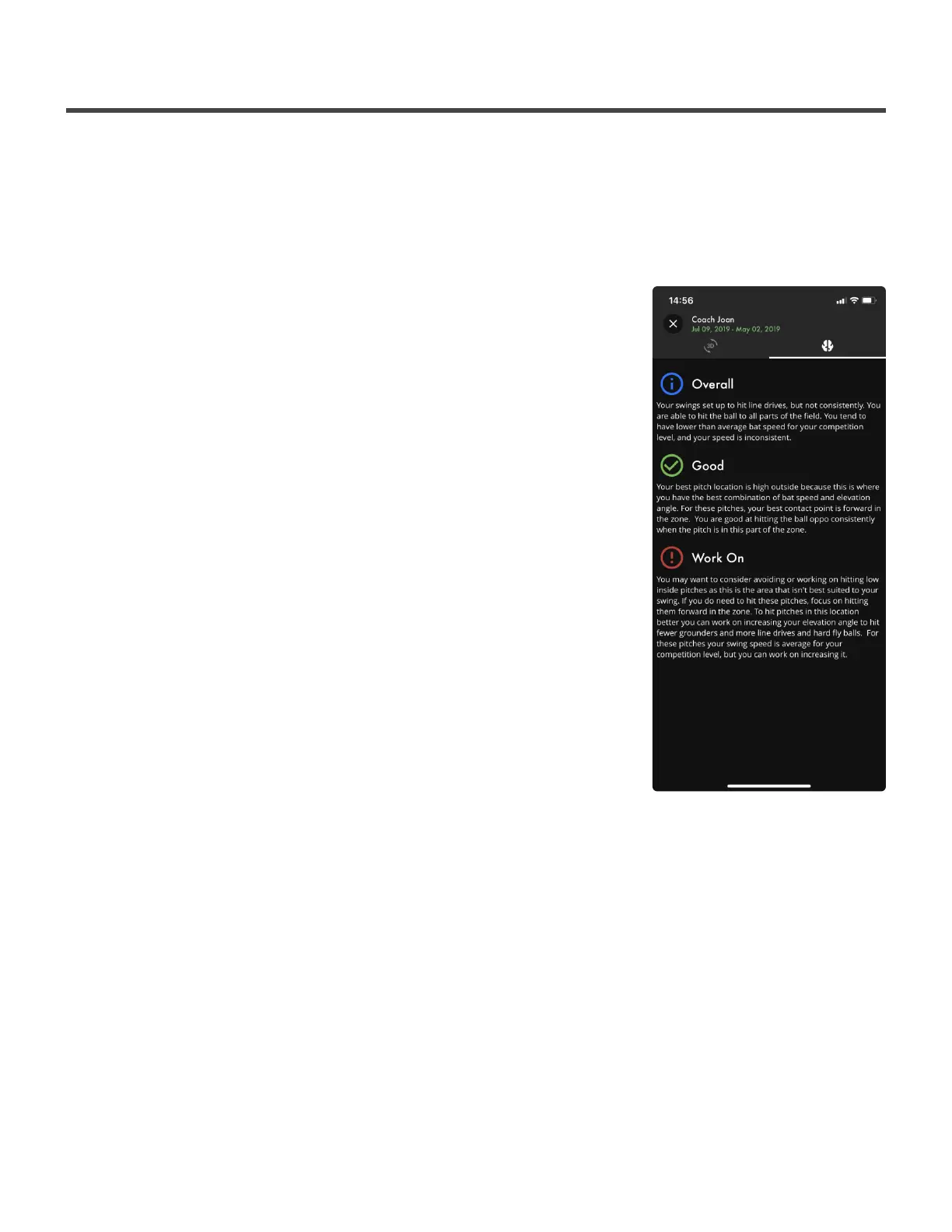
At the top of your Swing Fingerprint screen you’ll see your name and the
date range in which your swings were selected. Underneath you’ll see a
3D icon with two curved arrows and a brain icon. Select the brain icon.
This takes you to your Insights Page!
This is a report generated by your Swing Fingerprint. Here you’ll learn an
overview of your overall swing, what is good about your swing within a
given area of the strike zone, and what needs to be worked on within a
given area of the strike zone! These Insights are based off of your Swing
Fingerprint. As your Swing Fingerprint changes, your Insights will change
as well.
Diamond Kinetics SwingTracker - 1
Page 34 of 107


 To Next Page