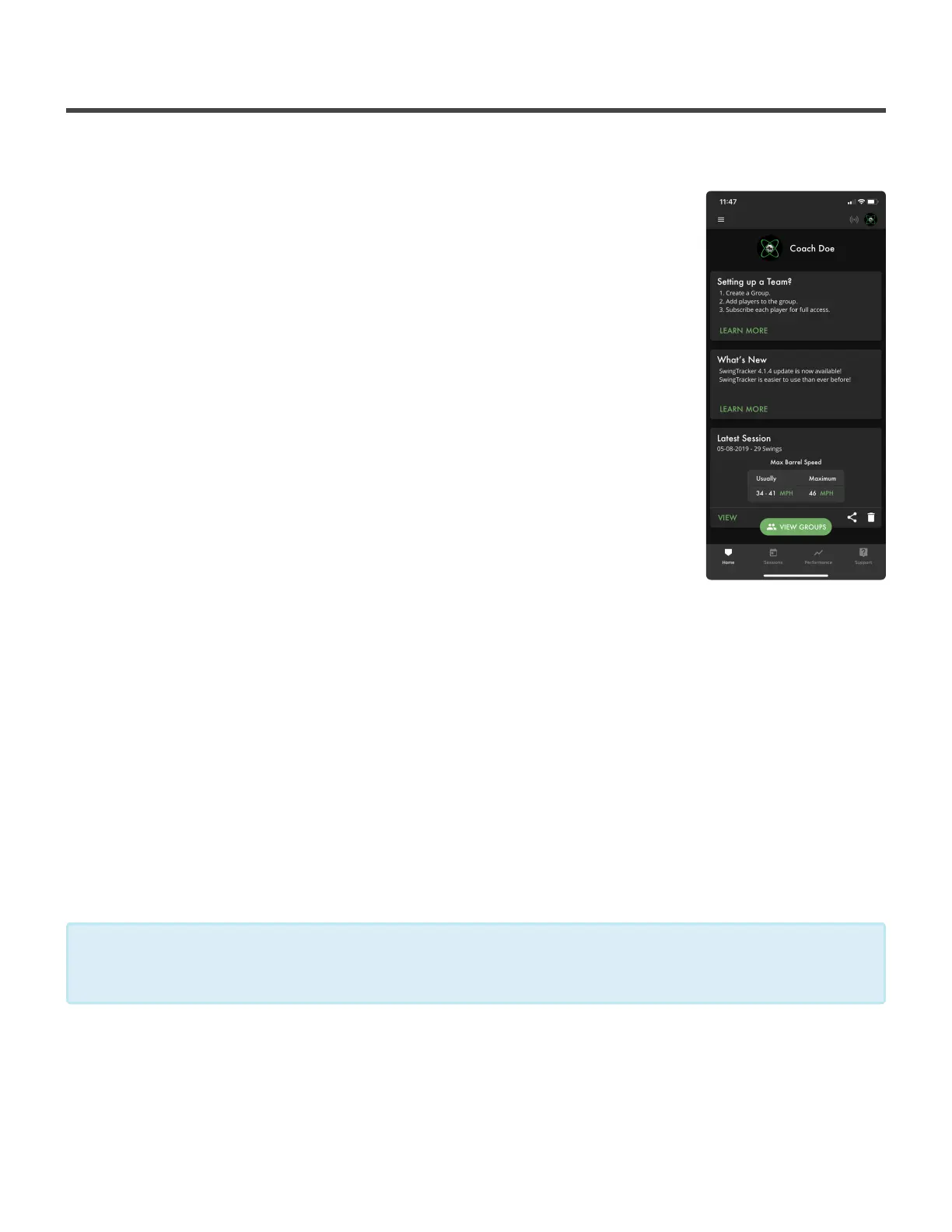
Coaches Dashboard
5. App Dashboard Information
The app dashboard is the home page of the app and let’s you easily navigate throughout the entire app.
At the top of the dashboard, in the left hand corner, you’ll see three (3)
stacked lines. This is your main menu, where you can get to your Home,
Groups, Pair Sensor, Settings, USA Baseball Drills and the logout option. To
exit the main menu, click to the right of the screen. In the upper right hand
corner, you’ll see a dot with curved lines, this is your sensor icon. It will be lit
up green when a sensor is connected. When a sensor’s connected you can
click on the icon and you will be taken to your sensor page. Next to your
sensor icon will be your profile picture (this will be your initials if you haven’t
set a profile picture yet). Clicking on your profile picture will take you to your
profile page. Below the top bar, you will see your profile picture again, along
with your name.
Your dashboard will be populated with different cards that show helpful tips
and trick as well as any DK News. You will also see a summary of your last
session. If you want to read more about an item that appears on the
dashboard, click the green Learn More at the bottom of that item’s card. If
you have data in your account, your a summary of your last session will
appear towards the bottom of your dashboard. You’ll see the date the session was taken, along with how
many swings are in that session. You will also see the average range of your Max Barrel Speed and what
your highest Max Barrel Speed was for that session. In the bottom right of your Latest Session card, you’ll
see three dots connected by a line as well as a trashcan. To share the session, click on the icon that is 3
dots connect by lines. It will pull up how you want to share this swing. This will share a screenshot of the
current screen you are on. To delete the swing, click on the trashcan. To the bottom left of you Latest
Session card, you’ll see VIEW. By selecting this, you’ll be taken into the session.
At the very bottom of the screen, you’ll see a Navigational Menu. The home plate will be lit up white for
Home. Sessions will take you to your calendar history. Performance will take you to your trend line history.
Support will take you to the Support section of the app.
Coaches will have a green button on their dashboard that says Groups. Players will have a
green button on their dashboard that says Swing Now.
*
Diamond Kinetics SwingTracker - 1
Page 29 of 107


 To Next Page