lPage 27
Using the Program Guide
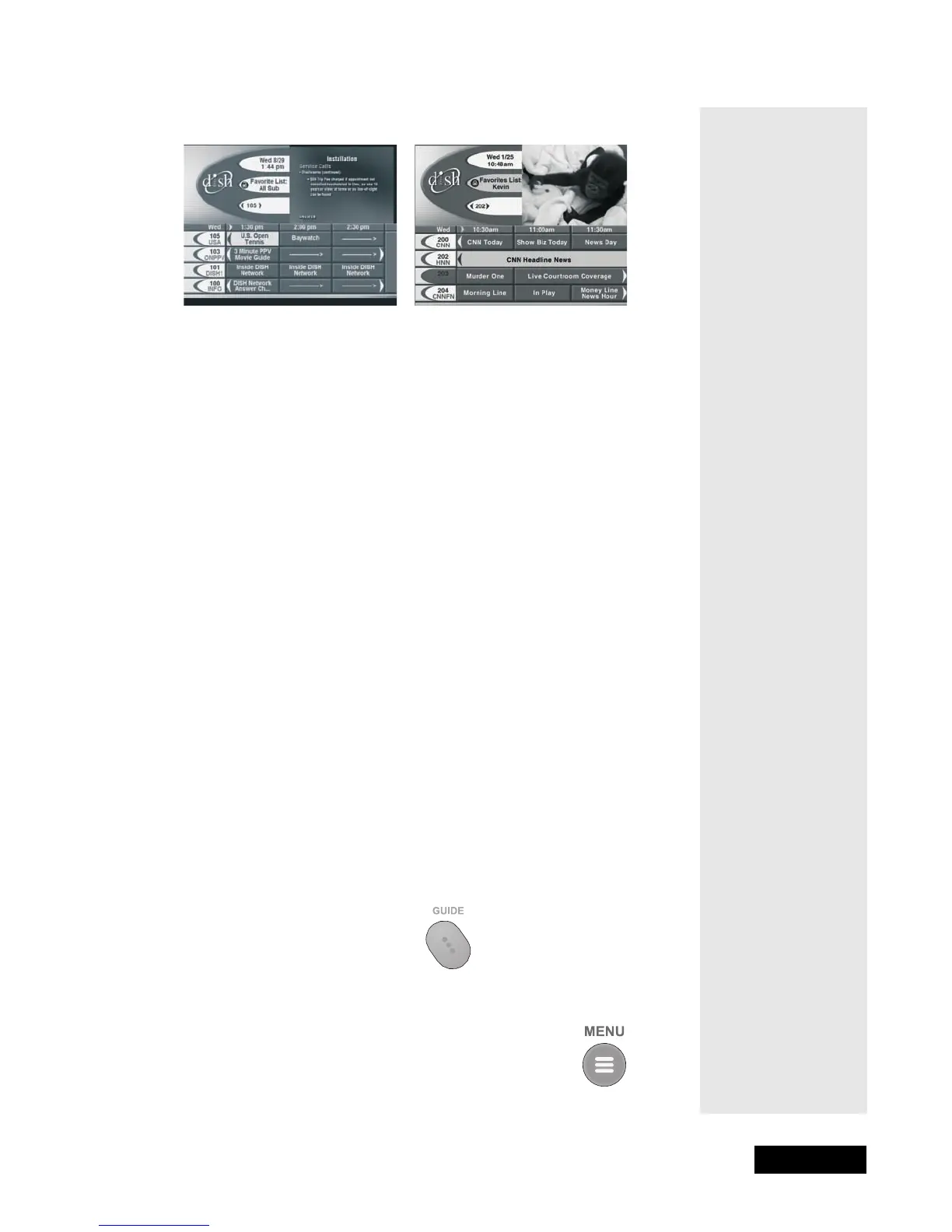
Note: Your Program Guide will look like one of the two
shown here.
If the All Sub list is active, the Program Guide displays only the channels
in your subscription. If another list is active, the Program Guide displays
only the channels in that list.
• A red background behind a channel shows that you have not subscribed
to that channel. You cannot tune in to this channel.
• The Program Guide shows programs that are on now and that are
scheduled for some time beyond the present. The guide does not
show programs that have ended. You can set up the Program Guide
to list channels in ascending order, with the highest channel number
at the top, or in descending order, with the highest channel number at
the bottom. To do this, open the Main Menu. Then, select the
System Setup option. Finally, select the Channel Order option,
select the Ascending or Descending option, and select the Save
option.
This receiver allows you to see the program that are watching in a
corner of the Program Guide. To do this, open the Main Menu.
Then, select the System Setup option. Finally, select the Guide
Displays option, select the Partial Guide With Video or Full
Guide Without Video option, and select the Save option. When
you first display the inset, there may be a brief delay before a picture
appears. A similar delay may occur at times when you are using the
Program Guide.
• You can set up the Program Guide to hide adult channels. See Hiding
Adult Channels on page 47.
OPENING THE PROGRAM GUIDE
Either: Press the Guide button.
Or:
1. Press the Menu button to display the Main Menu.
2. Select the Program Guide option.



 To Next Page