Page 38
Chapter 3
Using the System
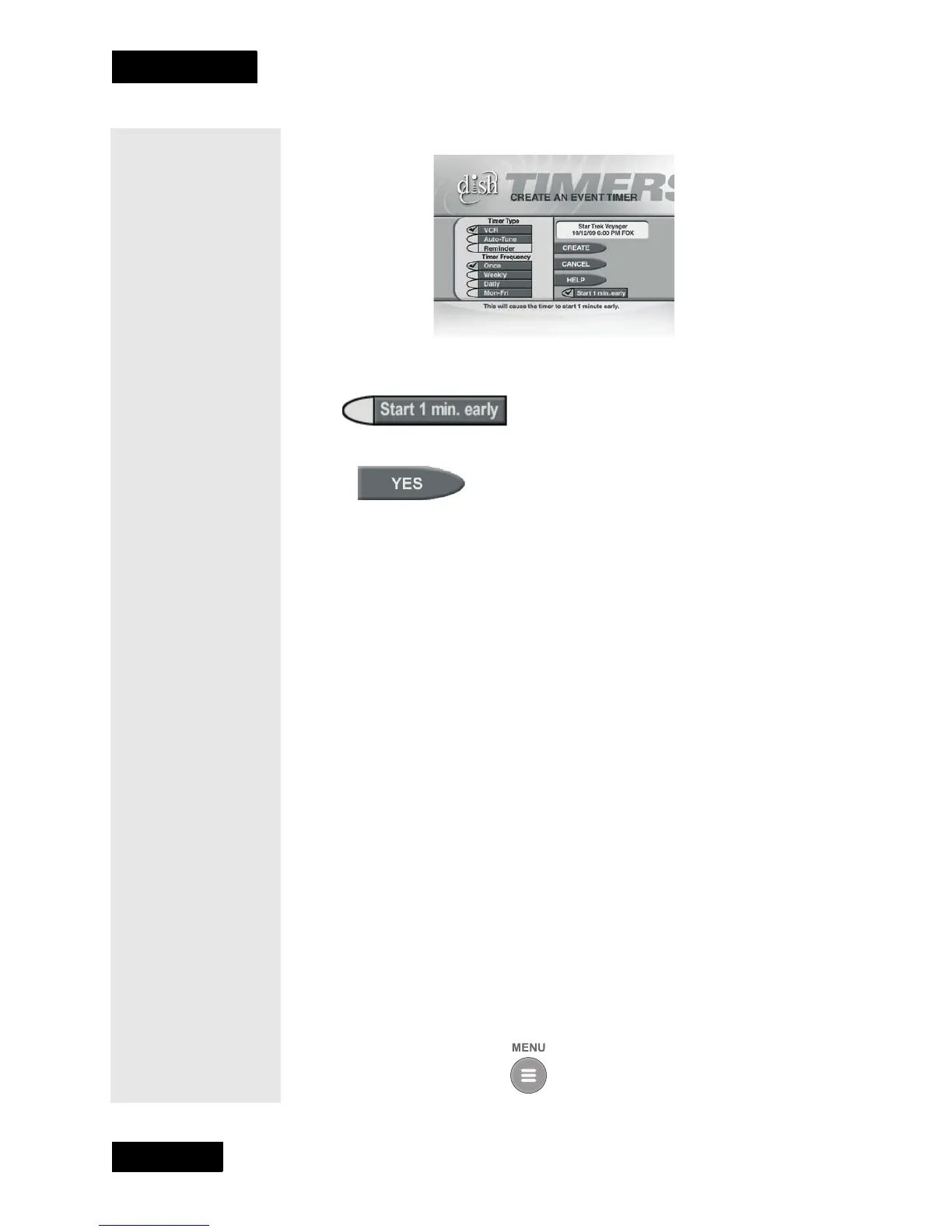
3. The receiver displays a menu that allows you to create an event timer.
4. If you want to start the timer one minute early, select the Start 1 min.
early option.
5. Select the
Yes option.
OVERLAPPING EVENT TIMERS
If you try to create event timers for overlapping programs, the receiver
displays a menu with the dates and times of both programs. The receiver
also displays this menu if a program time has changed, causing one timer
to overlap another. You must delete or edit one of the timers.
MAXIMUM NUMBER OF EVENT TIMERS
You can create a limited number of event timers. If you try to create
more, the receiver displays a menu giving you the option to delete an
existing timer. If you do not delete an existing timer, you will not be
able to create any new ones.
Note: The receiver deletes “Once” event timers when they operate.
You must delete all other types of event timers yourself.
EDITING AN EVENT TIMER
• You can edit almost any feature of an event timer.
• You can edit both automatic and manual event timers.
• Editing an automatic event timer converts the timer to a manual
event timer that operates at the times you set, not the actual
program times.
1. Press the Menu button.



 To Next Page