EasyManua.ls Logo

DITEC LCU30H - User Manual

DITEC LCU30H
38 pages
Print Icon
To Next Page IconTo Next Page
Loading...
36 35 34 33 32
31
+-LP - +LK
1520 016
8
JR1
24V~
C
O
M
UPDOWN
TRF
ENTER
ESC
BAT KIT
F
U
S
E
F1
RDX
6ZENRS
ZENPRS
Trasformatore
Alimentazione
Motore 2
24V
Motore 1
LN
Passo-passo
Apertura parziale
Antenna
Lampeggiante
Elettroserratura
SCHEDA AD INNESTO
AUX
-
+
Uscita 24 V
Arresto di sicurezza
Sicurezza in chiusura
24V
Power supply
Motor 2
Motor 1
Flashing light
Electric lock
Step-by-step
Partial opening
24V output
Safety stop
Closing safety device
Antenna
Transformer
PLUG-IN BOARD
www.ditecautomations.com
IP2251EN • 2021-05-19
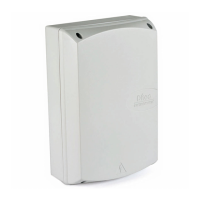
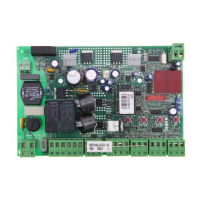
Ditec LCU30H
Installation manual for the control panel of
automations with one or two 24V
motors
(translation of the original instructions)

Table of Contents

Questions and Answers

  • J
    John RiveraAug 9, 2025
    Why doesn't my DITEC Control Panel remote control work?
    • S
      Susan SmithAug 9, 2025
      If your DITEC Control Panel remote control isn't working, it could be due to a missing or incorrect storage module. Turn off the automation and plug in the correct storage module. Check that the transmitters are correctly memorized on the built-in radio. If there's a fault with the radio receiver built into the control panel, the remote control code can be read by removing the storage module.
  • C
    Christopher FordAug 14, 2025
    How to fix a DITEC Control Panel that does not switch on?
    • R
      Ronald FlemingAug 14, 2025
      If your DITEC Control Panel isn't switching on, the issue could be due to no power supply or an overload on output 0-1. Check the power supply cable and its wiring. Disconnect any loads connected to the terminal.
  • B
    bryan77Aug 19, 2025
    Why does my DITEC Control Panel remote have limited range or not work when the automation is moving?
    • M
      Matthew MillerAug 19, 2025
      If your DITEC Control Panel remote has a limited range or doesn't work when the automation is moving, the radio transmission might be impeded by metal structures or reinforced concrete walls. Try installing the antenna outside and replace the transmitter batteries.
  • A
    Angel FoxAug 25, 2025
    What to do if DITEC Control Panel automation opens/closes briefly and then stops?
    • K
      Karen CarterAug 25, 2025
      If your DITEC Control Panel automation opens or closes briefly and then stops, there might be friction present. Manually check that the automation moves freely and check the / adjustment. If the problem persists, contact Technical Service.
  • D
    David PetersonAug 29, 2025
    Why are the external safety devices not activated on my DITEC Control Panel?
    • J
      joseph93Aug 29, 2025
      If the external safety devices on your DITEC Control Panel aren't activating, it could be due to incorrect connections between the photocells and the control panel. Check that / is displayed. Connect N safety contacts together in series and remove any jumpers on the control panel terminal board. Check the ? and ? setting.
  • K
    Kevin HopkinsNov 3, 2025
    What to do if my DITEC Control Panel automation doesn't open or close?
    • G
      Grace HallNov 3, 2025
      If your DITEC Control Panel automation isn't opening or closing, there are several potential causes: * **No power:** Check the power supply cable. * **Short-circuited accessories:** Disconnect all accessories from terminals 0-1 (ensure 24V= is present), then reconnect them one at a time. If the problem persists, contact Technical Service. * **Blown line fuse:** Replace the fuse. * **Safety contacts open:** Ensure the safety contacts are correctly closed (NC). * **Safety contacts incorrectly connected or self-controlled safety edge malfunctioning:** Check connections to terminals 6-8 of the control panel and the self-controlled safety edge. * **Photocells activated:** Verify the photocells are clean and operating correctly. * **Automatic closure malfunction:** Issue any comma...

Summary

General Safety Precautions

Safety Functions and Standards

Lists safety functions, response times, and compliance standards for the Ditec LCU30H control panel.

Technical Specifications and Compliance

EC Declaration of Conformity

Declares the control panel's compliance with relevant EC directives like EMC and Low Voltage.

Technical Specifications Overview

Details power supply, absorption, fuse, motor output, ambient temperature, and protection rating.

Application Overview

Outlines the intended applications for the Ditec LCU30H control panel in automation systems.

Installation and Electrical Connections

Installation Steps and Requirements

Details steps for box perforation, fixing, cable gland insertion, and power supply connection.

Maintenance and Standard Installation

Covers routine maintenance for the control panel and the standard installation process.

Standard Installation Wiring Diagram

Illustrates the wiring diagram for a standard gate automation installation.

Programming and Control Interface

Display and Navigation Keys

Explains how to operate the display and use navigation keys for commands and menu navigation.

Menu Map

Provides an overview of the control panel's menu structure, showing main and second-level menus.

Quick Start-up Sequences

Guides on initial setup sequences for automation type selection and basic configurations.

Configuration of Gate Automation

Limit Switch Configuration

Explains how to configure door wing stops using mechanical or limit switches.

Safety Device Configuration

Details the setup for safety devices such as photocells and safety edges.

Application Examples

Demonstrates practical use cases for single and double swinging gate automation systems.

Commands and Input Functions

Lists and explains various commands, including step-by-step, safety stop, and partial opening.

Self-Controlled Safety Edge

Details the SOFA1-SOFA2 or GOPAVRS safety edge installation and function.

Outputs, Accessories, and Jumper Settings

Outputs and Accessories

Lists available outputs and compatible accessories like radio receivers and electric locks.

Jumper Setting

Explains the function and settings of the JR1 jumper for display mode selection.

Module Housing and Battery Operation

Describes housing for radio modules (RDX, COM) and battery-powered operation modes.

Control Panel Adjustments and Menus

Main Menu Overview

Introduces the primary menu structure for panel adjustments and available configurations.

Automatic Configurations Menu (AT)

Details the AT menu for automatic configurations and automation selection.

Basic Configurations Menu (BC)

Explains the BC menu for core settings, including automatic closure and status selection.

Basic Adjustment Menu (BA)

Covers the BA menu for fine-tuning operational parameters like closing time and thrust.

Advanced Settings and Operations

Radio Operations Menu (RO)

Details radio operations, remote control management, and storage.

Special Functions Menu (SF)

Explains special functions like firmware visualization, configuration saving/loading, and password management.

Cycle Counter and Energy Management

Covers cycle counting, maintenance alarms, solar panel status, and battery management.

Advanced Parameters Menu (AP)

Covers comprehensive advanced settings for limit switches, device connections, and display modes.

Display Visualizations and Fault Diagnostics

Automation Status Indicators

Explains how to interpret automation status indicators on the control panel display.

Safety Device and Command Display

Describes the display of safety devices, commands, and radio reception status.

Alarms and Fault Visualisation

Details how to view and interpret mechanical alarms and fault messages for diagnostics.

Internal Control Panel Alarms

Lists service requests and internal control panel alarms with their corresponding operations.

Radio, Battery, and Accessories Alarms

Lists alarms related to storage modules, radio operations, battery status, and accessories.

Troubleshooting

Problem Diagnosis and Solutions

Provides guidance on identifying and resolving common control panel and automation issues.

DITEC LCU30H Specifications

General IconGeneral
BrandDITEC
ModelLCU30H
CategoryControl Panel
LanguageEnglish

Related product manuals