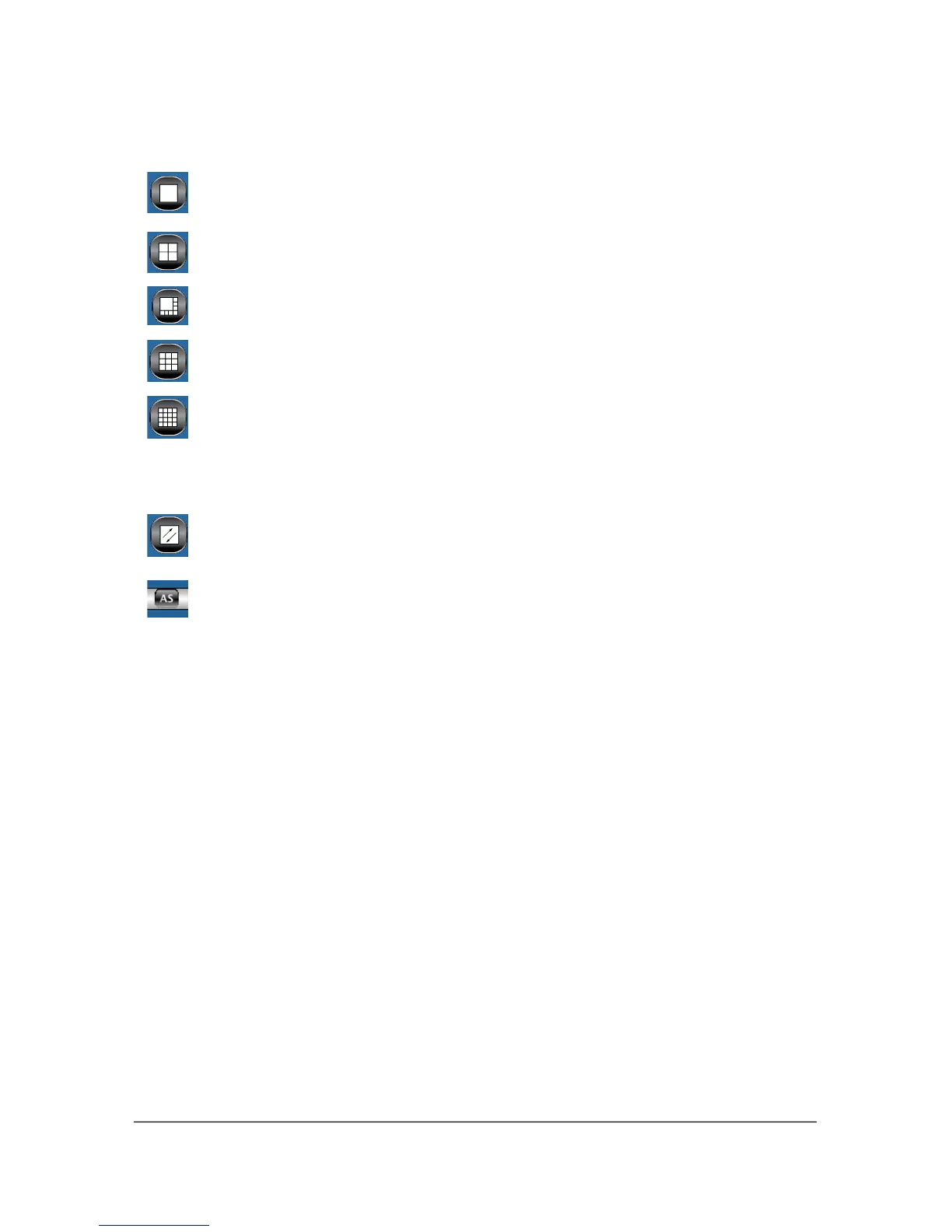
There are 5 split display modes to choose from:
1 – Camera Display
4 – Camera Split Display
8 – Camera Split Display
9 – Camera Split Display
16 – Camera Split Display
________________________________
Additional View Controllers
Full Screen Display
Auto Scan
3.1 1 – Camera Display
In this display you are able to monitor a single camera at a time. While in this
display you will be presented with a button for each camera 1-16 along the
bottom of the viewing area. By clicking one of these buttons that camera will be
displayed.
3.2 4 – Camera Split Display
In this display you are able to view 4 cameras at a time. The groups of cameras
displayed will be 1-4, 5-8, 9-12 and 13-16 depending on the number of cameras
supported by your NVS. If all the cameras for a particular group have been
disabled, then that button will be inactive. You will not be able to click on an
inactive button.
If you would like to view one of the cameras in full view, double click on that
camera. When you would like to return to the split display double click on the
video again.
14



 To Next Page