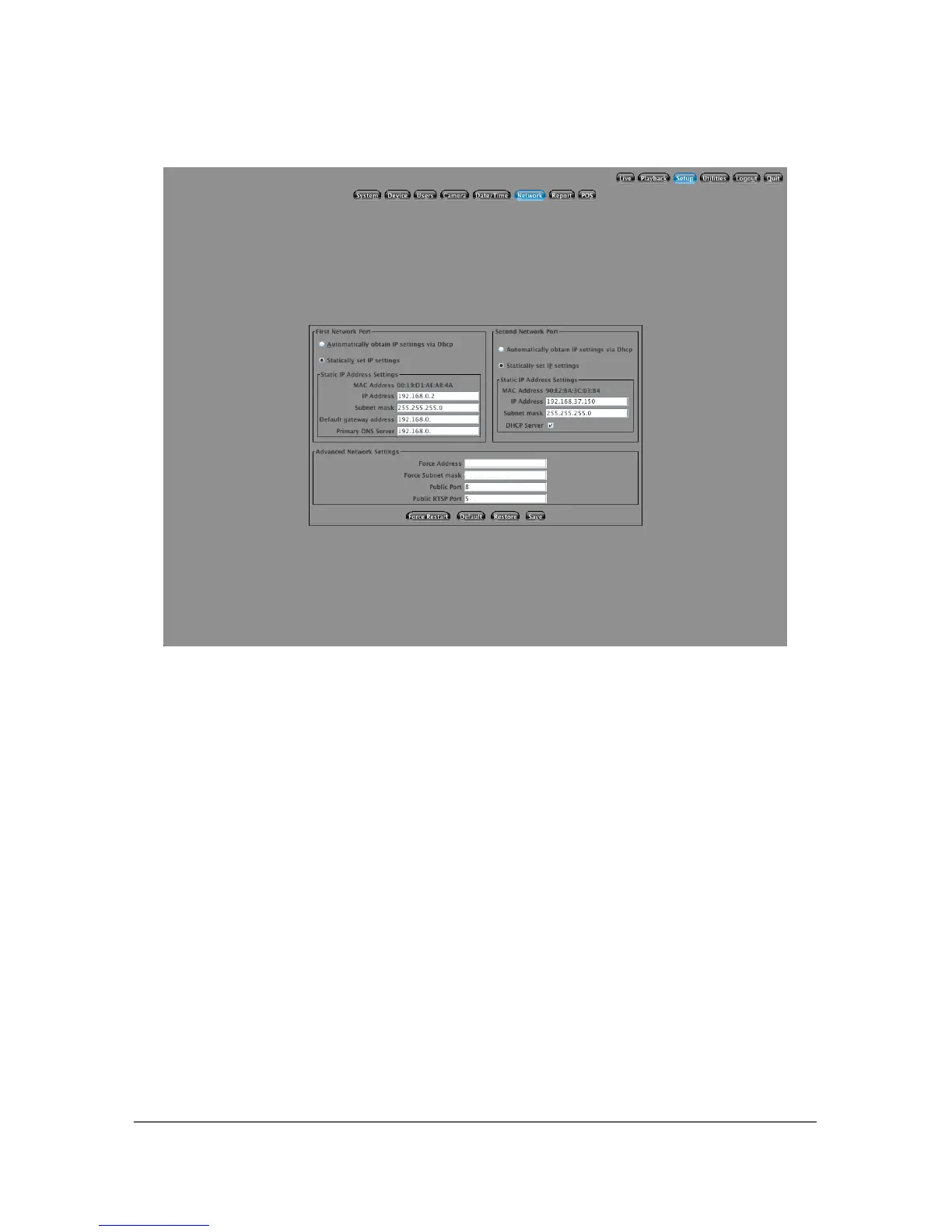
5.6 Network Setup
If you would like to access your system remotely, then you will need to enter the
correct network settings for your local network. This information can be obtained
from your local System Administrator. The default setting is to Automatically
Obtain IP settings with DHCP. If you have a DHCP server on your local network
that hands out addresses, then this is the easiest configuration. However, you will
need to know the address before you will be able to connect remotely.
The second way is to Statically set the IP address. This allows you to manually
specify the IP Address, Subnet Mask, Default Gateway Address, and the Primary
DNS Server. Once completed, do not forget to click the Save button. This will
apply any changes that have been made.
Under the Advanced Network Settings the public port should match the public
port that is opened in your router/firewall. This is set to 80 as a default. The
Public RTSP Port should be set to 554 to allow remote streaming of the network
cameras to your multiple computers/devices.
34



 To Next Page