103
6
Getting Connected
6.4 Using Comm Manager
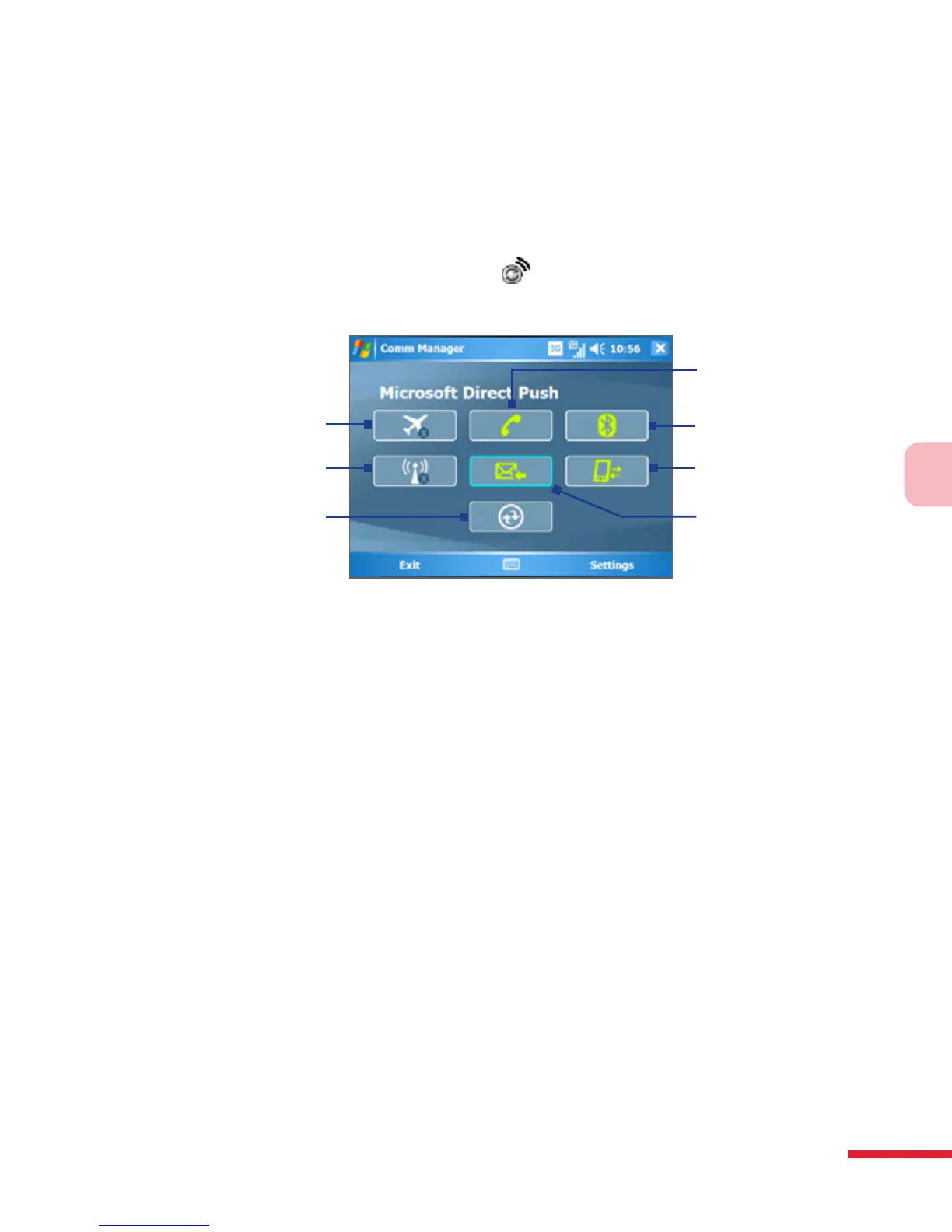
Comm Manager acts like a central switch that lets you enable or disable
phone features as well as manage your data connections easily.
To open Comm Manager
• Tap the Comm Manager icon ( ) on the Today screen.
Simply tap the corresponding button to enable or disable a feature.
1
2
3
5
6
7
4
1 Tap to toggle between turning on or off Flight mode. Turning on Flight mode
turns off the phone, Bluetooth and WLAN functions.
2 Tap to toggle between turning on or off Wi-Fi. Tap Settings > Wireless LAN to
configure Wi-Fi on your device. See "Using Wi-Fi" for details.
3 Tap to open ActiveSync so you can synchronize the device and computer. For
more information about the configuration settings for ActiveSync,
see Chapter 4.
4 Tap to toggle between enabling or disabling the phone. Tap Settings > Phone
to set the ring tone and other phone settings. For more information about
customizing phone settings, see Chapter 5.
5 Tap to toggle between turning on or off Bluetooth. Tap Settings > Bluetooth
to configure Bluetooth on your device. See "Using Bluetooth" for details.
6 Tap to disconnect active data services (e.g. GPRS). You cannot reconnect data
services in Comm Manager.
7 Tap to toggle between automatically receiving (as items arrive) or
manually retrieving Outlook e-mails. For more information, see "Schedule
synchronization with Exchange Server" in Chapter 4.



 To Next Page