151
7
Exchanging Messages and Using Outlook
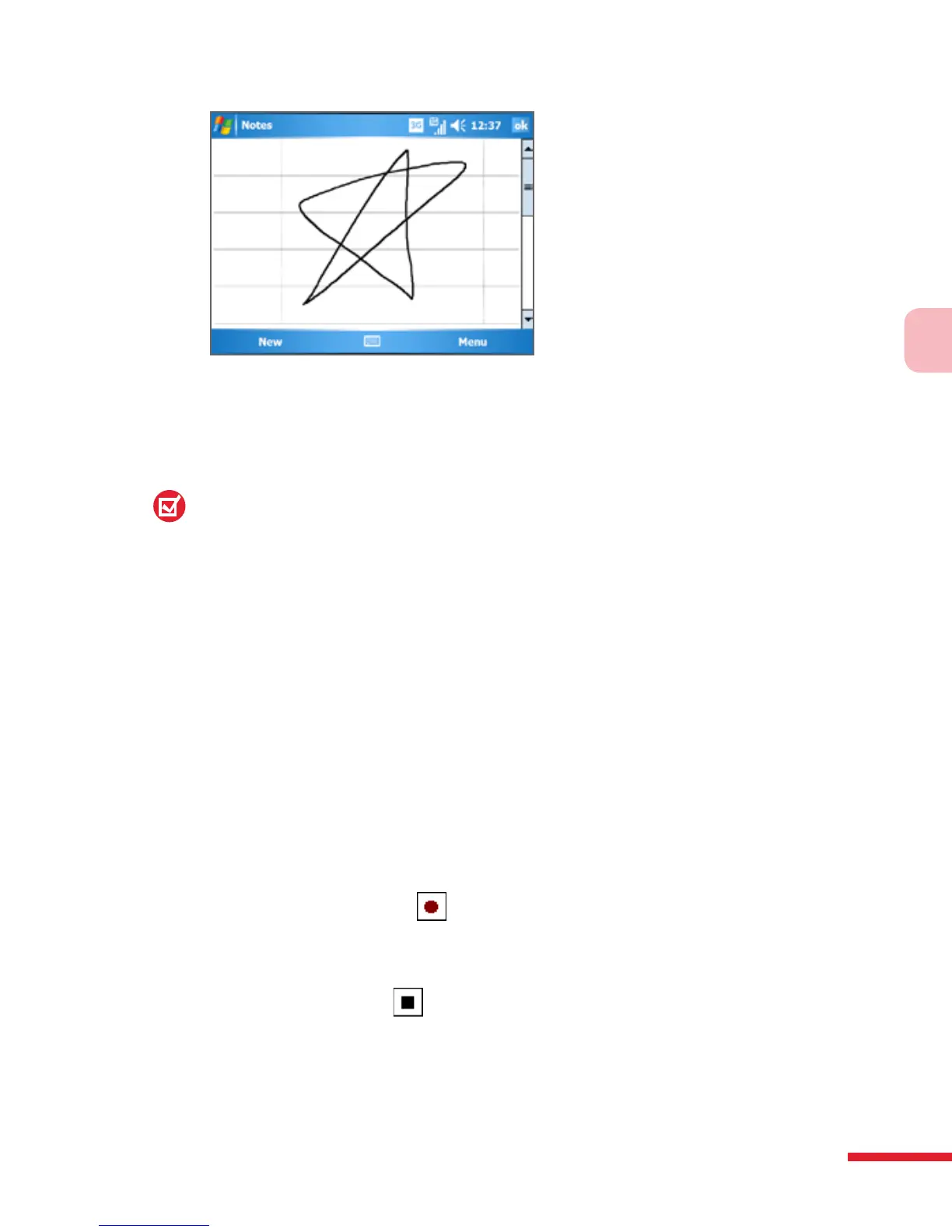
Drawing on the screen
4. A selection box appears around your drawing.
5. When nished, tap OK to return to the note list.
Note: To select a drawing (for example, to copy or delete it), tap and hold the
drawing briefly. When you lift the stylus, the drawing is selected.
Record a voice note
You can create a stand-alone recording (voice note) or you can add a
recording to a note.
To create a voice note
1. Tap Start > Programs > Notes.
2. Do one of the following:
• To create a stand-alone recording, record from the note list.
• To add a recording to a note, create or open a note.
3. If you do not see the Recording toolbar, tap Menu > View Recording
Toolbar.
4. Tap the Record icon (
) to begin recording.
5. Hold your device’s microphone near your mouth or other source of
sound.
6. Tap the Stop icon ( ) when nished recording.
7. If you are adding a recording to a note, tap OK to return to the note
list when nished.
8. If you are recording in an open note, an icon will appear in the note.



 To Next Page