57
3
Using Phone Features
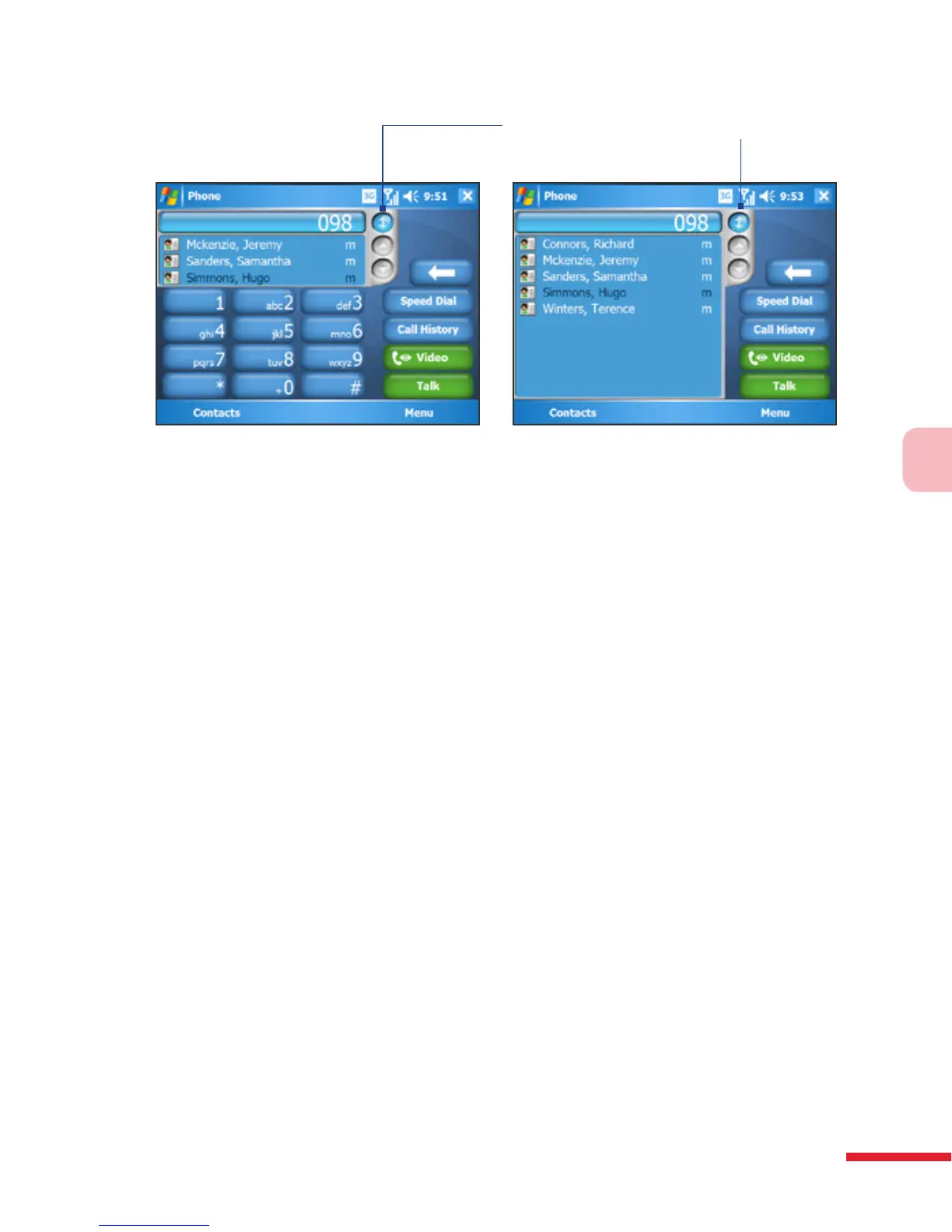
Portrait view with minimized
Smart Dialing panel
Landscape view with expanded Smart
Dialing panel
Tap to minimize or expand the
Smart Dialing panel
Tips on using Smart Dialing
Smart Dialing starts looking for numbers or contacts that match the
sequence you have entered. Below are some tips on how to use Smart
Dialing to quickly find a desired phone number or contact.
To find a phone number
• Simply enter the first one or two digits to find a phone number in Call
History.
• Enter the first three digits or more if you want to nd a phone number
from the saved contacts on your device and SIM card.
To find a contact name
You can just enter the first letter of a contact’s first name or surname. Smart
Dialing will search for the letter starting from the first character of a contact
name as well as from the character that appears after a space, dash, or
underscore in a contact name. For example, if you tap number “2” which is
associated with [a, b, c] on the Phone keypad, contact names such as the
following will be considered matches: “Ben Miller”, “George Adams”, “John-
Carter”, “Carter, Ellen”, “Dixon, Allan”, “Thomas_Clark”, “JaneCampbell”.



 To Next Page