53
3
Using Phone Features
Change Video Call settings
While on a video call, you can change certain settings such as the size of the
image, brightness of the image, the camera to use, and more.
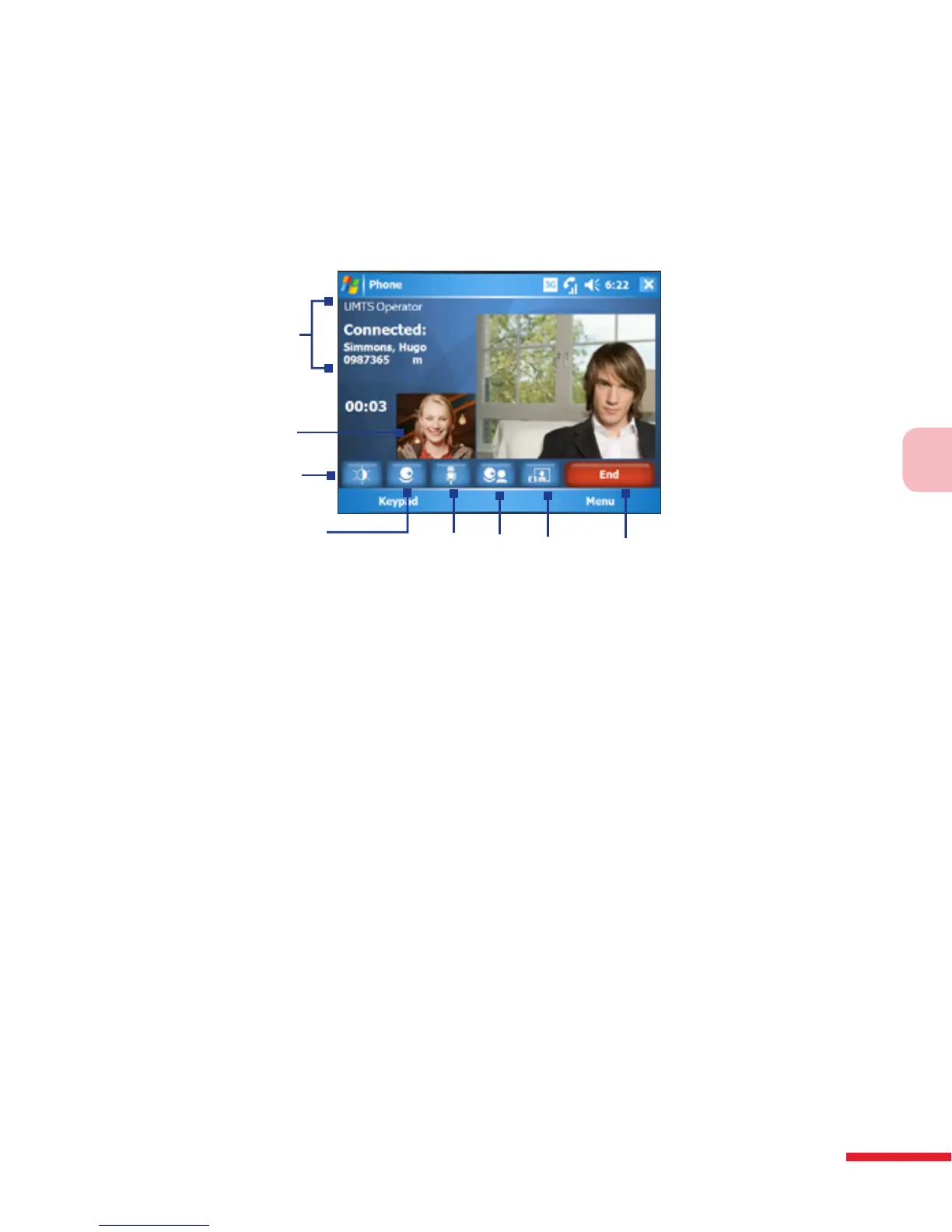
The following shows the Video Call screen and control buttons during an
ongoing call.
2
3
4
5
6
7
8
1
1
Status area. Displays your service provider name, the other party's
information, and call timer.
2
Image display area. Displays your image and the other party's image,
depending on the selected Swap Image setting.
3
Brightness Control. Tap to adjust the camera’s brightness.
4
Camera On/Off. Tap to toggle between turning on/off the camera. When the
camera is turned off, the image displayed depends on the Video Call options
you have set. See “Set up Video Call Options” for details.
5
Audio Mute/Unmute. Tap to mute/unmute audio.
6
Main/Second camera. Tap to toggle between using the Main (back) and
Second (front) camera.
7
Swap Image. Tap continuously to cycle through the available image display
options.
8
End. Tap to end the video call.



 To Next Page