Vigor2133 Series User’s Guide
231
A
A
p
p
p
p
l
l
i
i
c
c
a
a
t
t
i
i
o
o
n
n
N
N
o
o
t
t
e
e
s
s
A
A
-
-
1
1
H
H
o
o
w
w
t
t
o
o
B
B
u
u
i
i
l
l
d
d
a
a
L
L
A
A
N
N
-
-
t
t
o
o
-
-
L
L
A
A
N
N
V
V
P
P
N
N
B
B
e
e
t
t
w
w
e
e
e
e
n
n
R
R
e
e
m
m
o
o
t
t
e
e
O
O
f
f
f
f
i
i
c
c
e
e
a
a
n
n
d
d
H
H
e
e
a
a
d
d
q
q
u
u
a
a
r
r
t
t
e
e
r
r
v
v
i
i
a
a
I
I
P
P
s
s
e
e
c
c
T
T
u
u
n
n
n
n
e
e
l
l
(
(
M
M
a
a
i
i
n
n
M
M
o
o
d
d
e
e
)
)
C
C
o
o
n
n
f
f
i
i
g
g
u
u
r
r
a
a
t
t
i
i
o
o
n
n
o
o
n
n
V
V
i
i
g
g
o
o
r
r
R
R
o
o
u
u
t
t
e
e
r
r
f
f
o
o
r
r
H
H
e
e
a
a
d
d
O
O
f
f
f
f
i
i
c
c
e
e
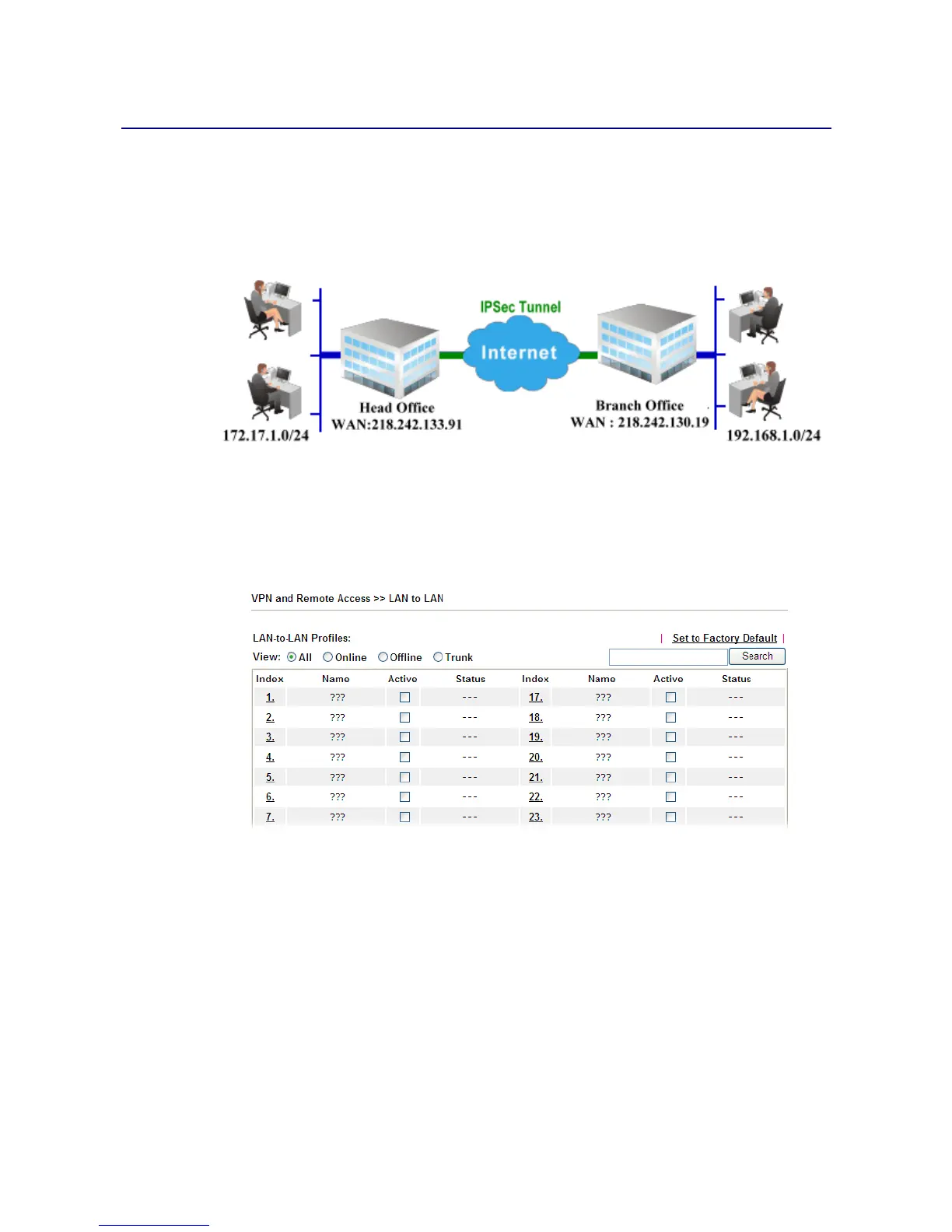
1. Log into the web user interface of Vigor router.
2. Open VPN and Remote Access>>LAN to LAN to create a LAN-to-LAN profile. The
following settings are for a permanent VPN connection.
3. Click any index number to open the configuration page. Type a name which is easy for
identification for such profile (in this case, type VPN Server), and check the box of
Enable This Profile. For Vigor router will be set as a server, the call direction shall be
set as Dial-in and set 0 as Idle Timeout.








 To Next Page