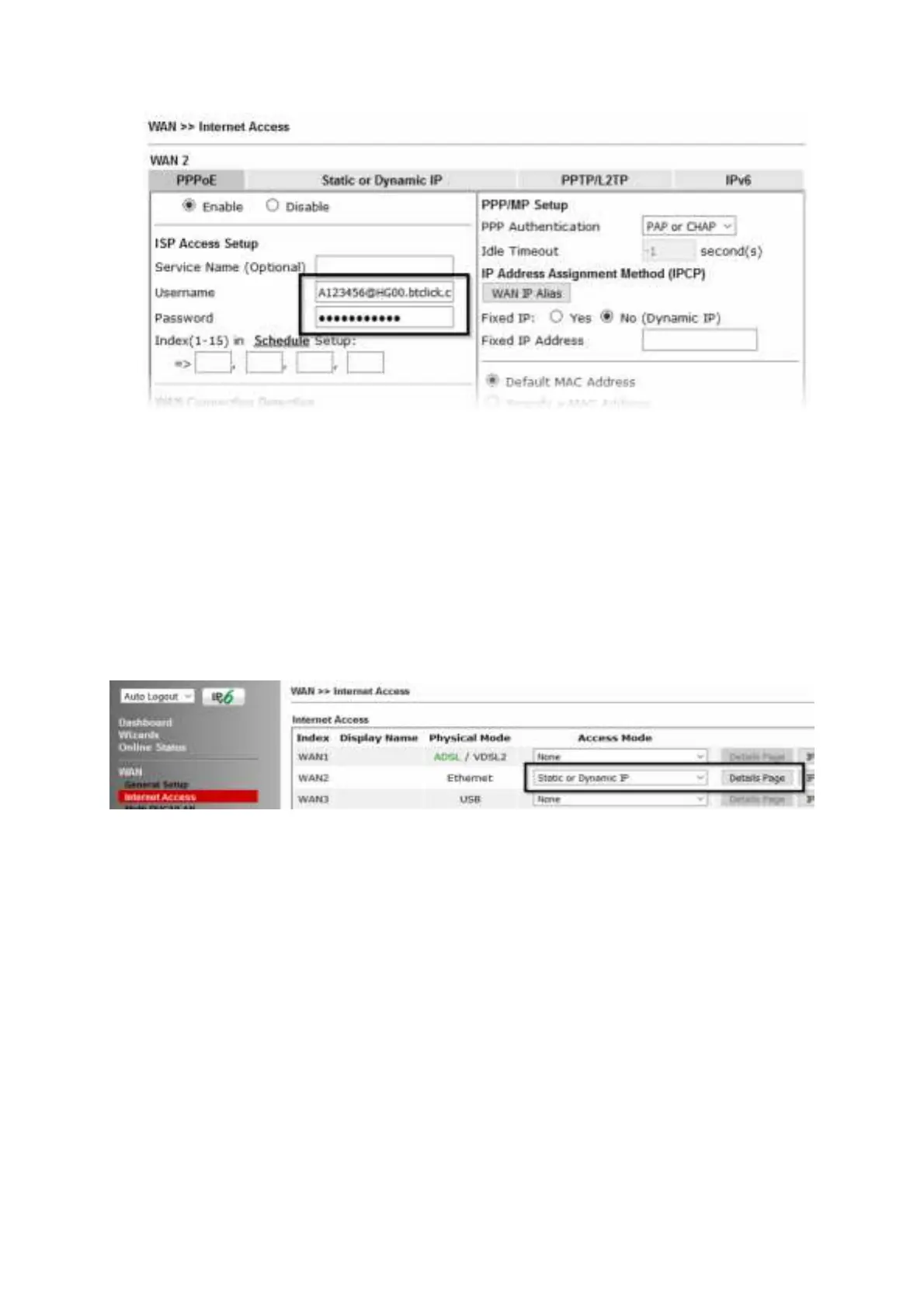
21
Click OK on t hat page t o save t he set t ings and t he rout er will t hen prompt t o
rest art , allow it t o rest art t o properly apply t he changes.
Once t he rout er has rest art ed, log back int o t he web int erf ace and select
[Online Status] > [Physical connection], if it has connect ed, t he relevant WAN
Interface st at us t ext will be in green along wit h an IP address which indicat es
t hat t he connect ion is act ive and ready for use.
4
4
.
.
3
3
.
.
3
3
S
S
t
t
a
a
t
t
i
i
c
c
o
o
r
r
D
D
y
y
n
n
a
a
m
m
i
i
c
c
I
I
P
P
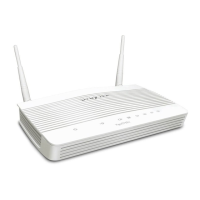
1. Go t o [WAN] > [Internet Access]
First ly set t he WAN2 Access Mode t o Static or Dynamic IP, t hen click t he Details
Page but t on t o proceed:
2. In t he St at ic or Dynamic IP set t ings:
Select t he Enable opt ion and select Obtain an IP address automatically which
will obt ain an IP from t he ISP wit h DHCP.
If your ISP has provided a st at ic IP range, wit h a Net work address and a Subnet
Mask, specify t hat wit h t he Specify an IP address opt ion.








 To Next Page