26
2.1 Introduction
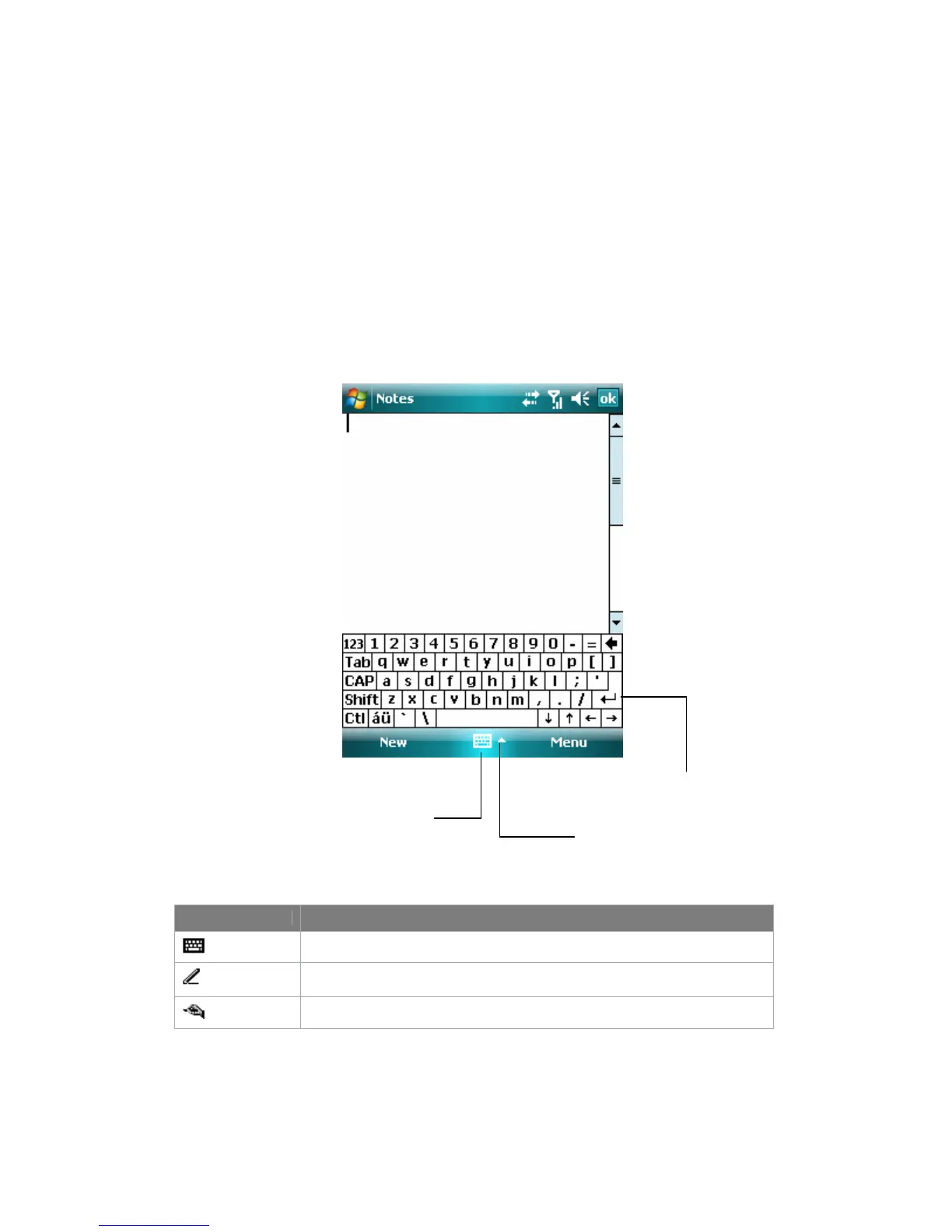
When you start a program or select a field that requires text or numbers, the Input
Panel becomes available automatically. Input Panel provides various input methods
which are available on your device, including Block Recognizer, Keyboard, Letter
Recognizer, and Transcriber. By default, the Input Panel icon appears on the menu
bar to indicate which input method is currently selected. The Input Selector arrow
(shown at the right side of the Input Panel icon) opens a list of available input
methods.
To show or hide the Input Panel
• Tap the Input Panel icon on the menu bar.
Example:
Input Panel icon
Icon Input method
The on-screen keyboard.
Letter Recognizer or Block Recognizer.
Transcriber
2.2 Using the on-screen Keyboard
To enter text, symbols, and numbers, you can use the standard on-screen Keyboard.
Input Selector arrow
Input Panel (Keyboard)



 To Next Page