28
2.5 Using Transcriber
Transcriber is a handwriting recognition program that allows you to write in cursive,
print, or a combination of both. Transcriber works transparently in the background of
programs, recognizing words with its integrated dictionary. When Transcriber is
turned on, it interprets stylus movement anywhere on the screen as handwriting input.
For more information about using Transcriber, see Help on your device.
To start Transcriber
1. Start a program that accepts user input, such as Word Mobile.
2. Tap the Input Selector arrow, and tap Transcriber. The Transcriber introductory
screen appears.
To write using Transcriber
1. In a program, position the cursor where you want the text to appear.
2. Use the stylus to write anywhere on the screen. The handwriting will be
converted to text shortly after you lift the stylus from the screen.
To enter punctuation and symbols
Transcriber comes with an on-screen keyboard that provides an easy way to add
punctuation or a special symbol to existing text.
• In a program, tap on the Transcriber toolbar. The keyboard remains visible
until the button is tapped again.
Tips To reposition the keyboard, tap and hold the title bar, then drag to the
desired location. When no text is selected, you can also open the keyboard
by performing the
gesture.
To edit text
1. In a program, draw a line across the text which you want to edit.
2. After you lift the stylus from the screen, the line will disappear and the selected
text will be highlighted.
3. Do either of the following actions:
• Rewrite the text.
• Use gestures to capitalize letters, insert a space, and so on. For information
about using gestures, see “Transcriber Gestures” in this chapter.
Transcriber Gestures
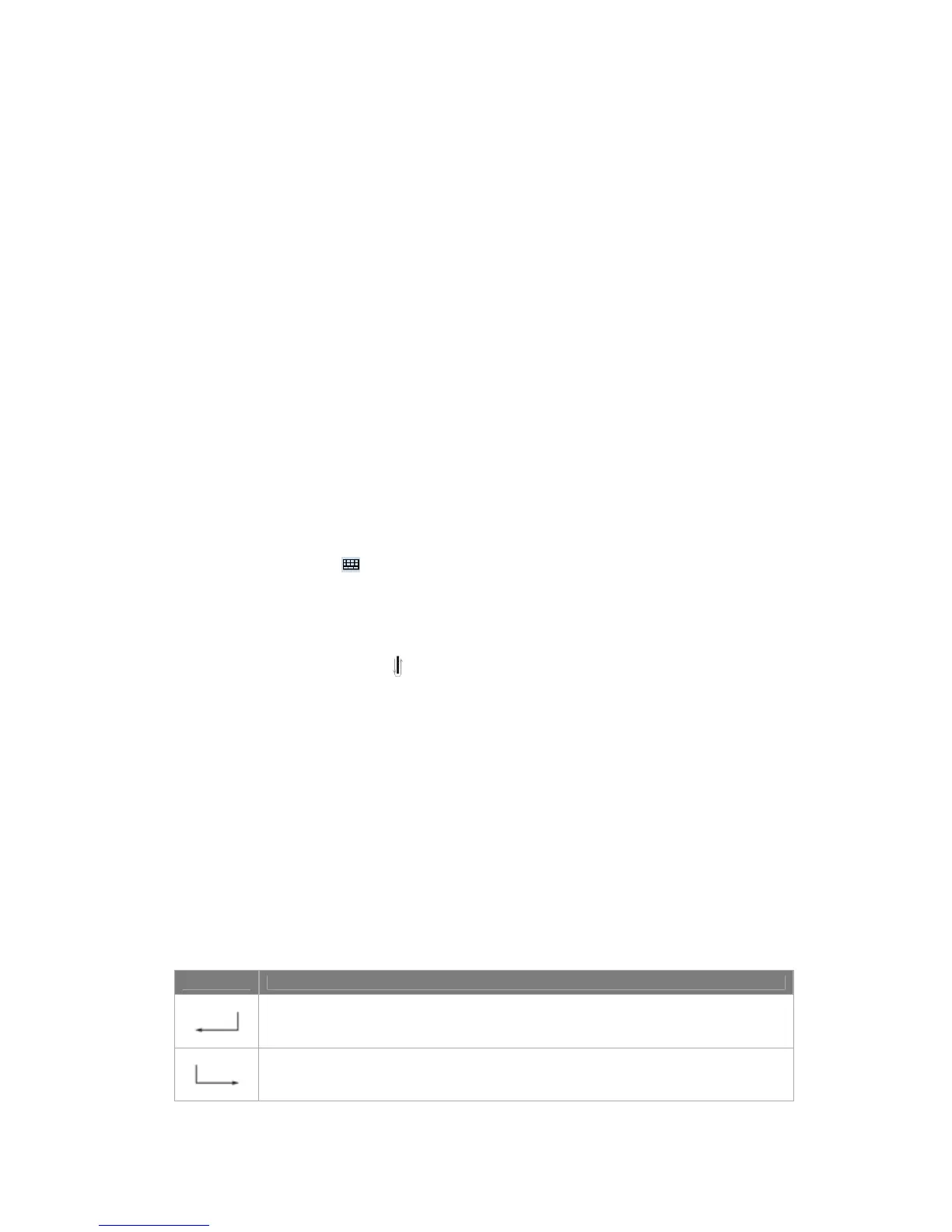
Use quick strokes of the stylus to edit your text or to insert returns, spaces, or tabs.
Do To
Insert a paragraph return at the cursor. The horizontal portion of the gesture must
be at least two times longer than the vertical portion.
Insert a space at the cursor. The horizontal portion of the gesture must be at least
two times longer than the vertical portion.



 To Next Page