88
• Configure the view settings during slide shows and activate screensaver
options.
• Configure camera and video settings of your device.
8.3 Using Windows Media Player
You can use Microsoft Windows Media Player 10 Mobile for Pocket PC to play digital
audio and video files stored on your device or on a network, such as on a Web site.
These are the following file formats that are supported by this version of Windows
Media Player.
File Formats Supported File Extensions
Video
• Windows Media Video *.wmv, *.asf
• MPEG4 Simple Profile *.mp4
• H.263 *.3gp
• Motion JPEG *.avi
Audio
• Windows Media Audio *.wma
• MP3 *.mp3
• MIDI *.mid, *.midi, *.rmi
• AMR Narrow Band *.amr
About the controls
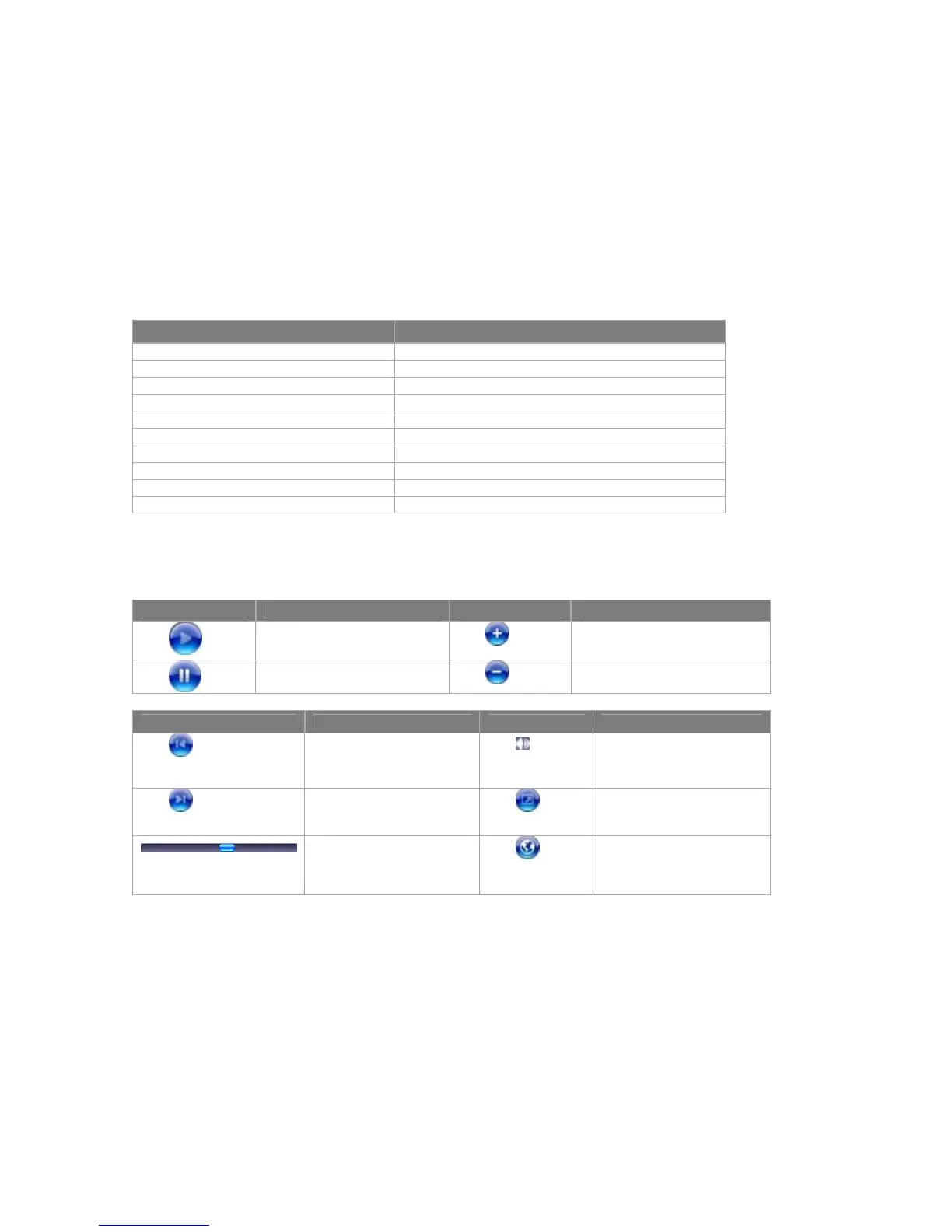
The following are available controls on the Windows Media Player.
This control Does this This control Does this
Play a file.
Increase the volume level.
Pause a file.
Decrease the volume level.
This control Does this This control Does this
Skip to the beginning of
the current file or to the
previous file.
Turns the sound on or off.
Skip to the next file.
Play a video full screen.
Adjust the progress of a
playing file.
Display a Web site where
you can find music and
videos to play.
Note If your device hardware supports it, you can rewind and fast-forward files
by pressing and holding the Left/Right controls.
About the screens and menus
Windows Media Player has three primary screens:
• Playback screen. The default screen that displays the playback controls
(such as Play, Pause, Next, Previous, and Volume), the album art window, and
the video window. You can change the appearance of this screen by choosing
a different skin.



 To Next Page