70
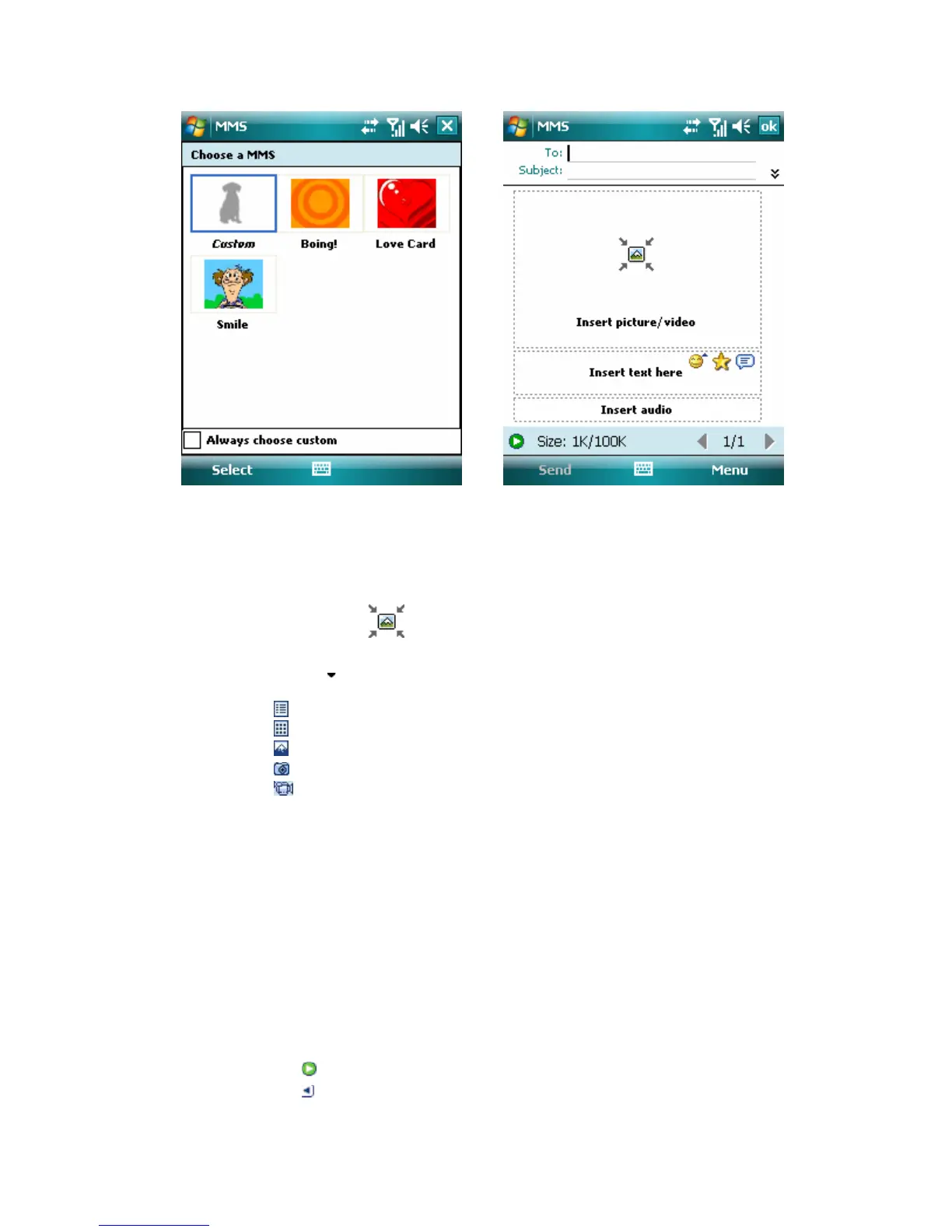
1. Tap Start > Messaging > MMS.
2. Tap Menu > New, then enter Choose a MMS tab.
3. In To, enter the recipient’s phone number or e-mail address directly, or tap To,
Cc, or Bcc to choose a phone number or an e-mail address from Contacts.
4. Enter a subject for your message.
5. Tap the Insert icon (
) to select and send a photo or video clip. By default, it
will open My Pictures folder. For any other folder containing pictures or videos, tap
the Down arrow (
) of corresponding My Pictures folder.
6. Select a photo or video clip. When select, you can:
• Tap
to view all files in My Pictures folder by list.
• Tap
to view all files in My Pictures folder by thumbnail.
• Tap
to view it.
• Tap
to enter the photo mode of camera.
• Tap
to enter the video mode of camera.
• Tap photo or video directly to insert it into the MMS message you are
composing.
• Tap it again and back to My Pictures folder for replacement.
• Tap and hold the thumbnail to display a shortcut menu containing the options:
Add to Message, Large View, File Info and Delete. Select Add to Message
add the file to the MMS message you are composing; Select Large View to
view the file in large screen; Select File Info to display the file information;
select Delete to remove the selected photo or video clip.
7. Enter text and insert audio clips by tapping the respective areas.
8. Tap Send to send the message.
Note The following icons act as shortcuts to some of the operations on the MMS
Message screen:
• Tap
to preview your message
• Tap
to go to the previous slide



 To Next Page