80
To set the default input mode for Notes
If you frequently add drawings to your notes, you may find it helpful to set Writing as
the default input mode. If you prefer typed text, select Typing.
1. Tap Start > Programs > Notes.
2. In the note list, tap Menu > Options….
3. In the Default mode box, tap one of the following:
• Writing if desired to draw or enter handwritten text in a note.
• Typing if desired to create a typed note.
4. Tap OK.
To create a note
1. Tap Start > Programs > Notes. In the note list, tap New.
2. Tap the Input Selector arrow next to the Input Method icon on the menu bar,
tap the desired input method, and enter the text.
3. If the Input Selector arrow is not displayed, tap the Input Method icon.
4. When finished, tap OK to return to the note list.
Notes To select handwritten text tap and hold next to the writing. As soon as dots
appear, quickly drag across the writing before they form a complete circle.
If a letter crosses three ruled lines, it is treated as a drawing rather than
text.
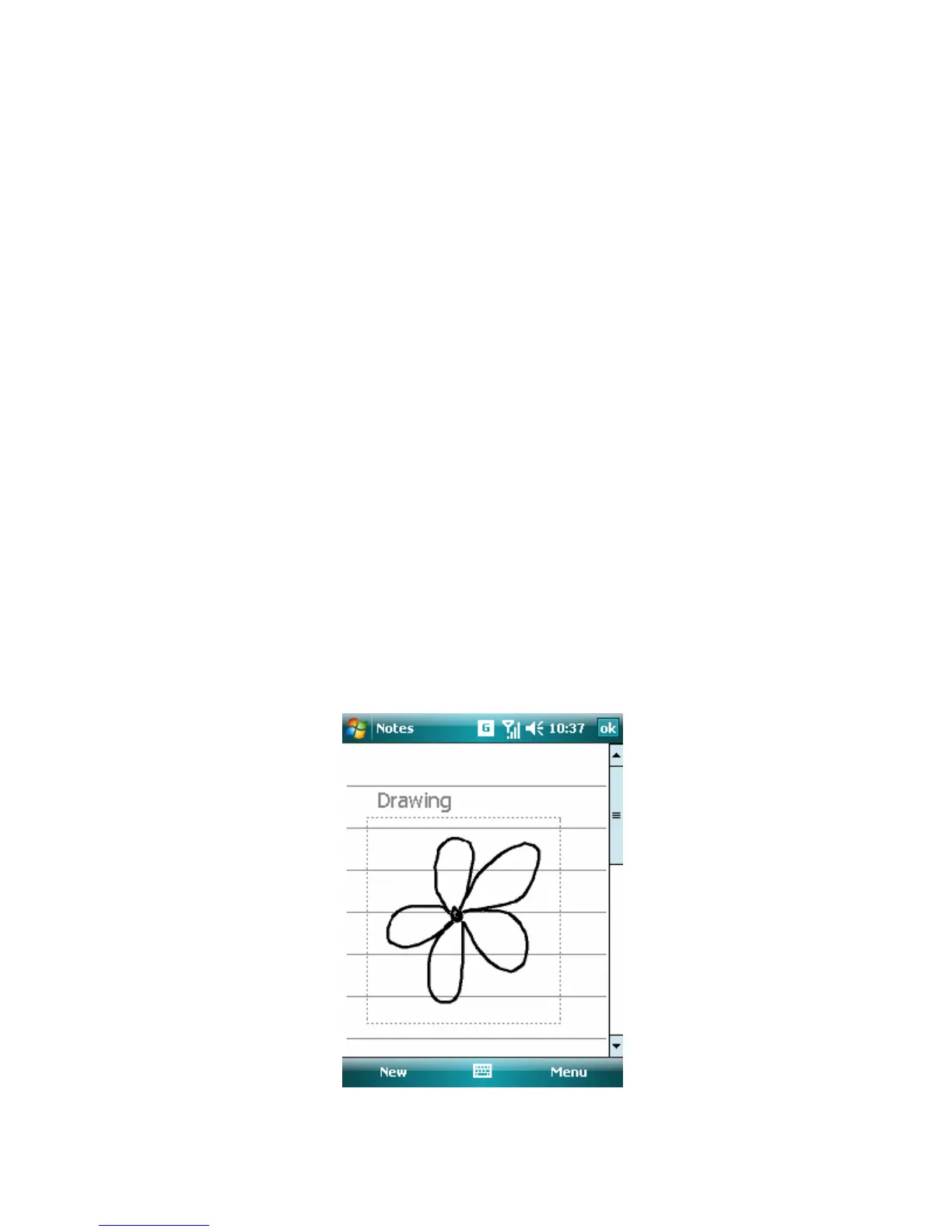
To draw in a note
1. Tap Start > Programs > Notes.
2. In the note list, tap New.
3. To draw on the screen, use the stylus
4. A selection box appears around your drawing.
5. Tap OK to return to the note list if finished.
Drawing on the Screen



 To Next Page