Drobo5N2 User Guide 109
1.5.2
Enabling or Disabling Dual Disk Redundancy
Dual Disk Redundancy protects your Drobo 5N2 in the event of two simultaneous hard drive failures.
Although it provides additional protection, it requires more hard disk space. To learn more about
how much more hard disk space is required, see Determining Drive Space Requirements
.
Notes:
You need to be logged in as the administrator to perform this action.
To use Dual Disk Redundancy, you need a minimum of three drives. The option is not be
available to you if you do not have a sufficient number of drives or capacity. First, you may
need to add capacity.
Enabling dual disk redundancy will not erase your data.
To enable or disable dual disk redundancy:
1.
In Drobo Dashboard on the All Drobos page, select the Drobo device for which you would like
to enable or disable Dual Disk Redundancy.
2.
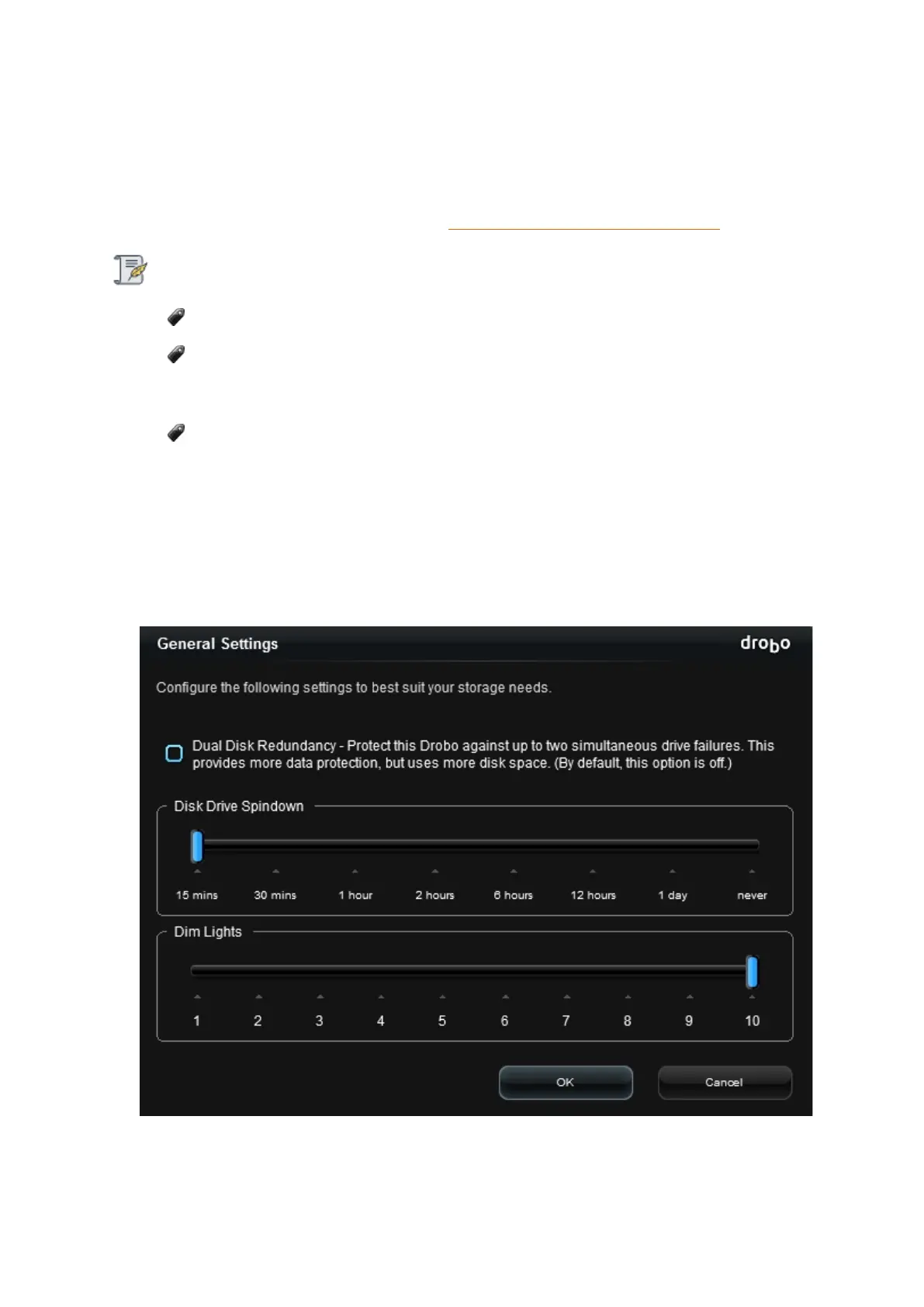
Click the Drobo Settings option on the Navigation menu, and click General. The General
Settings page opens.
3. Select the Dual Disk Redundancy check box to enable it, or de-select it to disable Dual Disk
Redundancy.



 To Next Page