Drobo5N2 User Guide 130
1.6.4
Mounting Shares
Mounting a share assigns a drive letter to that share. By doing this, you make the share accessible
from your operating system.
1.
To mount shares:
2.
In Drobo Dashboard, select the appropriate Drobo 5N2 on the All Drobos page.
3.
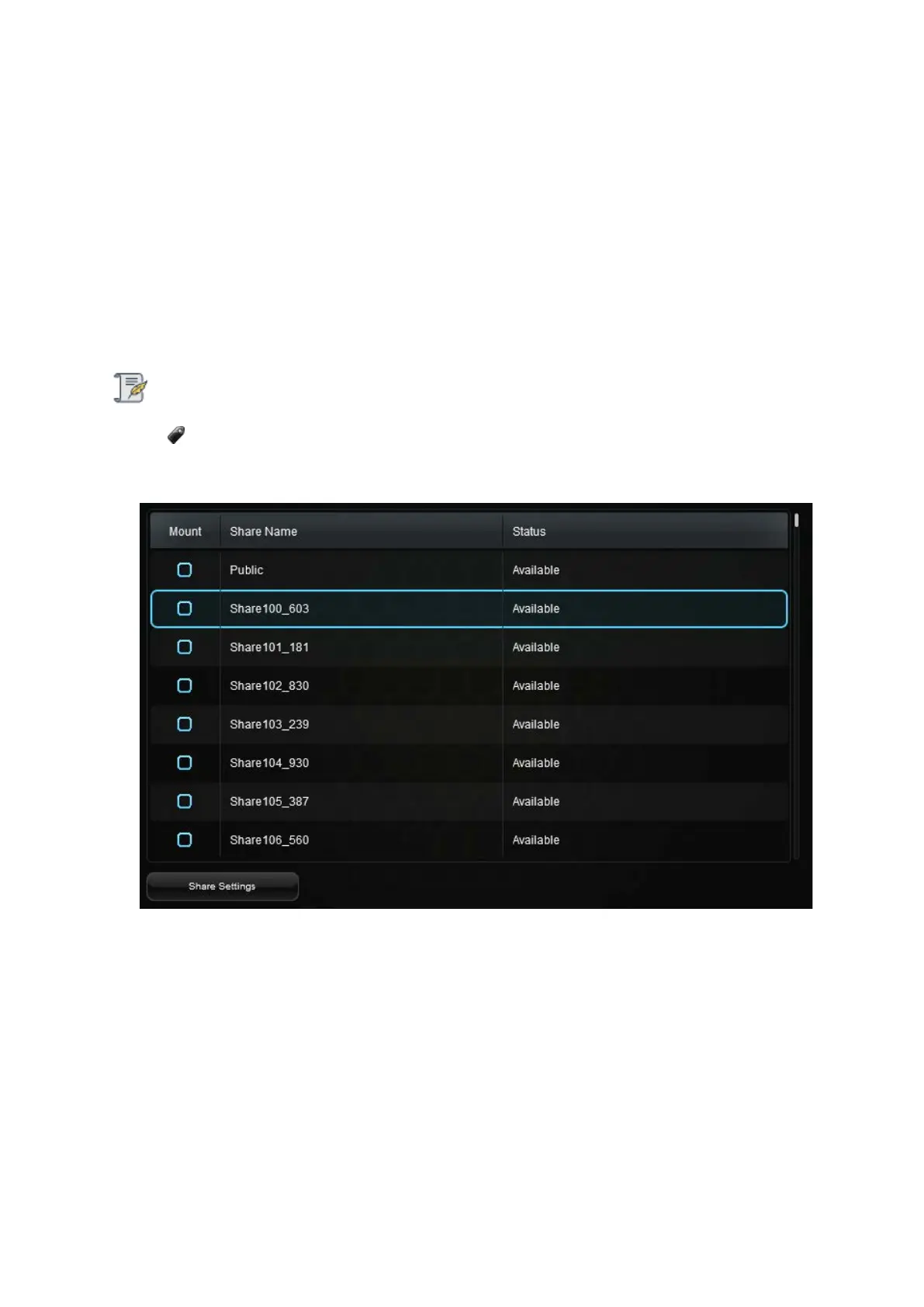
Click the Shares option on the Navigation menu. The Shares page appears, displaying all the
shares created on the selected Drobo 5N2.
Note:
Some shares are only visible to the administrator of that Drobo device.
4.
To mount a share, select the check box in the Mount column next to the appropriate share.
5. For Windows, the Select a Drive Letter dialog box opens. Select a drive letter from the drop-
down list and click the OK button.



 To Next Page