Drobo5N2 User Guide 115
1.5.6
Configuring Network Settings (and IP Addresses) for Your
Drobo 5N2
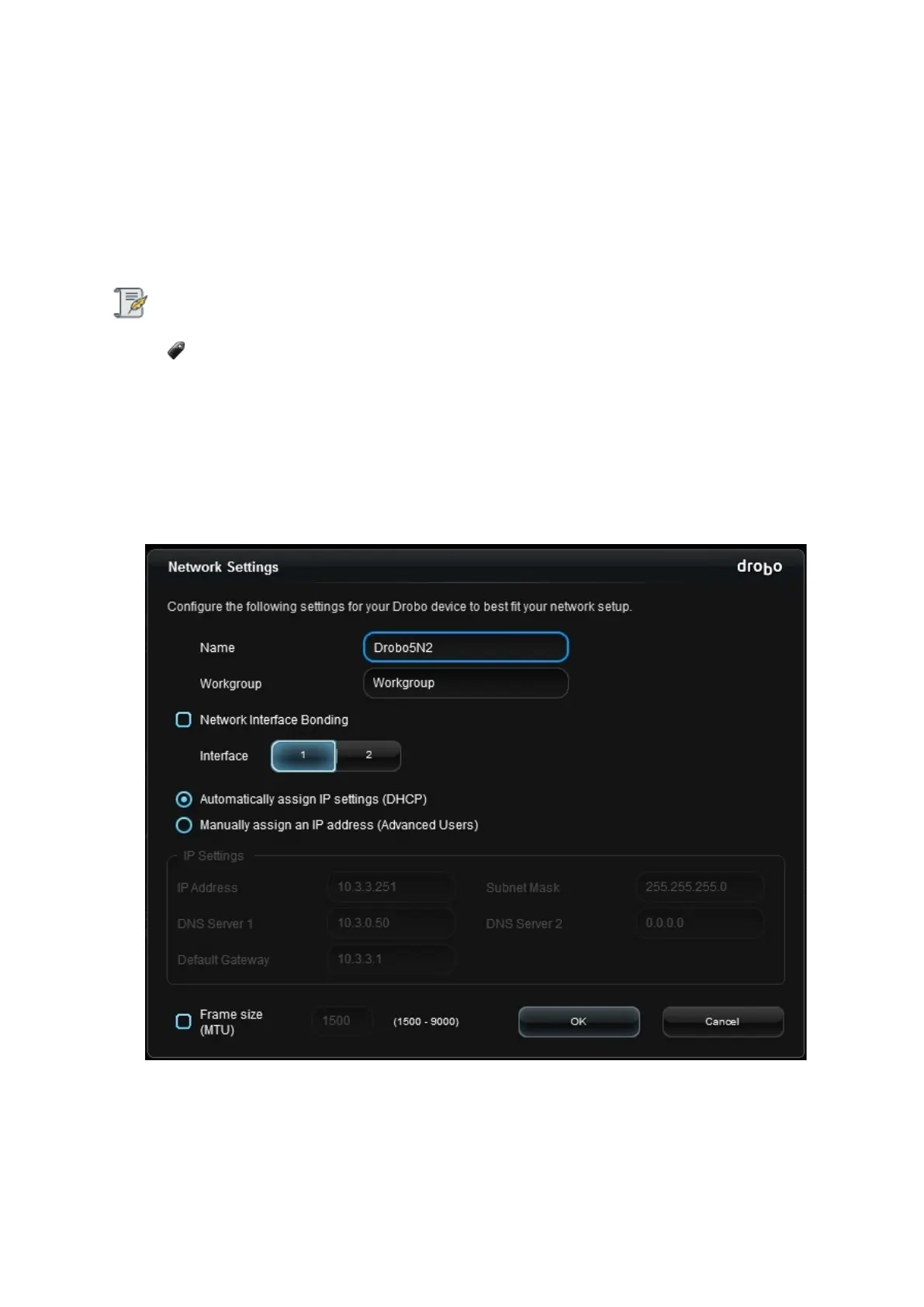
Although your Drobo 5N2 uses DHCP to automatically assign IP addresses to your Drobo device on a
network (this is the default), you can choose to manually assign IP addresses to your device’s port(s)
by configuring network settings. You can also modify MTU settings to support jumbo frames.
Note:
You need to be logged in as the administrator to change these settings.
To configure the network settings and IP address for your Drobo 5N2:
1.
In Drobo Dashboard on the All Drobos page, select the Drobo 5N2 for which you would like to
modify network settings.
2.
Click the Drobo Settings option on the Navigation menu, and click Network. The Network
Settings page opens.
3. If you would like to manually set an IP address for the port, do the following:
●
Select the Manually assign an IP address option.
●
Network settings become enabled.



 To Next Page