Drobo5N2 User Guide 86
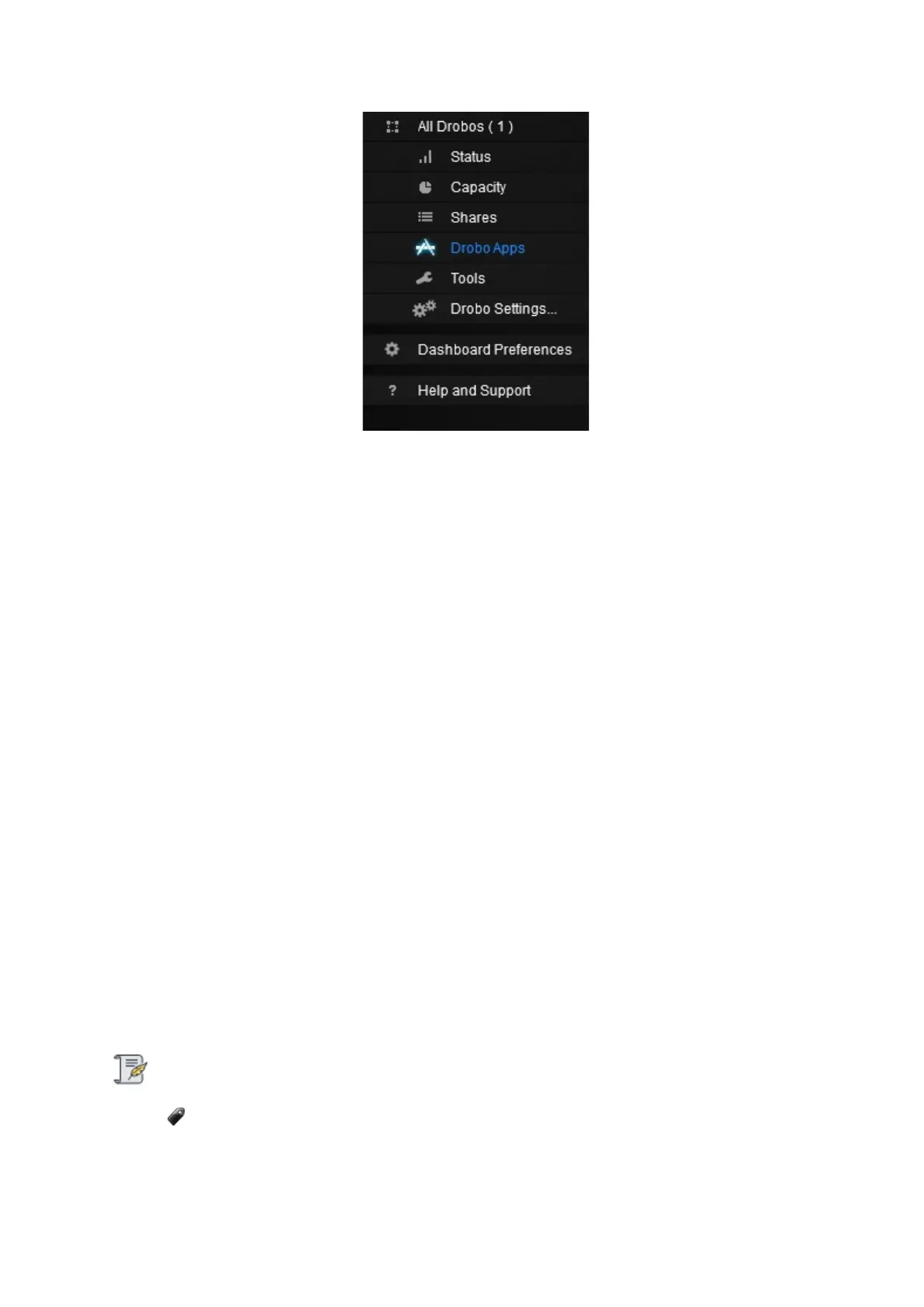
Menu options include the following:
●
All Drobos (#), where # is the number of Drobo devices you have connected – Opens the All
Drobos page.
●
Status – Opens the Status page, where you can view a variety of status information for the
selected Drobo device, such as drive information, device serial number and more.
●
Capacity – Opens the Capacity page, where you can view how your Drobo device’s storage
capacity is being used.
●
Shares – Opens the Shares page, which enables you to view shares for your Drobo 5N2.
●
Drobo Apps – Opens the Drobo Apps page, where you can install and manage third-party
Drobo applications.
●
Tools – Opens the Tools page, which provides access to special tools, such as those to restart
your Drobo device or check for software updates.
●
Drobo Settings – Opens a sub-menu with the option to modify various types of settings, such
as General, Admin, Network and Alerts.
●
Dashboard Preferences – Opens the Dashboard Preferences page, which enables you to
modify Dashboard settings, such as those for automatic software updates and e-mail settings. (E-
mail settings enable you to receive e-mail alerts on the status of your Drobo devices.)
●
Help and Support – Opens the Help and Support page, which provides access to various forms
of help, including the Online User Guide and the Drobo knowledge base.
Note:
You may need to be logged in as the administrator to access some of these commands.



 To Next Page