DS5-AX User Manual Ver.0 2016. 03.17
28
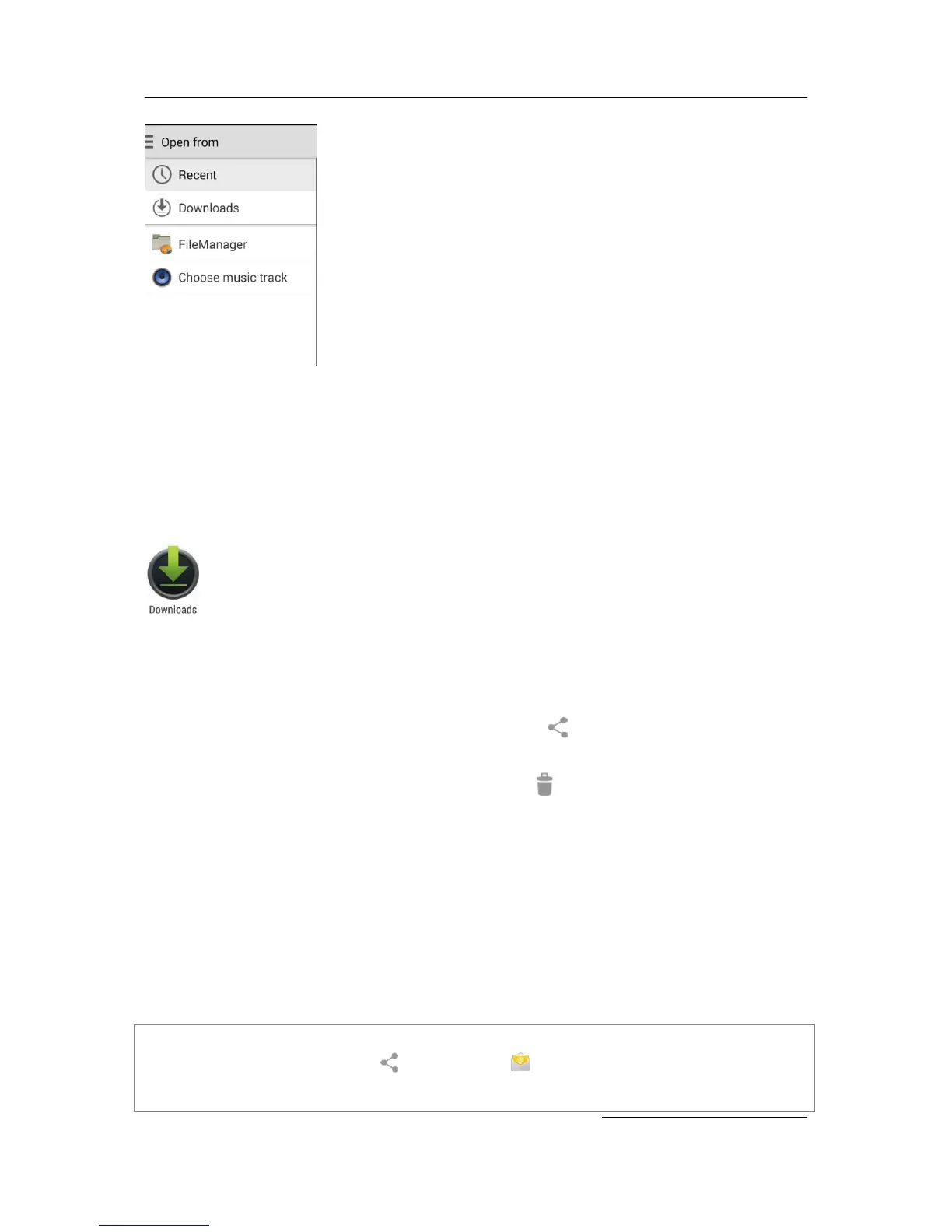
From here, you can view any of these sources:
Recent shows you the photos or video you’ve taken or opened most recently.
Images displays any photos, videos, or other images on your device.
Downloads includes most files (excluding Play content) you’ve downloaded from emails
or the Web
Gallery lets you browse all the images and videos that have been uploaded to your
account.
Use the Downloads app to view, reopen, or delete files you download from email or
other sources (excluding videos, magazines and other media)
In the downloads app:
Touch an item to open it.
Touch headings for earlier downloads to view them.
Check items you want to share. Then touch the Share icon and choose a sharing
method from the list.
Check items you want to delete. Then touch the Trash icon.
At the bottom of the screen, touch Sort by size or Sort by date to switch back and forth.
Screenshots
To take a screenshot from DS5-AX:
1. Make sure the image you want to capture is displayed on the screen.
2. Press the Power and Volume down buttons simultaneously.
The screenshot is automatically saved in your Gallery.
TIP: To easily share your screenshot via message, or Bluetooth, and email, swipe down the
notification shade and touch the Share icon, or email icon below the previous of your
screen shot.


 To Next Page