DS5-AX User Manual Ver.0 2016. 03.17
29
Chapter 4: Use the keyboard
Enter & edit text
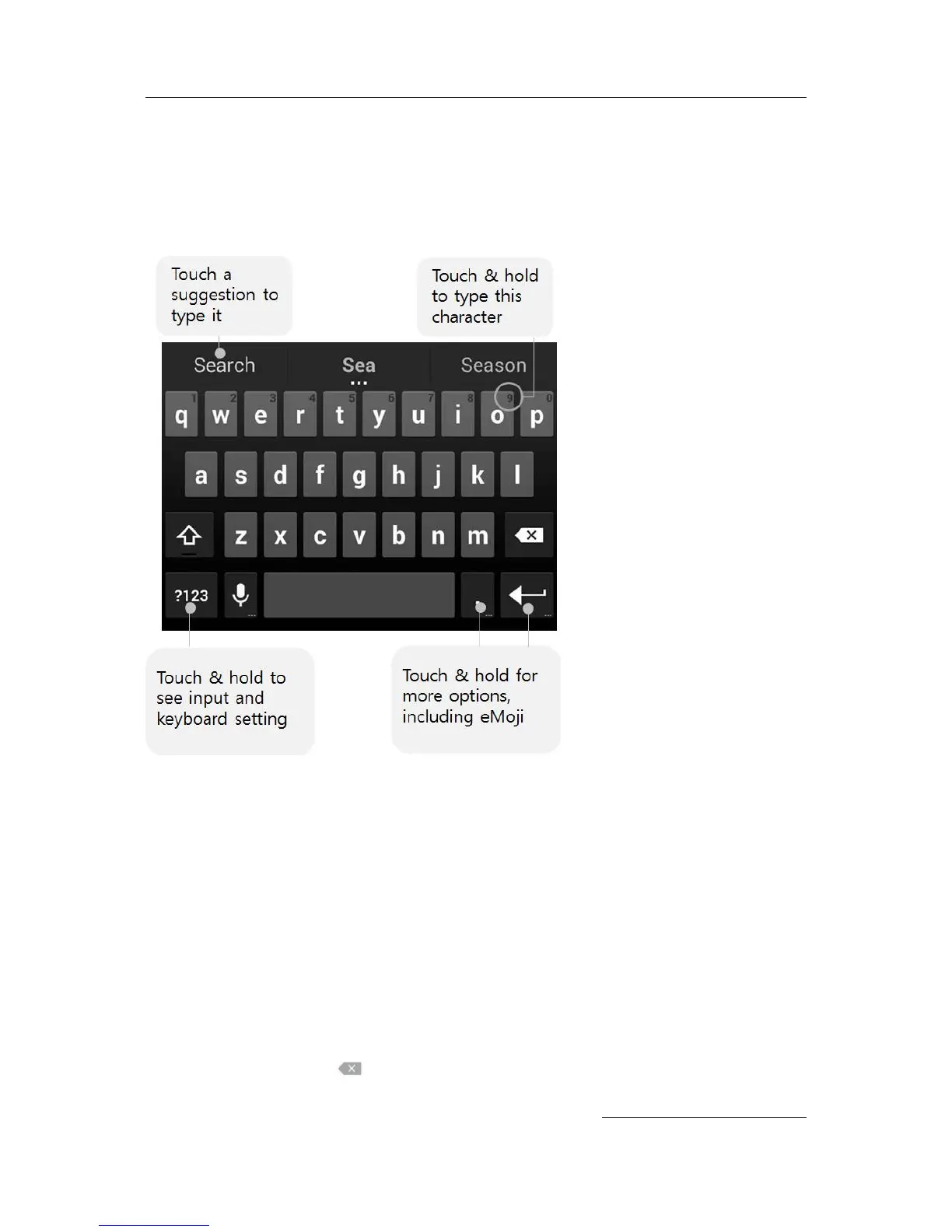
Use the onscreen keyboard to enter text. Here’s what it looks like on a DS5-AX device:
To make the keyboard go away, touch the Back button below it.
Some apps open the keyboard automatically. In others, you first need to touch where you want to
type.
Basic editing
Move the insertion point. Touch where you want to type. The cursor blinks in the new
position, and a blue tab appears below it. Drag the tab to move the cursor.
Select Text. Touch & hold or double-tap within the text. The nearest word highlights,
with a tab at each end of the selection. Drag the tabs to change the selection. The tab
disappears after a few moments. To make it reappear, touch the text again.
Delete text. Touch to delete selected text or the characters before the cursor.
Type capital letters. Touch the Shift key once to switch to capital letters for one letter. Or


 To Next Page