60
Barcode Form
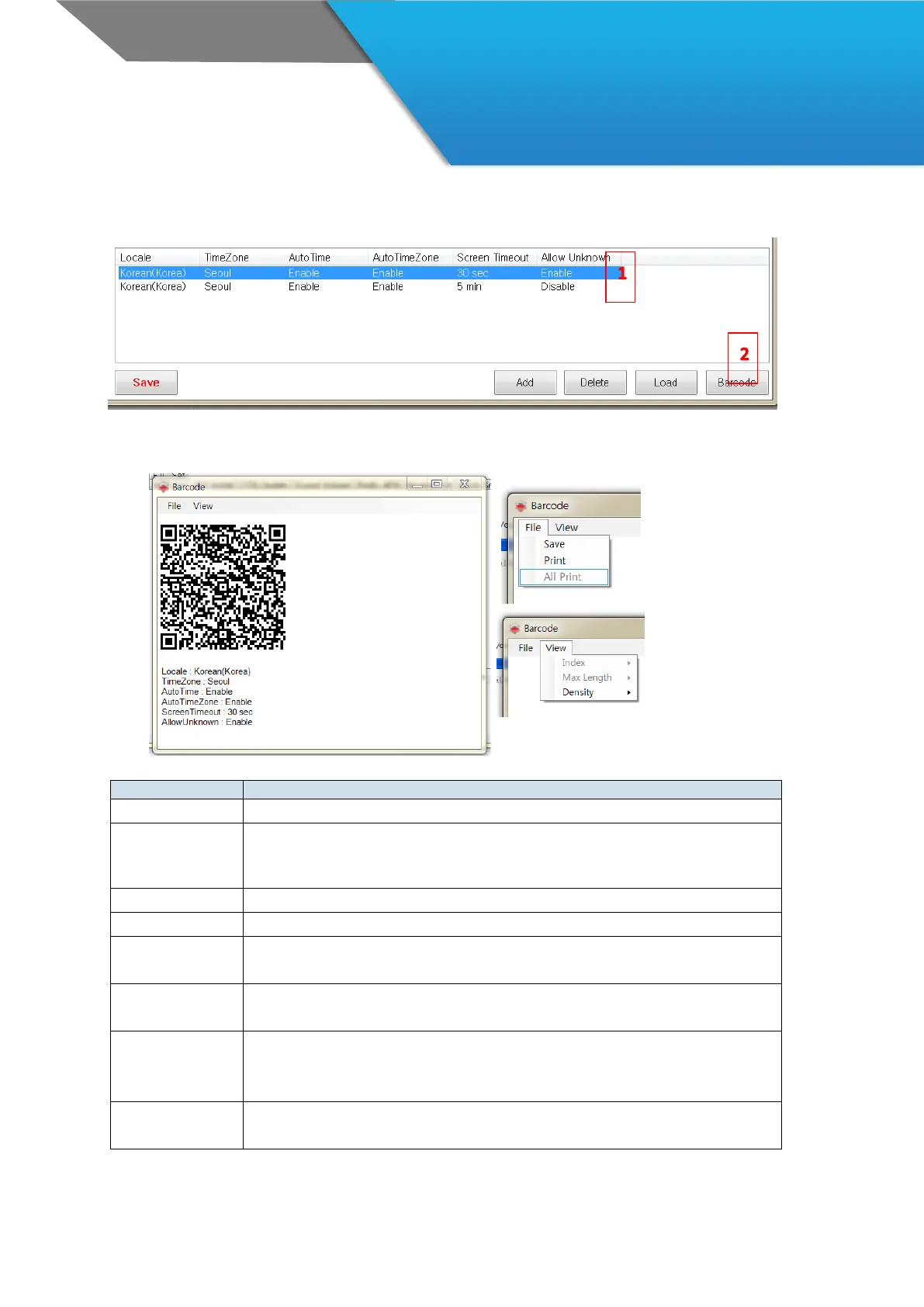
Select the item you want to create barcode, and click Barcode button.
The barcode pops up as below.
· The barcode can be saved or printed
· Save the barcode image file. You can save as jpg, bmp, gif, or png
· When the setting file is big, the barcode can create more than 2.
You should save both.
· Print the current barcode
· Print all barcodes when there is more than 2.
· You can select each barcodes when there is more than 2
· You can control the barcode size with ‘Max Length’ or ‘Density’
· It activates when there is more than 2 barcodes
· There is counter (1/2, 2/2) on the images
· Choose Max Length – 1000 / 1500 / 2000
· Default is 2000
· This menu activates when the date length is more than 1000
· Choose Density – 2 / 3 / 4
· Default is 4


 To Next Page