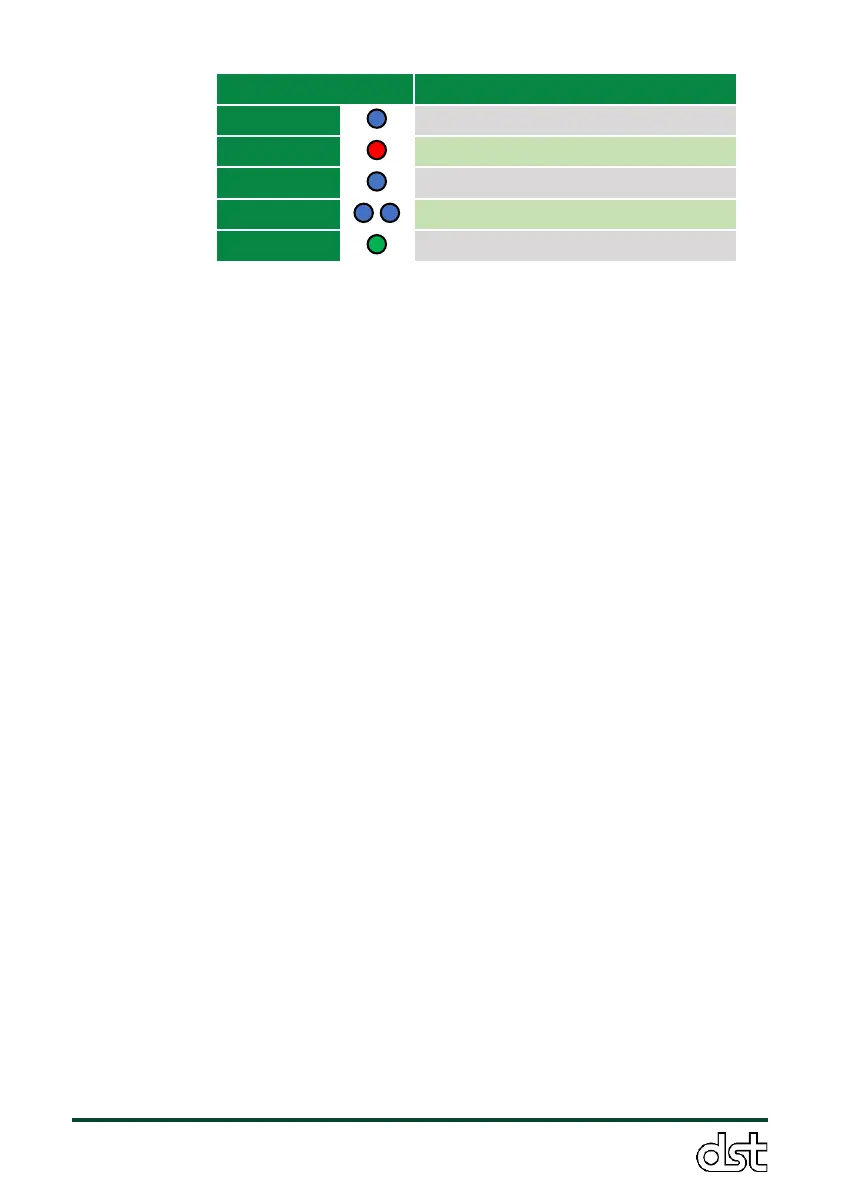
Table 4. Index of menu items displayed when holding down the LED
button. The LED display will cycle through the options in the order
listed until the button is released at the desired selection.
3.2.4. Sensor shutdown (Power off)
To turn off the ObservAir, hold the LED button to cycle through the menu
until the first red flash and release. The sensor will flash red two more
times and make a chime to confirm that it is shutting down.
3.2.5. Toggle Cloud Dashboard connection
To turn on or off the connection to the Cloud Dashboard, press and hold
the LED button to cycle through the menu until the first blue flash and
release. An escalating or a descending tune will sound to indicate whether
the service has been turned on or off. Note, the instrument must first be
provisioned before Cloud Dashboard services can be used (see next
Section). Also, note that the instrument must have an accessible internet
connection either via WiFi or LTE. Please consult the ObservAir Cloud
Dashboard Manual for more information.
3.2.6. Provision Cloud Dashboard service
Before the instrument can access Cloud Dashboard services, it must be
provisioned - Network credentials must be provided for the sensor to
connect to the cloud, and the sensor must be assigned to your Cloud
Dashboard account and configured. To activate provisioning, press and
hold the interactive button until the LED flashes blue twice, and release.
The instrument will restart into provisioning mode: The LED will slowly
breathe blue. Please consult the ObservAir Cloud Dashboard Manual for
more information and further instructions.
3.2.7. Sensor alarms and errors
When a sensor error occurs or an alarm is triggered, the LED button
flashes red, orange, or yellow. The speed and color of the flashing LED



 To Next Page