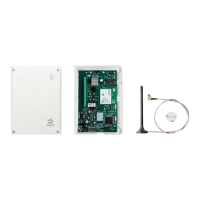
File name: Installation DALMx000 IP_2G_3G EN r3 Page 14 (18)
2.4 NOTE: Reset DIP3 to OFF.
3. Select the relevant configuration via the app.
Then select ”Tools” - ”New hardware” – ”Continue” – ”Hardware replaced”
4. Reprogram via the app, where the new phone number is entered.
5.2.6 Output remote control
DALMx000 has two outputs that can be controlled via SMS sent to the alarm transmitter's SIM card phone
number. Activation of an output means a closure between the output and Common, marked ”C" on the
DALMx000 circuit board. Password for output remote control is set via the EWM portal under ”Outputs” at
device configuration. Format SMS: [password],Out[1,2]:[on,off]
Example: To activate output 1 and deactivate output 2 for an alarm transmitter with password 1234, send
message 1234,Out1:on,Out2:off to the transmitter.
5.2.7 Hardware replacement (resetting)
Note that when replacing hardware/circuit board, a new activation must be performed at the alarm
centre(s) the existing device is attached to. Therefore, the alarm centre(s) must be contacted to supply a
new password to enable authentication from the new device. The description below can also be used to
reset a device.
New hardware
1. Transfer the SIM card to the new device.
2. Check that the replacement product is the same model as the device it is replacing. Ensure that all
connections and DIP settings are made in the same way on the new device and then connect the
power supply.
3. Log into the EWM app, search for and select the relevant configuration in the list of
configurations.
4. Under ”Tools” select the ”New hardware” option. Perform the ”New hardware” actions.
5. Select Program in the EWM app.
6. Under ”Commission”, select ”New password” for the alarm centres(s) the device is to be
commissioned to, enter the password you received from the alarm centre(s) and commission the
device to the alarm centre(s).
Resetting existing hardware to default delivery settings
1. Disconnect the power supply.
2. Perform hardware reset:
2.1 Set DIP3 to ON
2.2 Connect the power supply
2.3 Check that LEDs 2, 3,4 and 5 flash
2.4 NOTE: Reset DIP3 to OFF.
3. Log into the EasyWebManager system, search for and select the relevant configuration in the list
of configurations.
4. Under ”Commission” select the ”New hardware” option. Perform the ”New hardware” actions.
5. Select Program in the PC or in the EWM 2.0 app.
6. Under ”Commission”, select ”New password” for the alarm centre(s) the device is to be
commissioned to, enter the new password you received from the alarm centre(s) and reactivate
the device to the alarm centre(s).



 To Next Page