RFDU Operator’s Manual
14
RFDU OPERATING INSTRUCTIONS Continued
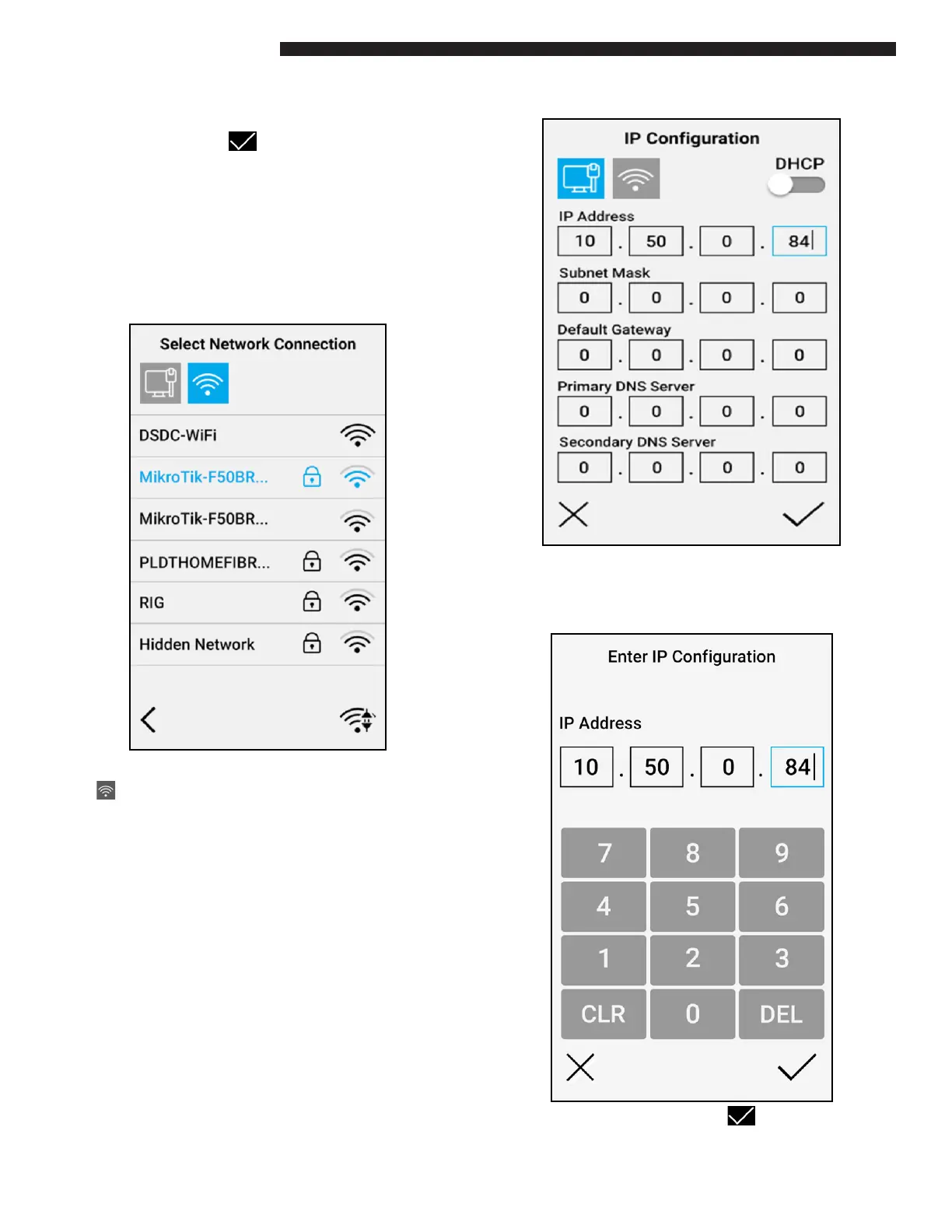
Once entered select “OK” on the on-screen keyboard
followed by the check button to attempt to join
the WiFi SSID.
If the WiFi password is incorrect the RFDU will not
join the WiFi network. If the WiFI password is correct
the RFDU will join the network and the RFDU will be
connected.
If the RFDU is currently connected to a WiFi network
the connected SSID will be displayed in blue.
To disconnect from the WiFi select the disconnect
icon ( ) in the lower left hand corner of the RFDU
or alternatively click on another WiFi SSID to join
a dierent WiFI network (WiFi password entry will
then be required).
The “DHCP” toggle is available for both ethernet
and WiFI connections. By default DHCP will be
selected. Instead of being assigned an IP address
automatically a static IP address will allow the
network settings (IP Address, Subnet Mask, Default
Gateway, Primary DNS Server, Secondary DNS
Server) to be manually congured and saved.
Selecting on any of the 5 Network Settings will load
an on-screen numeric keypad where the IP address
details can be entered manually.
Once entered select the check button to save
the newly entered settings.


 To Next Page