8 | 4.3 Connection Panel
DuraLabel.com | 800.788.5572
GETTING TO KNOW YOUR TORO
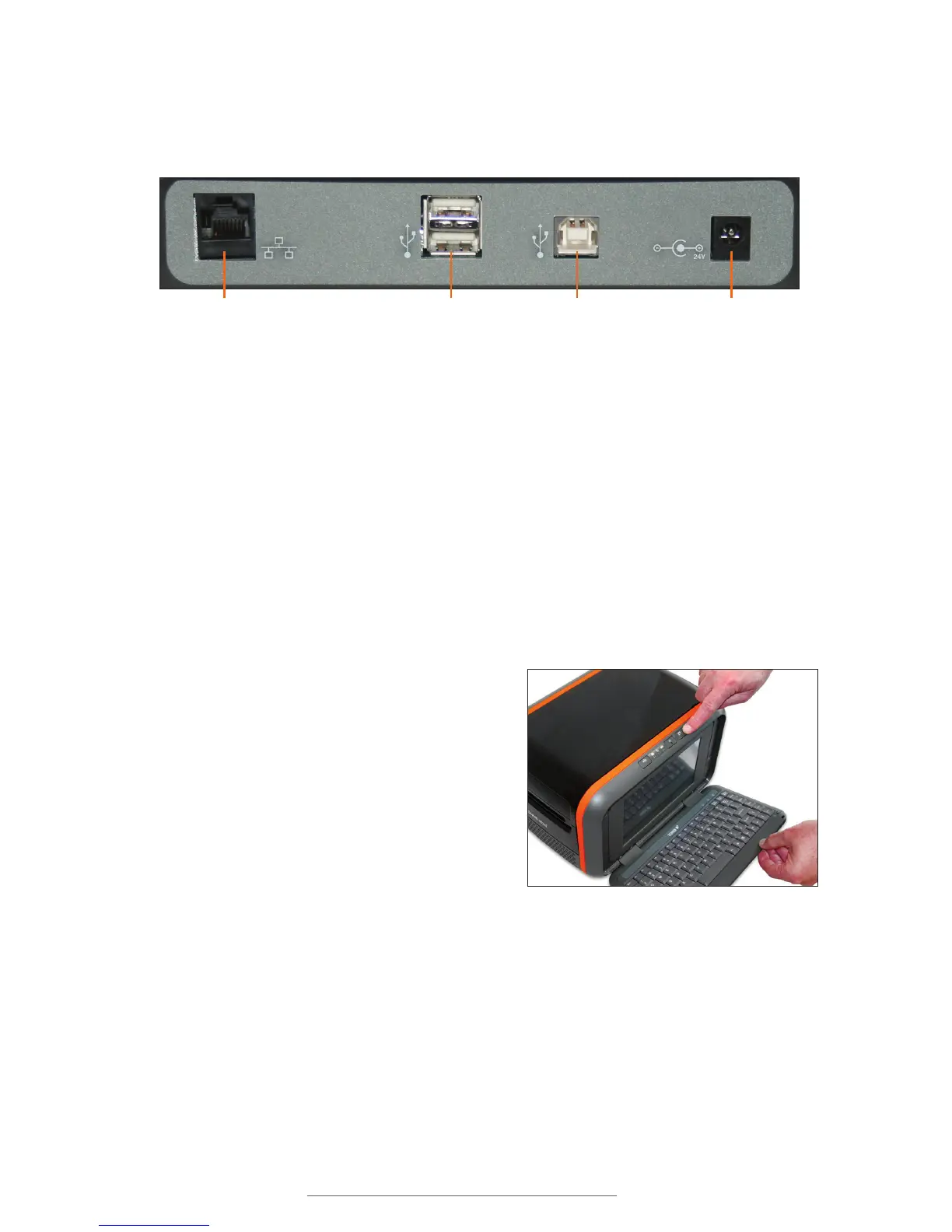
4.3 Connection Panel
Contains Toro’s power and data transfer ports.
Ethernet Port USB-A Ports USB-B Port 24-VDC Port
USB-A ports: Connect the mouse here, or plug in your USB flash drive to transfer files.
USB-B port: Use this port to connect Toro to a computer and use the system as a
normal desktop printer.
24-VDC port: Connect the Toro power supply here.
Ethernet Print Server Port (optional): If present, this port allows you to connect Toro to
a network as a shared printer.
4.4 Keyboard
4.4.1 KEYBOARD RELEASE
The Toro keyboard is permanently mounted
to the printer housing. Open the keyboard
by moving the release slider on the control
panel to the right, and pulling the keyboard
down until it rests on your work surface. When
finished with the system, you can raise the
keyboard back into its locked, upright position.
4.4.2 KEYBOARD POSITIONS AND TORO MODES
Your DuraLabel Toro has two different modes:
Standalone Mode: In this mode, Toro’s touchscreen and keyboard can be used to create
label designs.
Desktop Mode: In this mode, Toro will wait for print commands from a connected
computer.



 To Next Page