DuraLabel.com | 800.788.5572
4.5 Screen | 9
GETTING TO KNOW YOUR TORO
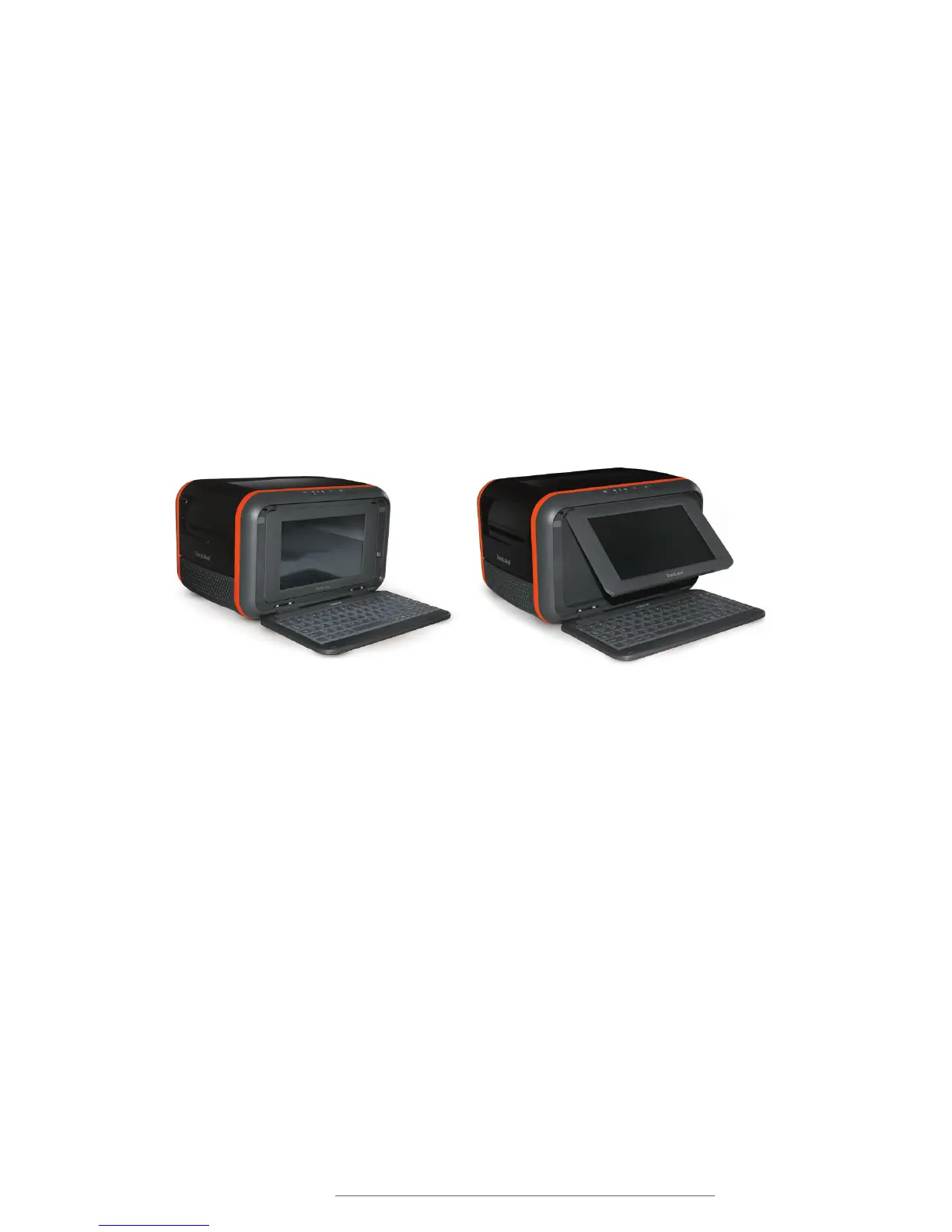
When the keyboard is open (showing Toro’s screen) the system is in its Standalone
mode. To use Desktop mode and design labels on your computer, close the keyboard
(hiding Toro’s screen). While in Desktop mode, Toro’s internal software will be
deactivated to save power. You can turn your Toro on or off while it is in either mode,
and you can switch it between the two modes whenever it is not busy.
4.5 Screen
Toro includes a 9" (diagonal) screen with touch capability. You can use a fingertip or the
Toro stylus (seated in the bottom-right edge of the keyboard) to design your labels.
To unlock the screen and adjust its angle, push the release button to the right of the
screen. Then, lift the screen to the desired angle. The screen features four tilt positions
to optimize viewing and touch accessibility. Each position is held firmly in place for finger
touch and pointer use.
In addition to the touchscreen, Toro includes a wireless optical mouse. Seated in the
base of the mouse is a small USB receiver; plug this small receiver into one of the
USB-A ports on the Connection Panel of your Toro. The mouse uses a single AA battery
and includes its own power switch; if the Toro does not respond when you use the
mouse, make sure that the USB receiver is still firmly connected, that the mouse power
switch is set to ON, and that the battery is still fresh.



 To Next Page