DuraLabel.com | 800.788.5572
4.2 Control Panel | 7
4. Getting to Know Your Toro
4.1 Operating System
Due to different licensing agreements, some Toro systems use Microsoft Windows XP
Embedded™ software, while others use Ubuntu Linux™ software. The functions of the
two system types are only slightly different, and are described in this User Guide.
To identify the operating system in use on your DuraLabel Toro, press the system
information icon
on your toolbar. In the lower right part of this window, you will see
the name of the operating system in place on your Toro. If your DuraLabel Toro uses
Ubuntu Linux the system also includes a list of preferred fonts, which can be found by
pressing the help icon
on the toolbar and then pressing the View button for Preferred
Fonts. This list shows which fonts we recommend for use, and similar fonts available on
Windows-based systems.
4.2 Control Panel
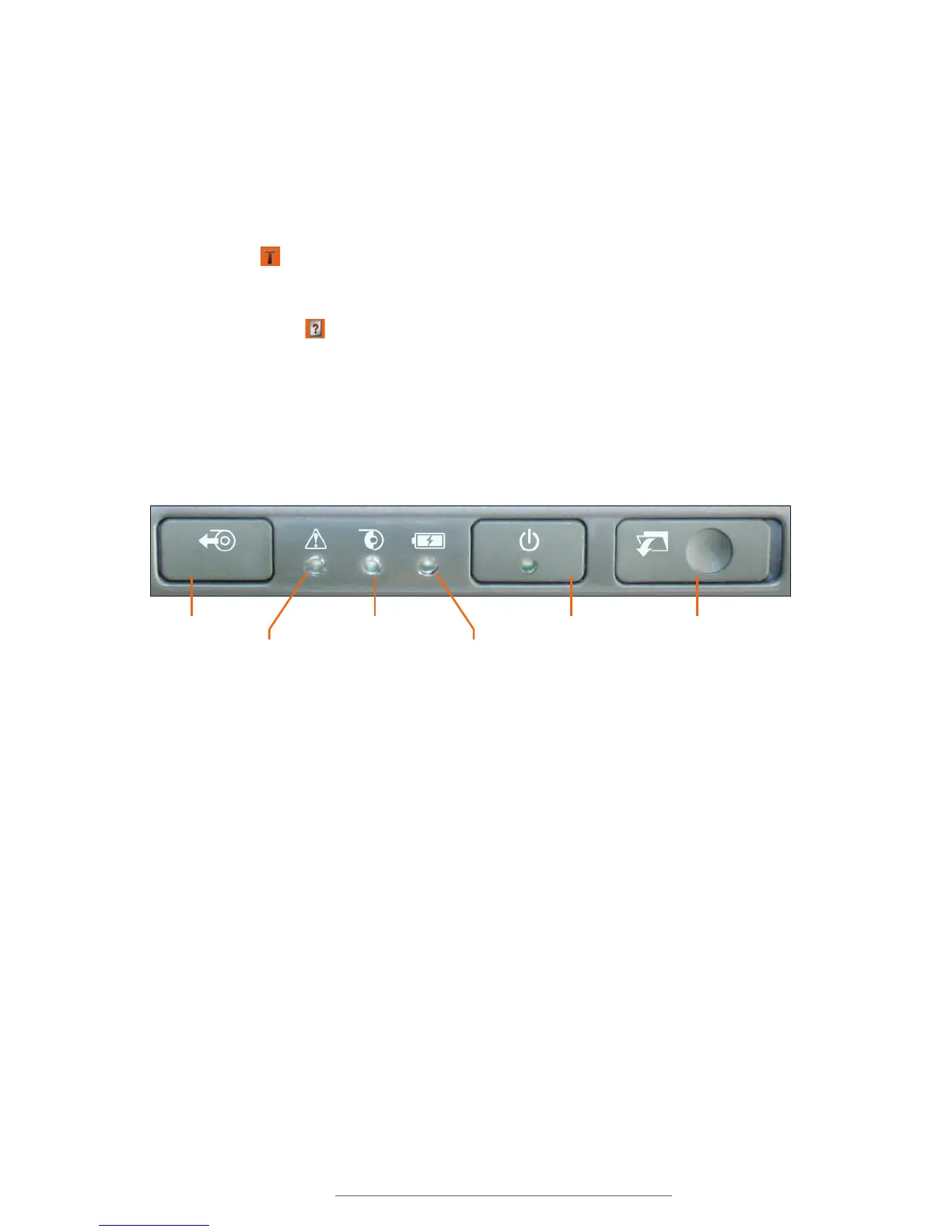
Toro’s control panel is centered at the top of the printer.
Supply Feed Power Button
Printer Status Light
Supply Status Light
Battery Status Light
Keyboard Release
Slider
Supply Feed Button: Press this button to pause or resume a print job. If there is no
current print job, you can hold this button to feed blank supply through the printer.
Printer Status Light: This light glows green to indicate normal operation, and changes
color or blinks to show errors. See the Troubleshooting section for help.
Supply Status Light: If this light is red, supply is low. A blinking red light indicates supply
has almost run out or no supply is loaded.
Battery Status Light: When this light is red, the battery is down to 10% of its charge.
Remaining battery power will last for only a short time. (The Toro battery is an optional
accessory, and is not required when using a standard power outlet.)
Power Button: Press this button to turn your Toro on or off. The indicator light will blink
while Toro is starting up, shutting down, or in sleep mode; it will glow green when Toro is
ready.
Keyboard Release Slider: Slide this to the right to release the keyboard from its locked,
upright position.



 To Next Page