14 | 7.1 Using the USB Drive
DuraLabel.com | 800.788.5572
7. Advanced Functions
7.1 Using the USB Drive
To copy files such as images or templates onto your Toro system, load the files onto a
USB flash drive or similar storage device, and connect it to an unused USB-A port on
your Toro.
7.1.1 WINDOWS SYSTEMS
A button labeled E: will appear on the Toro toolbar. Click this button to view the contents
of the USB drive. You can drag and drop files to the desired location using the folder
tree to the left of the window.
7.1.2 LINUX SYSTEMS
A new desktop icon will appear on the Toro desktop. Double click this icon to view
contents of the USB drive. Drag and drop files to the desired location using the file
browser or to the desktop.
NOTE: Any les that you want to keep on your Toro system should be saved to the
My Documents folder (on Windows systems) or the /home/dltoro folder (on Linux
systems). This is the default location for all user-created les, including saving new
or modied templates, images, and other documents. Files changed, deleted, moved
or modied in other parts of the Toro system will automatically revert to their original
state the next time Toro is powered on.
7.2 Touchscreen Calibration
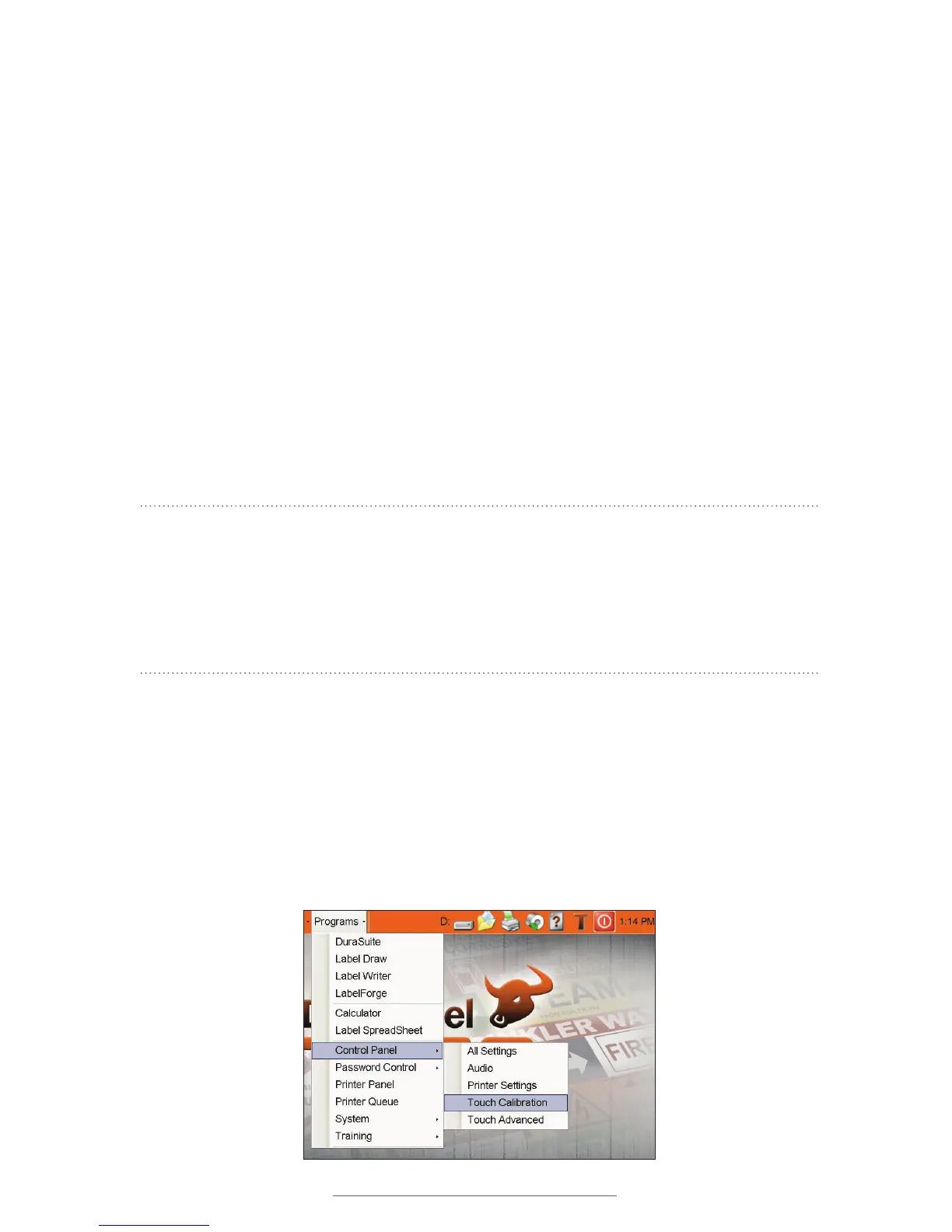
Your Toro touchscreen may need to be calibrated occasionally to improve touch
performance. To calibrate the Toro touchscreen, select Control Panel from the Programs
menu on the toolbar, then select Touch Calibration. Press the x that appears in a corner
of your screen. When you hear a beep and the x stops blinking, a new x will appear in
a different corner. When four x’s have been pressed, your screen will be calibrated for
optimum touch accuracy.



 To Next Page