DuraLabel.com | 800.788.5572
6.1 Toolbar | 13
TORO MAIN SCREEN
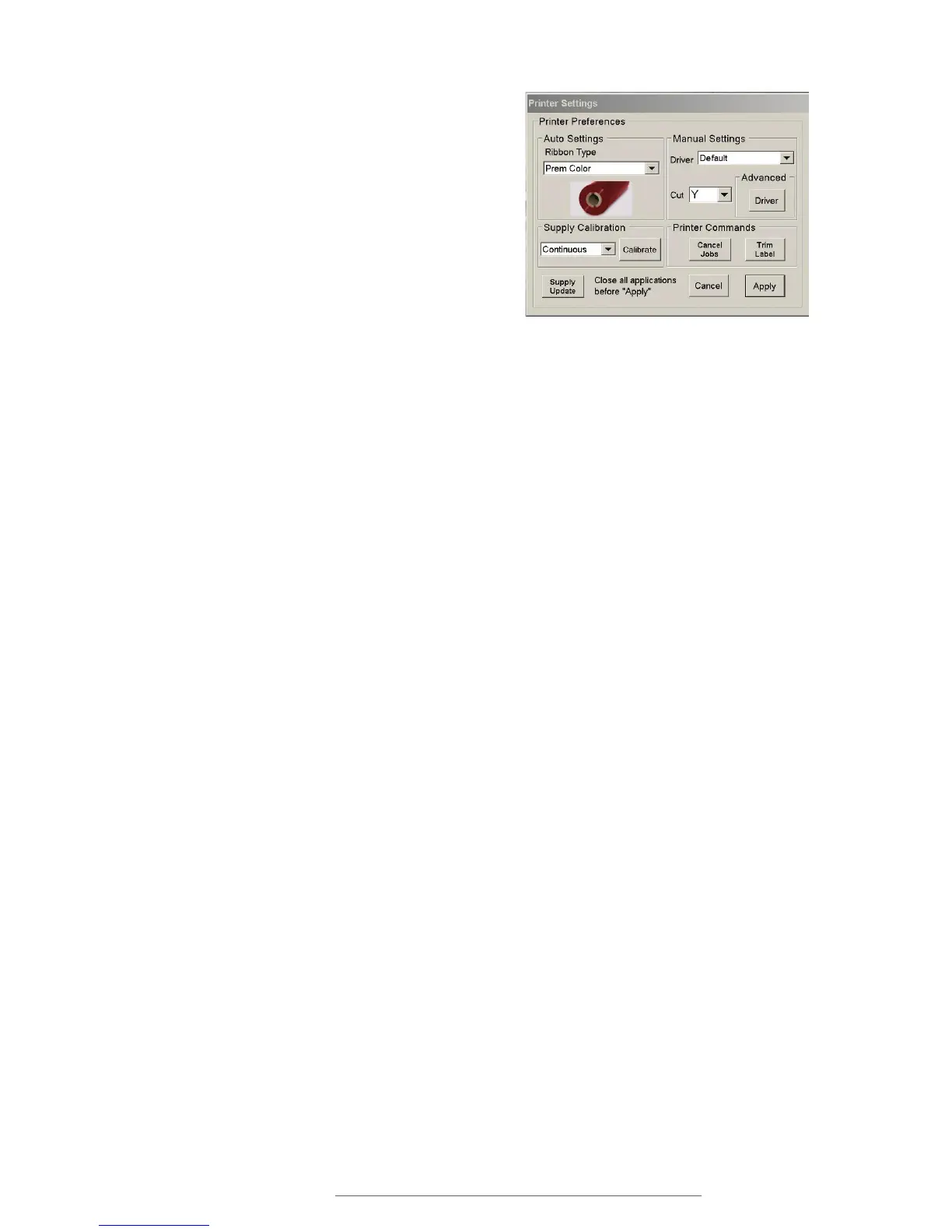
6. PRINTER SETTINGS: This button opens
the Printer Settings window, where you can
adjust common Toro system settings or
access more advanced ones.
If you change ribbon types, you will need to select
the current ribbon under “Ribbon Type” in this
window. Different ribbon types will have a color-
coded marking on the end of the ribbon core:
Black Core - premium black ribbon
Blue Core - petroleum-resistant ribbon
Red Core - extreme chemical-resistant ribbon
Green Core - custom ribbon
Orange Core - black shrink tube ribbon
Plain Core - white, red, green, orange, yellow, dark blue
If you change from one type of label stock to another, you may need to select the current
supply type in the “Supply Calibration” section.
Continuous: an uninterrupted, continuous roll of label stock (the most common
supply type)
Black Mark: a roll of partially pre-printed labels, with black marks on the backing to
distinguish one label from the next
Die-Cut: a roll of pre-cut labels, usually pre-printed with some elements, with small
gaps between labels
7. SUPPLY INFORMATION: This icon fills with green to show approximately how much
of your label stock is left. Clicking on the icon will open a window with more details
about the supply.
8. BATTERY STATUS: If Toro is using a battery, the approximate level of charge
remaining will be shown here.
9. HELP: This icon gives you access to training materials, including instructional
videos, manuals, how-to demonstrations and label examples.
10. SYSTEM INFORMATION: Click on this icon to view the contact information for
customer support, supply ordering, or product updates, as well as details on your
Toro system and its software.
11. POWER BUTTON: Use this button to power down your Toro system. The physical
button on the Control Panel will have the same effect.
12. DATE AND TIME: If the displayed time is incorrect, click on the time to open the
time settings window.
Printer Settings window



 To Next Page