12 | 6.1 Toolbar
DuraLabel.com | 800.788.5572
6. Toro Main Screen
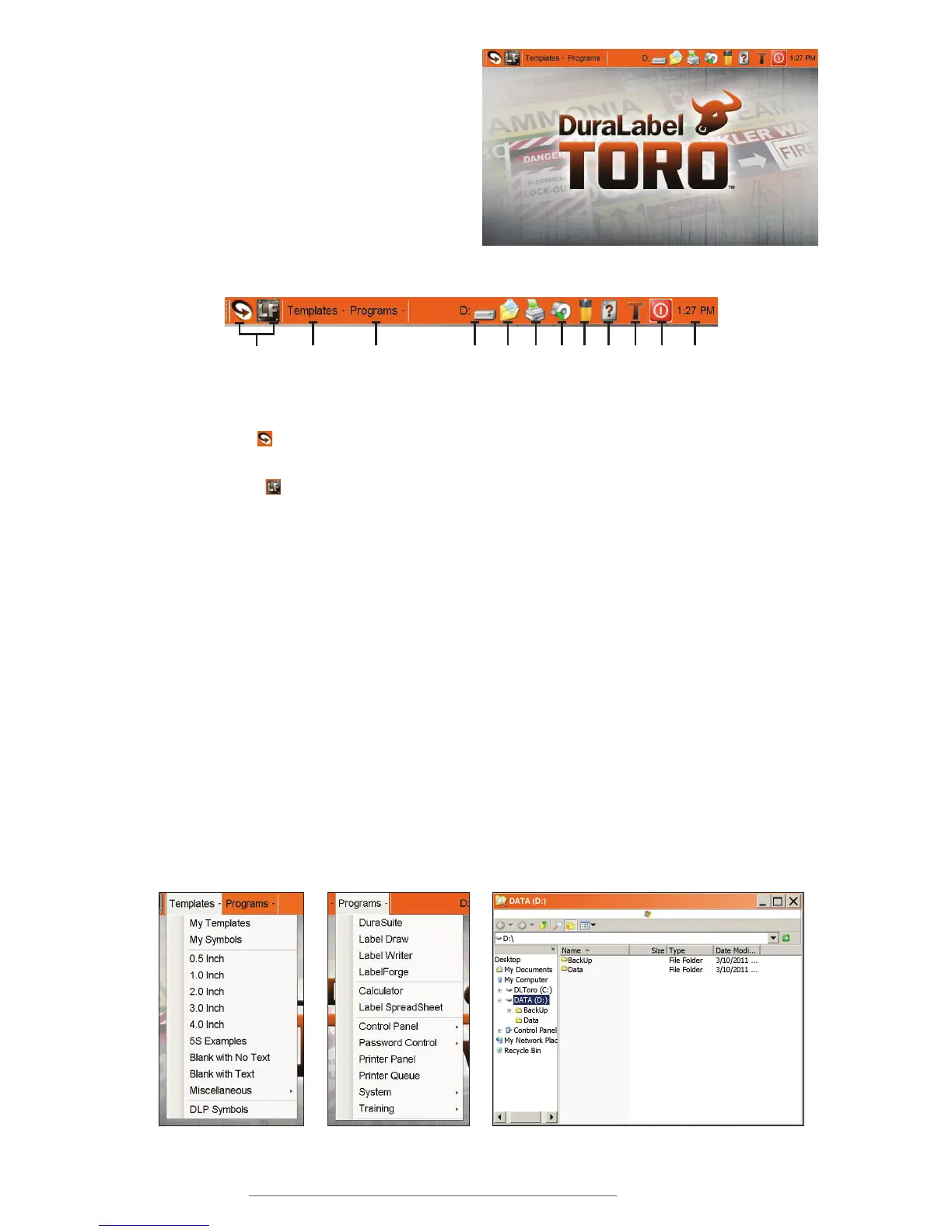
The Toro main screen appears when you
turn the system on. Most of the common
functions of your Toro can be reached
through the toolbar along the top of this
screen.
6.1 Toolbar
Toro main screen
Templates
drop-down menu
Programs
drop-down menu
Toro D drive window
1. SOFTWARE SHORTCUT ICONS: At the left side of the toolbar, you will see icons for
your label design software. For users in the United States, Toro comes loaded with
DuraSuite
for creating labels in a variety of standardized formats, such as GHS
labels, NFPA Diamond labels, Arc Flash labels, or Pipe Markers. Toro also includes
LabelForge
for creating completely customized label designs from scratch, using
a simple interface. Each of these programs is covered in more detail in its own User
Guide.
2. TEMPLATES: The Templates menu allows you to easily browse pre-made templates
that are provided with your Toro. The templates are organized into categories.
3. PROGRAMS: The Programs menu provides access to the different software and
system controls on your Toro.
4. D DRIVE: On a Windows system, this button allows you to browse the backup and
data folders on your Toro system. On a Linux system, this button will be replaced by
a “DATA” icon on the desktop.
5. MY DOCUMENTS: Use this to browse your commonly-used templates, label designs,
or images. Most of your created files will be saved here.
1 2 3 4 5 6 7 8 9 10 11 12



 To Next Page