14
Getting Started
Depending on user account and security settings, you may have to provide a user
name and password when logging into the web interface, or access it in secure mode.
If you upgraded your device from a previous firmware release, perform the following
steps prior to using the web interface:
1. Open an Internet Explorer window.
2. Delete the Internet cache:
a. Go to the Tools menu and select Internet Options.
b. In the Temporary Internet files box of the General tab, click Delete Files.
c. In the Delete Files window, check Delete all offline content, then click OK.
3. In the
Downloaded Program Files folder on your computer (under either C:\Windows
or
C:\WINNT), delete the SnPlayer Control file.
4. In your Internet Explorer window, enter the IP address of your camera. If
prompted when accessing the live video data, choose to install the
SnPlayer
Control ActiveX
file (the file may install on its own).
Note: You may need to change the security preferences in your web browser to be able to install the
ActiveX component. If the component is not installed, you will not be able to view video.
To use the web interface:
1. Start your Internet web browser.
2. In the Address box, enter the IP address of your 9540 camera.
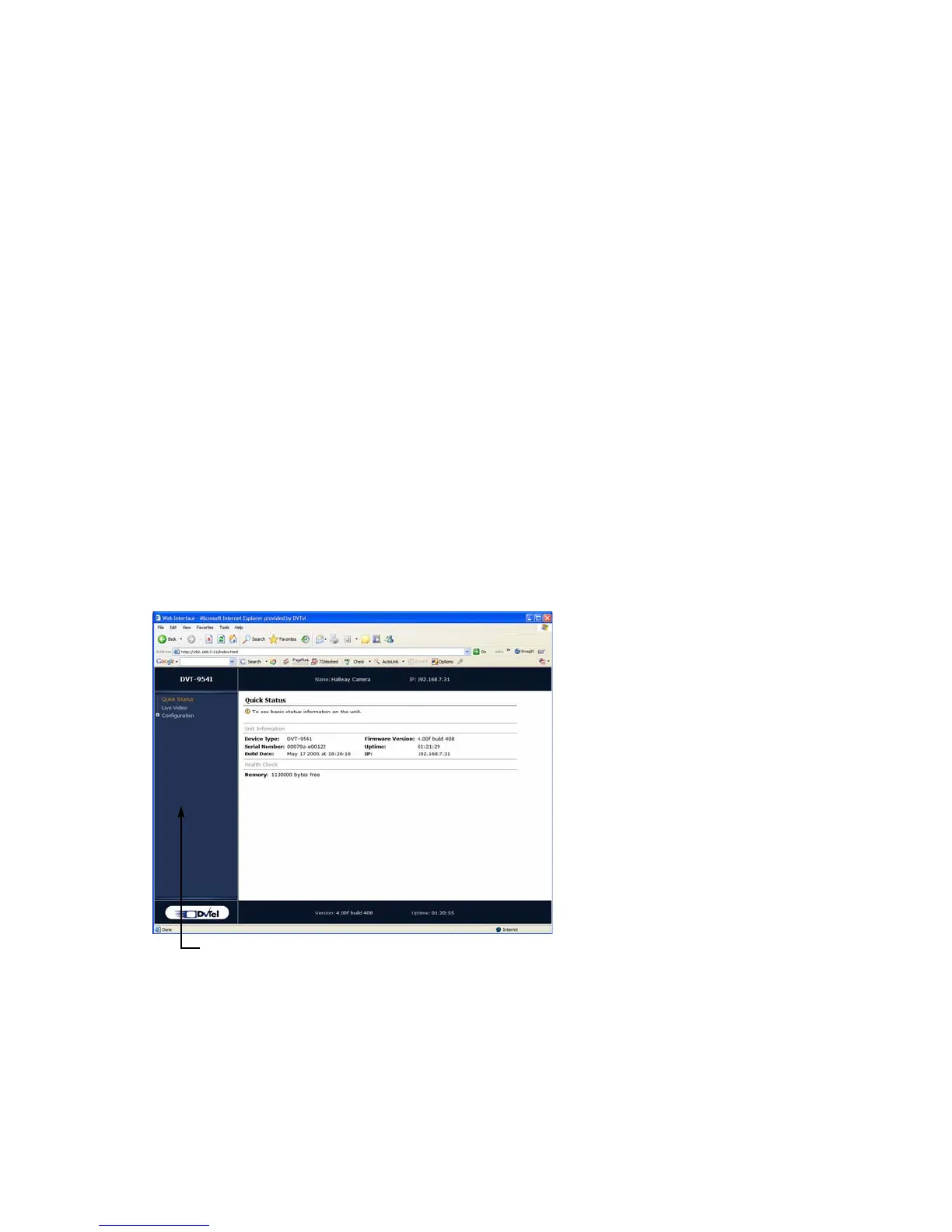
The left pane of the web interface contains links to three sections:
Quick Status—Presents basic information on the unit
Live Video—Shows the video stream from the camera connected to the 9540 IP
Camera encoder.
Configuration—Displays the system parameters that can be changed to configure
the unit.
Navigation pane



 To Next Page