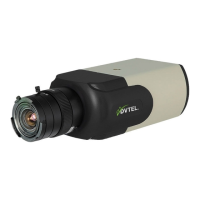
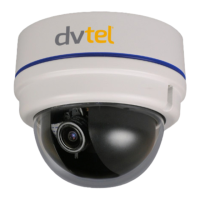
iv
Who Should Read this Manual
This manual is intended for managers, IT system administrators, engineers, and
technicians who will administer the 9540 cameras. It provides conceptual information
on how to configure, install, and operate the units.
This manual assumes that you are familiar with:
Installation and manipulation of electronic equipment
General use of computers
Microsoft Windows operating systems
Local area networks (LANs) and basic IP data communication concepts and
practices
How to Use this Manual
This manual contains all the information needed to install, configure, and use a 9540
IP Camera unit.
Contents
The 9540 IP Camera User Manual is divided into the following chapters:
1. Overview—Provides a brief description of the features of the 9540 IP Camera
camera and illustrations of its casing.
2. Configuring and Installing the IP Camera—Presents the configuration and
installation procedures for the 9540 IP Camera camera.
3. Using the Web Interface—Explains how to use the web interface to configure
the camera and view live video.
The manual also includes the following appendixes:
A. Factory Default Configuration—Lists the default parameter values of the 9540 IP
Camera camera.
B. DHCP Support and APIPA Service—Explains how the DHCP server and the Microsoft
APIPA addressing scheme work.
C. CLI Access—Explains how to access the command line interface (CLI) of the camera.
D. RJ-45 Ethernet Cables—Presents the pinout of the straight-through Ethernet cable.
E. Technical Specifications—Lists the complete technical specifications of the 9540 IP
Camera.
A glossary, an index, and compliance information complete the manual.
Conventions
The following typographic conventions are used throughout this manual:
Visual cue Meaning
Connect The name of an interface element you have to act on. A
key to press. The value of an interface element.
connection_name Text that must be replaced by a user-supplied value.
Text representing variable content.
9540 IP
Camera.vf
The name of a command, file, or directory. Text that
appears on the screen. Examples of user-supplied
values.



 To Next Page