DynaVox Technologies
42
descriptions. Think about the selection method you will be using. The next window will ask you to choose
the page set you would like to use. To select a page set, choose from the options featured in the Page Set
pull-down menu. Select the Page Set pull-down menu to see all the menu’s options. When you select one
option, the menu will close and display only the option you selected. Try selecting the Show Me button to
see a sample page from the page set you have selected.
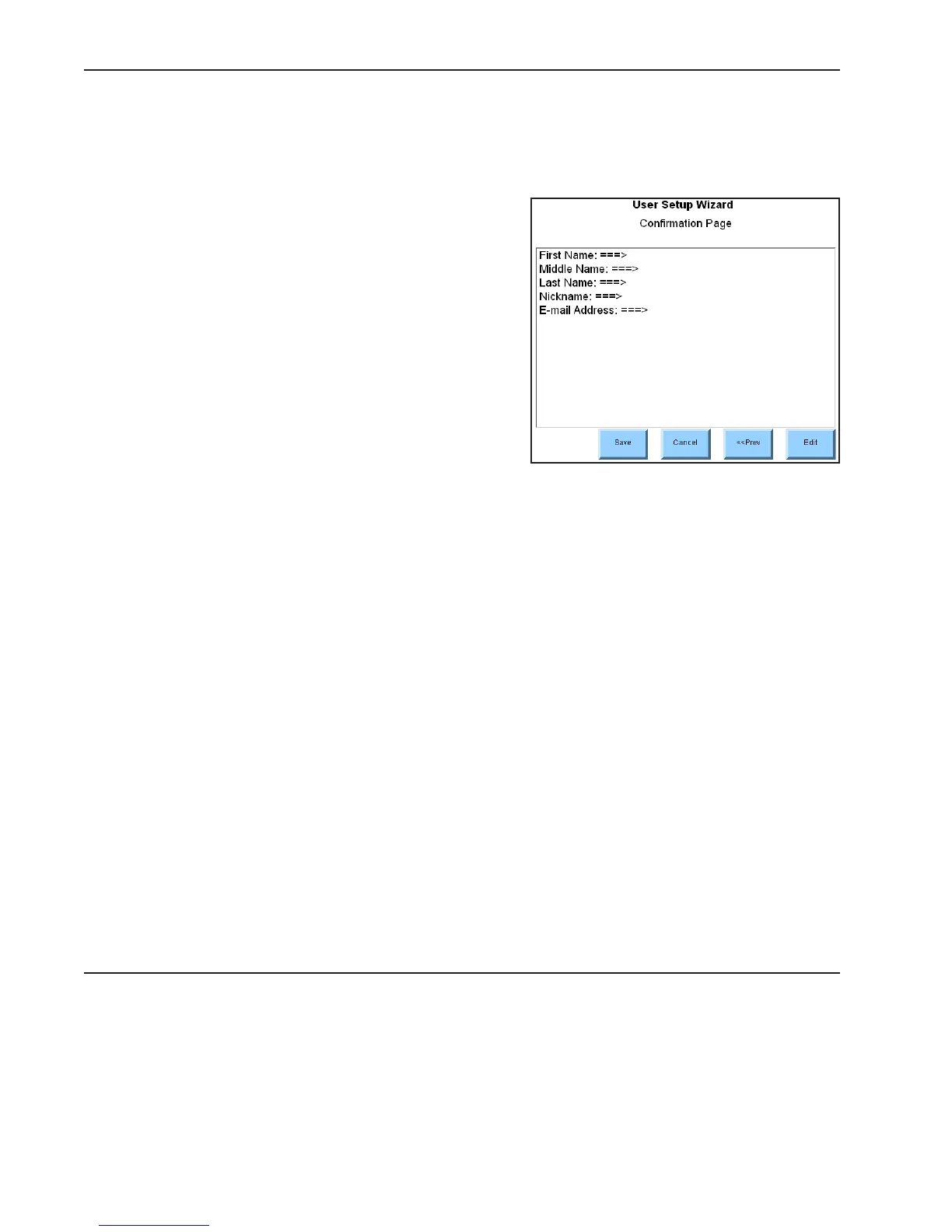
Once you have added your information to the User Setup
Wizard, select the Finish button. You will be presented
with a confirmation page that lists all of your setup data.
You may opt to select the Edit button and make changes.
Selecting the Save button will preserve your data, close
the User Setup Wizard and open the page set you just
selected. Once these steps are completed, the DynaVox
Series 4 software will use the personal information stored
in the User Setup Wizard to automatically customize any
page with active labels for user information.



 To Next Page