Quick Start: Introducing DynaVox Series 4
Part # 400023
91
Appendix C: How To Help
Portions of the DynaVox Series 4 Searchable Help content are also available in the How To help feature on
your DV4/MT4 device. This on-system help feature offers step-by-step information that answers the
programming questions that our Technical Support representatives are asked most frequently.
To access How To help, follow these steps:
1. Select the pull-down menu button in the title bar at the top of the touch screen.
2. Select How To in the main pull-down menu.
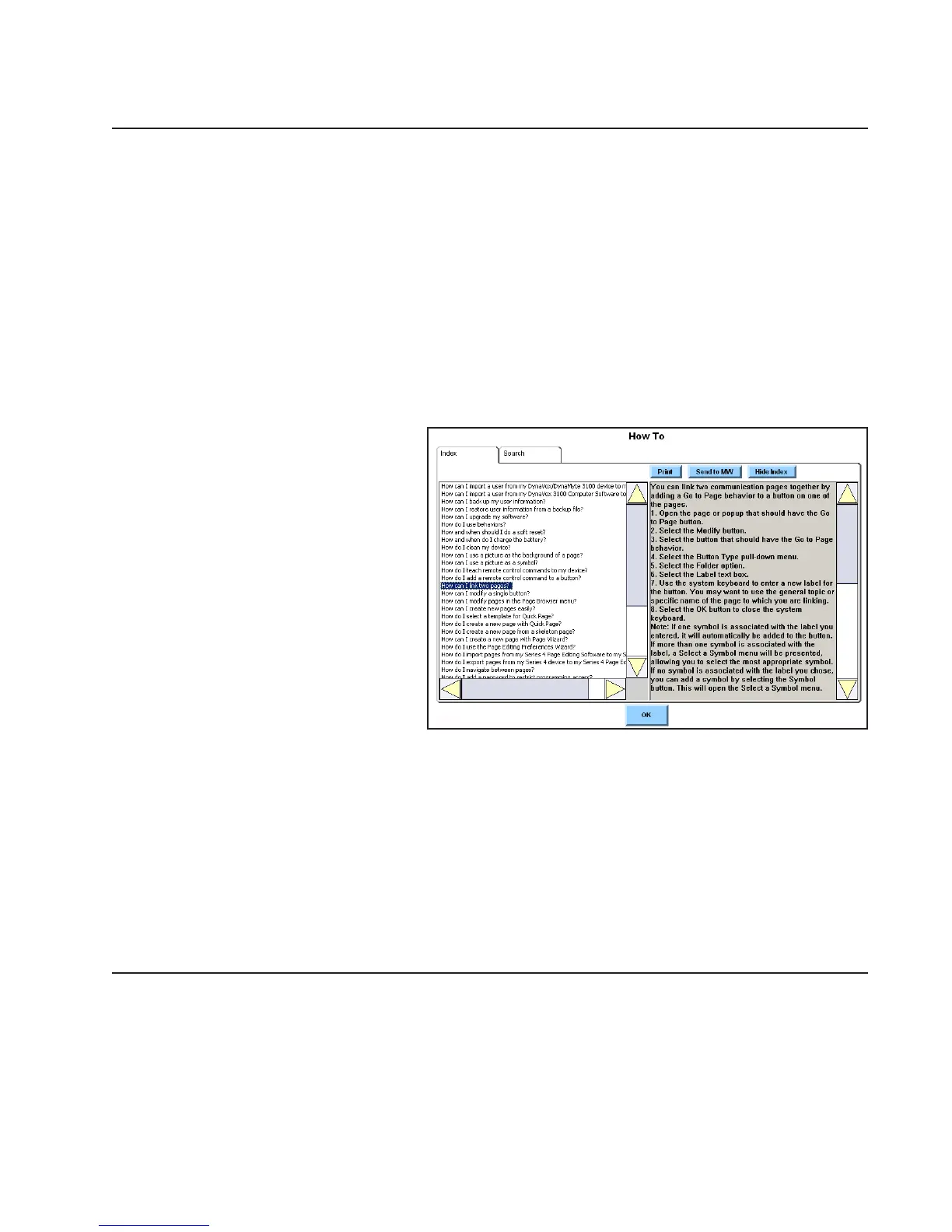
Once the How To help feature is open, you can access information on two ways:
● You can select the Index
tab and then choose a topic
from the list that is
displayed in the left
viewport. When a topic is
selected, the right viewport
will display the related
information.
● You can look for a specific
topic by selecting the
Search tab. When the
Search tab pane is
displayed, select the Search
text box and then use the
system keyboard to enter a
search topic. After you
select the OK button to
close the system keyboard, select the Search button and any related topics will be presented
in the left viewport. When you select one of the topics, the right viewport will display the
related information.
Note: If you prefer to see the topic information displayed in a larger viewport, select the Hide Index
button after you choose a topic. When this button is selected, the right viewport will expand
to fill the whole width of the How To window. Select the Show Index button to return the
viewport to its normal size.



 To Next Page