DynaVox Technologies
90
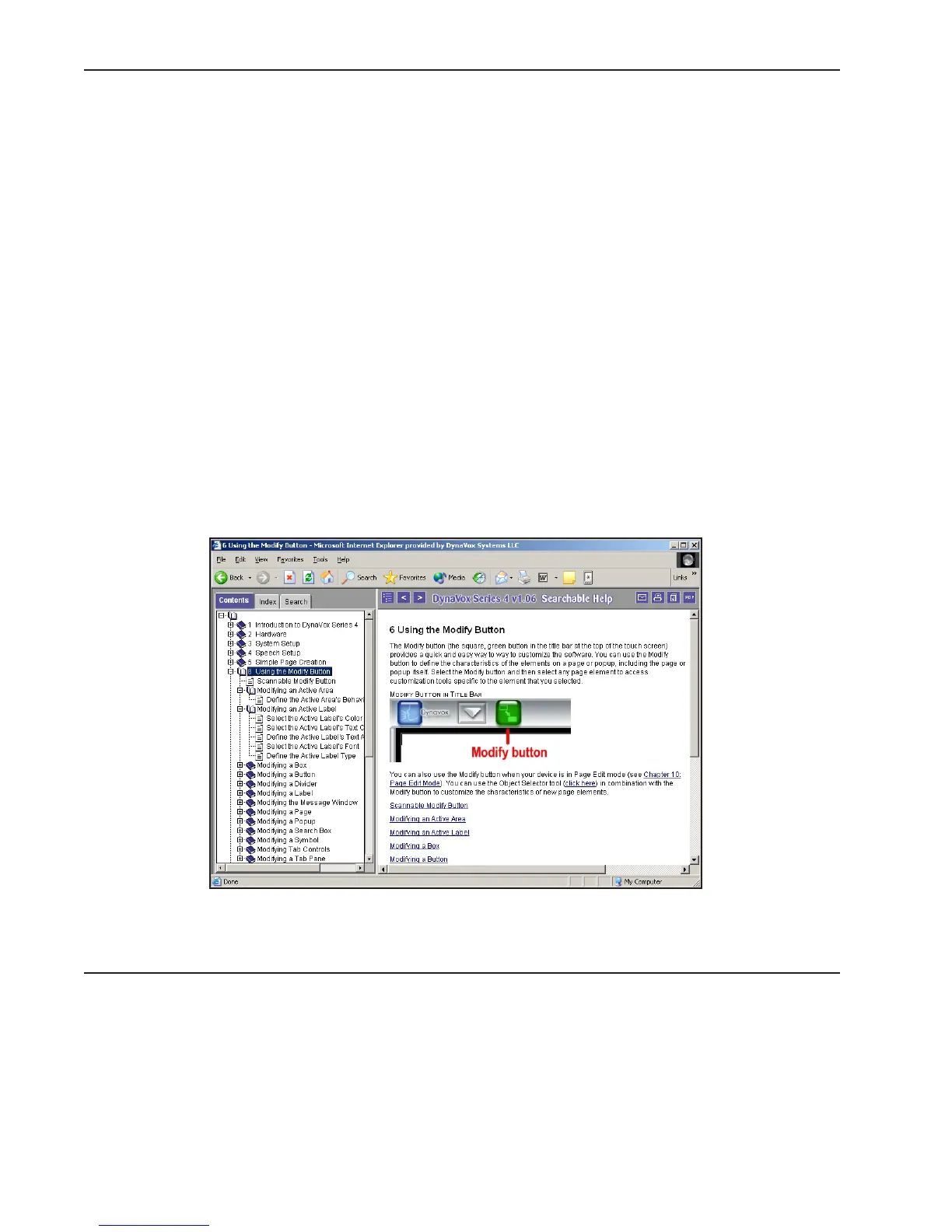
closed book icon to open it and see the sub-topics it contains. The page icons within a book
represent the individual help topics. You can use the book icons to view (or hide) the sub-
topics in any section, enabling you to search for topics of interest.
● You can also select the Index tab to view an electronic index in the left viewport. If you
double-click on a topic in the index, information about that topic will be displayed in the
right viewport.
● You can also search for information on a specific topic. To do this, select the Search tab in the
left viewport. Then simply enter a word or phrase in the text box and select the Go! button.
The left viewport will display all the entries that contain the word or phrase you entered.
When you select one of the items in the list, information about that item will be displayed in
the right viewport.
No matter what method you use to find information in the Searchable Help, you will notice that the text
includes links (blue underlined words) that enable you to jump to related topics. These links are provided
at the top of each topic, as well as throughout the text of the topic. Many topics have a series of links at
the bottom, to provide easy access to relevant sub-topics.
If you would like to learn more about the tools for navigating the Searchable Help, please refer to the
Using_Help.pdf file on the CD that includes the DynaVox Series 4 Searchable Help. For information about
viewing some Searchable Help topics on your DV4/MT4 device, please refer to Appendix C: How To Help.
Searchable Help, cross-platform version



 To Next Page