DynaVox Technologies
50
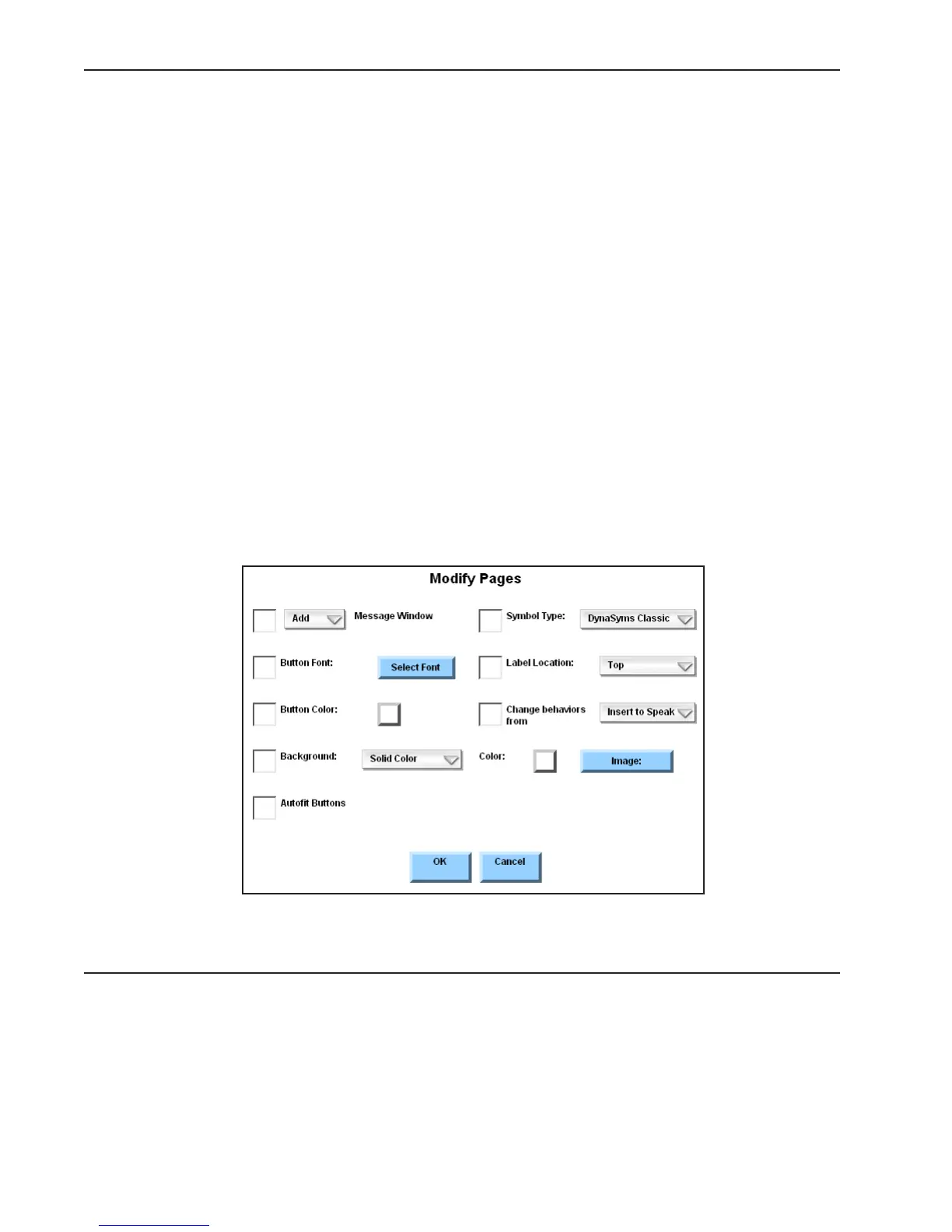
The Modify Pages Menu
The DynaVox Series 4 software also offers a Modify Pages menu that allows you to make changes to the
features (but not the content) of several pages at one time. This menu can be accessed through the Page
Browser menu with the following steps:
1. Select the pull-down menu button in the title bar at the top of the touch screen.
2. Select Setup in the main pull-down menu.
3. Select Tools Menu in the second pull-down menu. The Tools menu will open.
4. Select the Page Browser button. The Page Browser menu will open.
5. In the left viewport, select the page set folder that includes the pages you want to modify.
6. In the right viewport, select the check box beside every page you want to modify.
Note: The Modify Pages menu cannot be used to modify the page that is currently open. If
you want to make changes to the communication page that you are currently using,
you must use the Page Navigator to open a new page before you can begin to select
pages for the Modify Pages menu.
7. Select the Modify Pages button. The Modify Pages menu will open.



 To Next Page